Tutorial Kesiswaan
Description
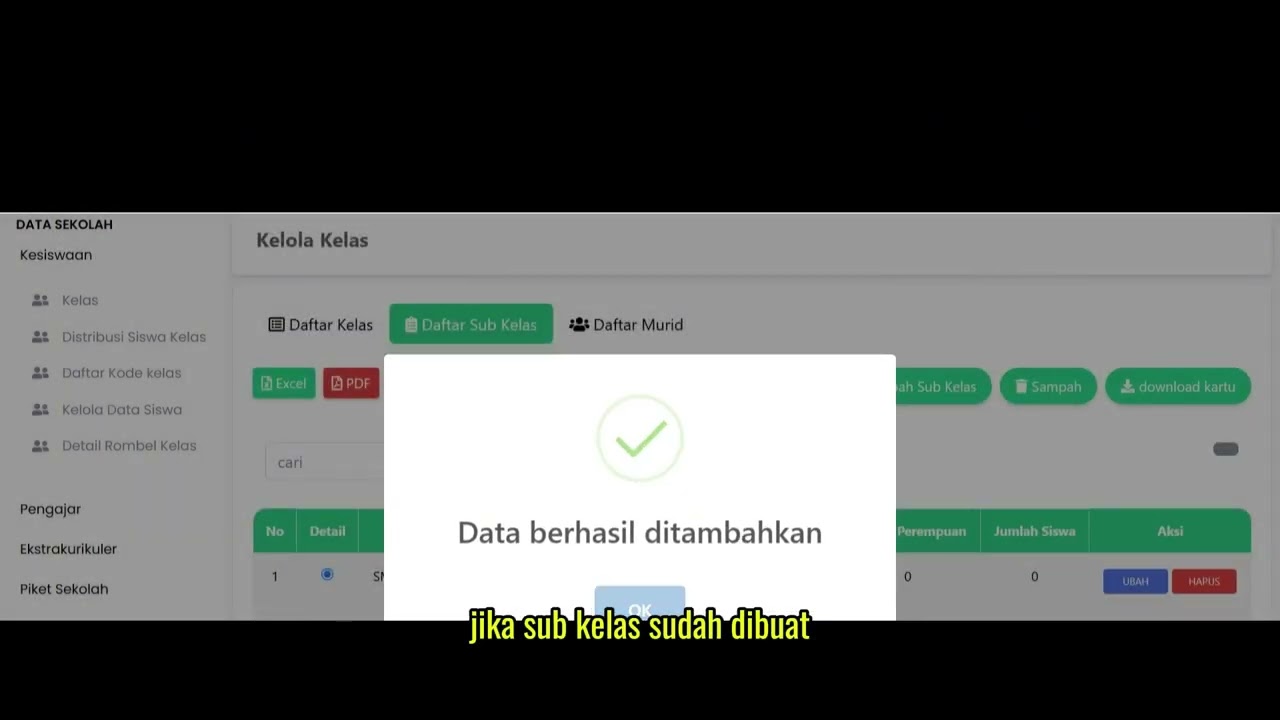
This tutorial video provides a comprehensive guide on class management through the Student Affairs menu. It covers how to create main classes, add subclasses, and input new student data. Users are given the option to input data manually (including uploading profile photos) or in bulk using the Excel import feature.
Step-by-Step Usage Guide
-
Creating a New Class: Open the Student Affairs (Kesiswaan) feature, then click the Class (Kelas) menu. Click the Add Class (Tambah Kelas) button, fill in the provided fields, and click Submit.
-
Adding a Subclass: First, select the class to which you want to add a subclass. Then, open the Subclass List (Daftar Subkelas) tab, click the Add Subclass (Tambah Subkelas) button, complete the data fields, and click Save (Simpan).
-
Selecting a Class for Students: Before adding student data, ensure you check the box in the detail column of the class where you want the students to be added.
-
Adding Student Data: Switch to the Student List (Daftar Murid) tab. You can click the Add Student (Tambah Murid) button for manual, one-by-one input, or click the Import Excel button for bulk data entry.
-
Filling the Manual Form: If choosing manual input, complete all student and parent data fields. You can also attach the student's profile photo by clicking the Browse file (Telusuri file) button.
-
Saving Data: Once all data is completely and correctly filled out, click the Save (Simpan) button located at the bottom of the form.
Important Notes If you choose the Import Excel option to enter bulk student data, you do not need to create your own table format. The system already provides a standardized Excel template, so you only need to populate the template file with your data.
School Data
16 videos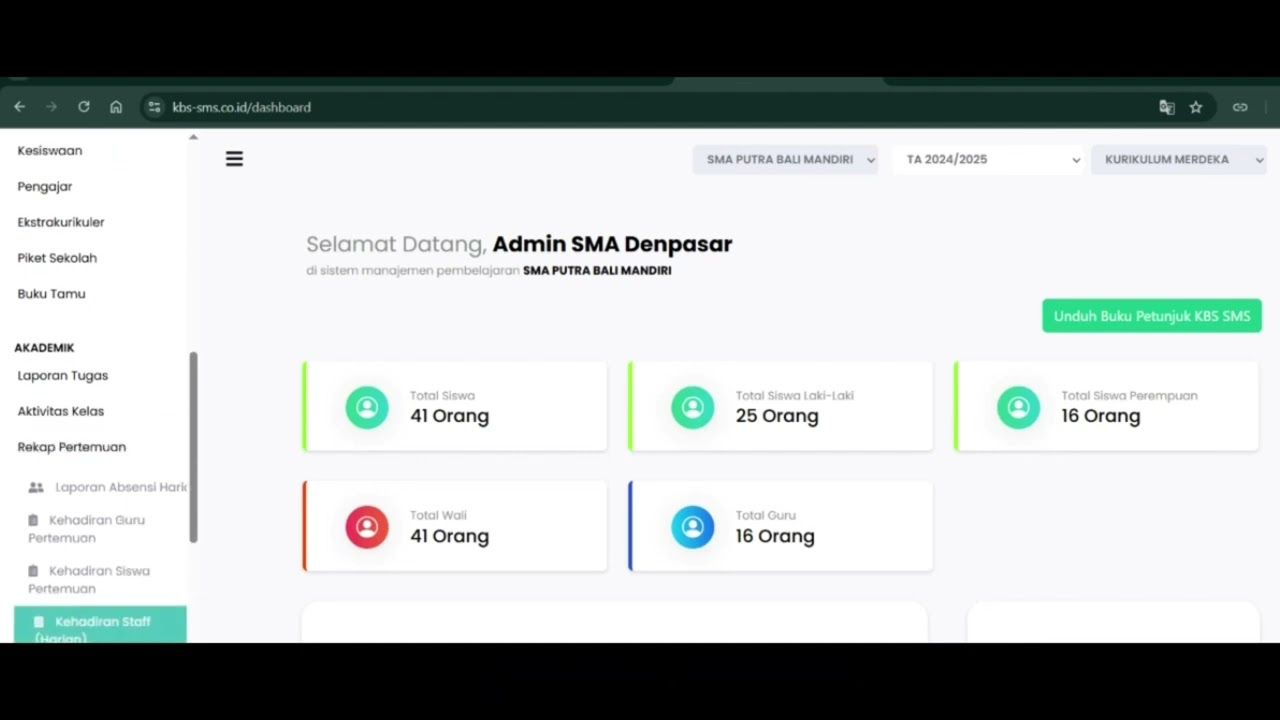 0:42
0:42
Daily Staff Attendance
92 views
 0:44
0:44
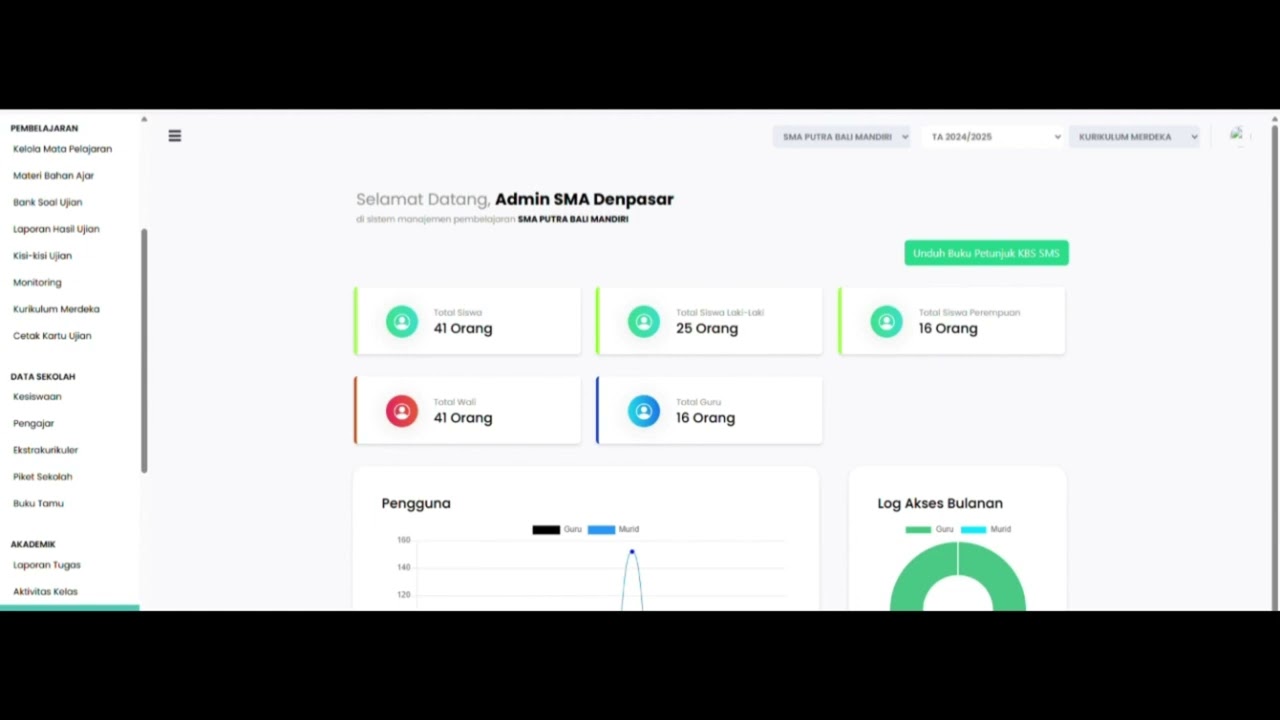
Teacher Attendance at Meetings
85 views
 0:43
0:43
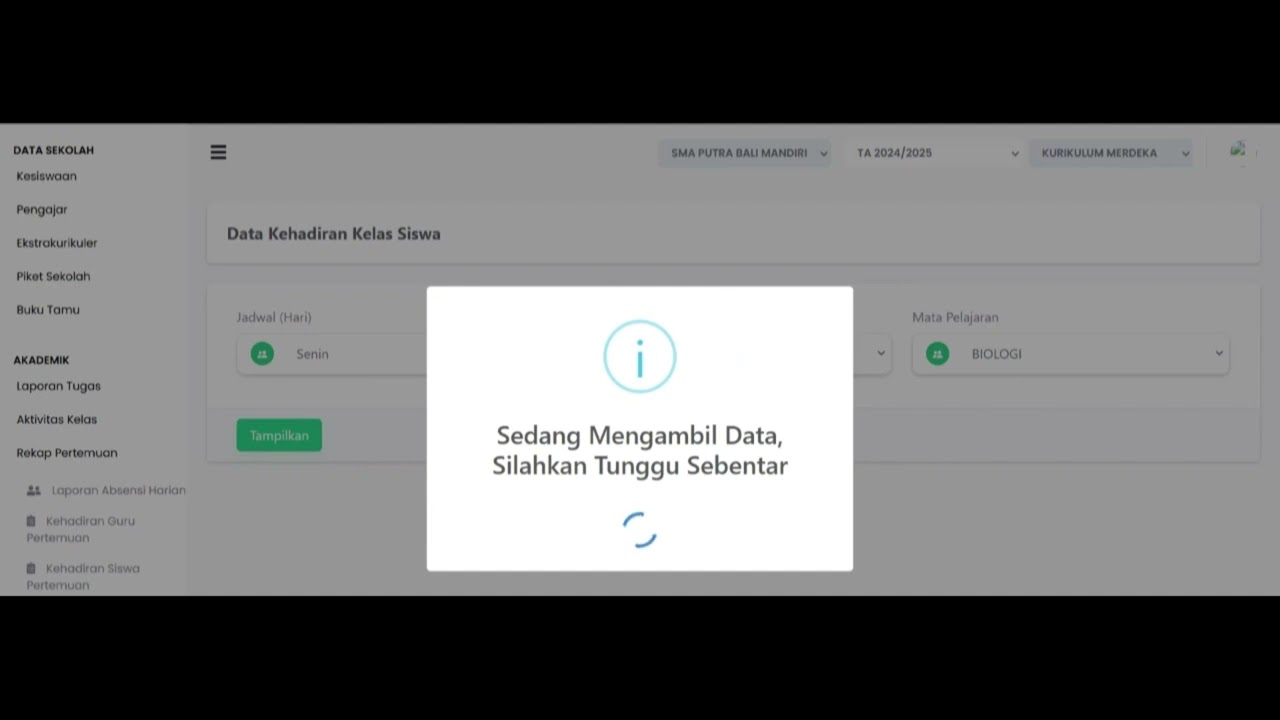
student attendance at meetings
81 views
 1:01
1:01
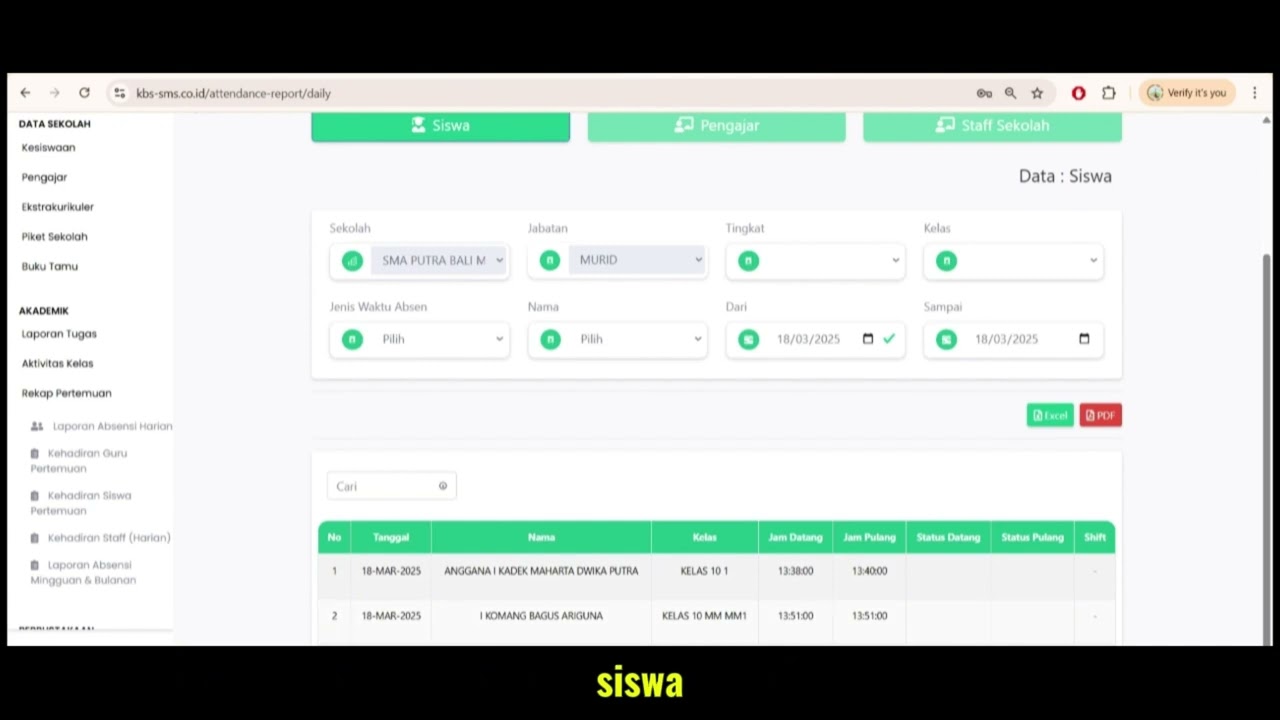
Daily Attendance Report
94 views
 2:11
2:11
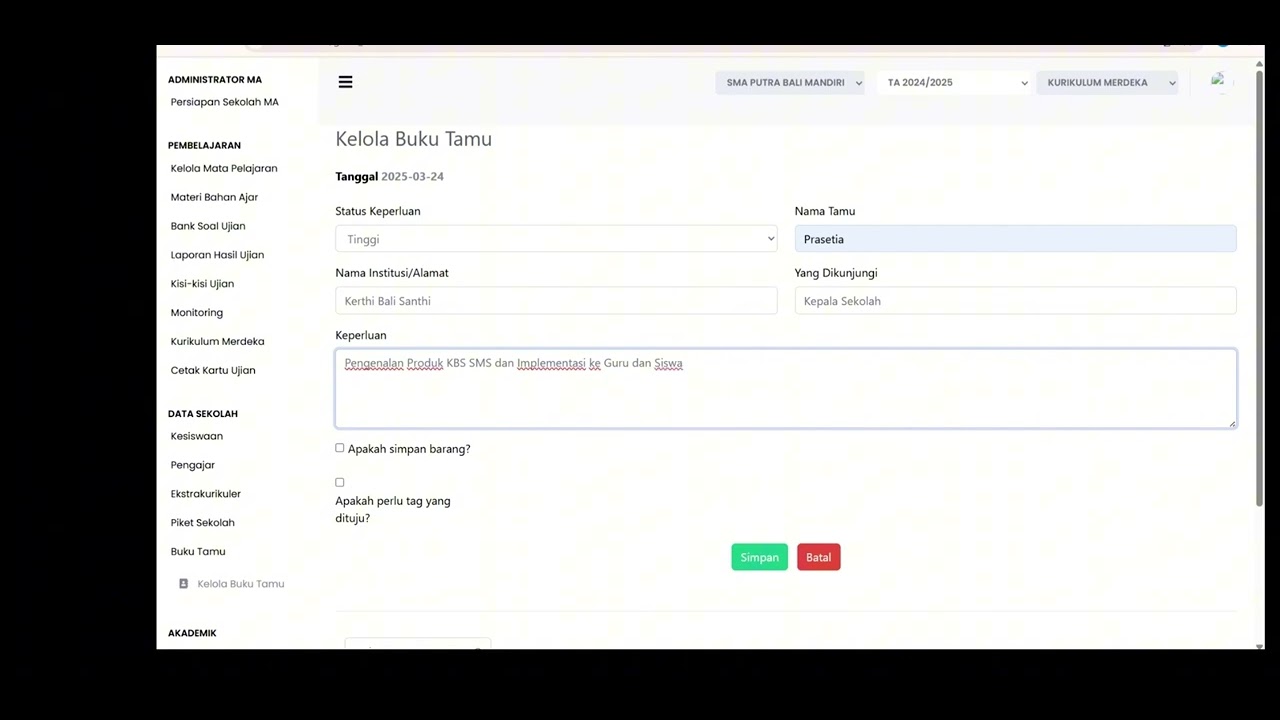
Guest Book Features
92 views
 3:16
3:16
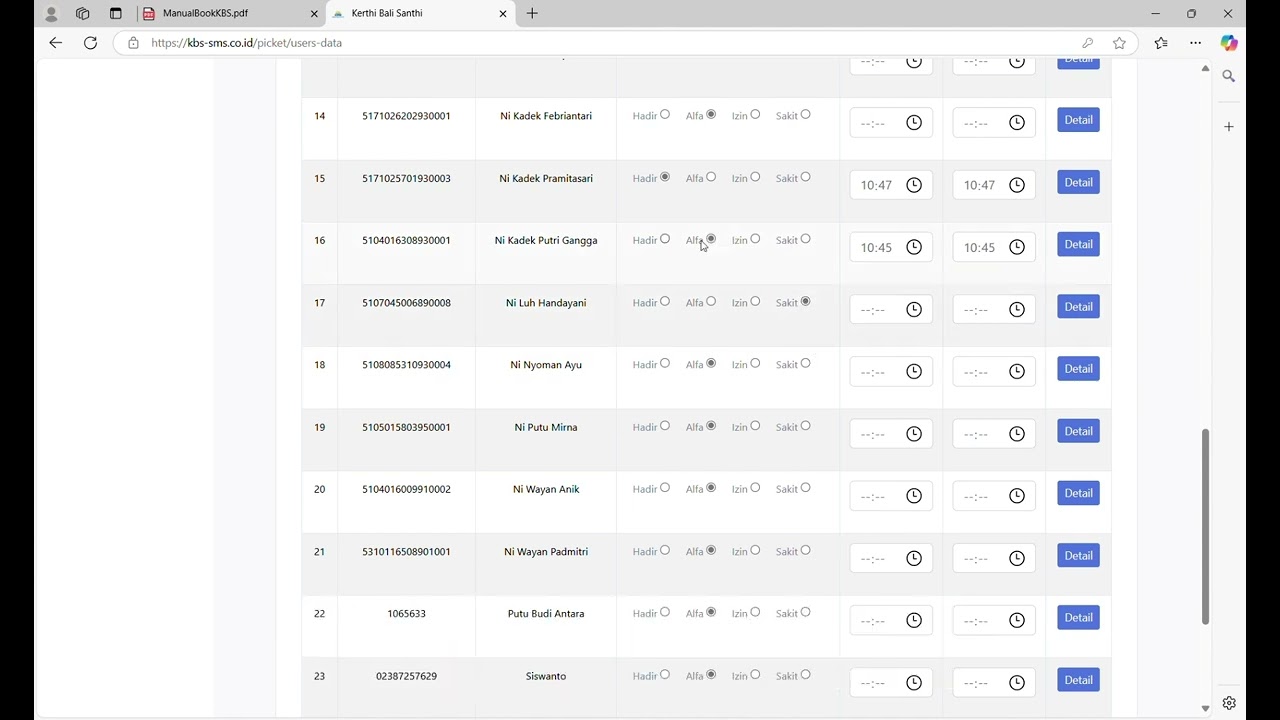
School Duty
87 views
 1:15
1:15
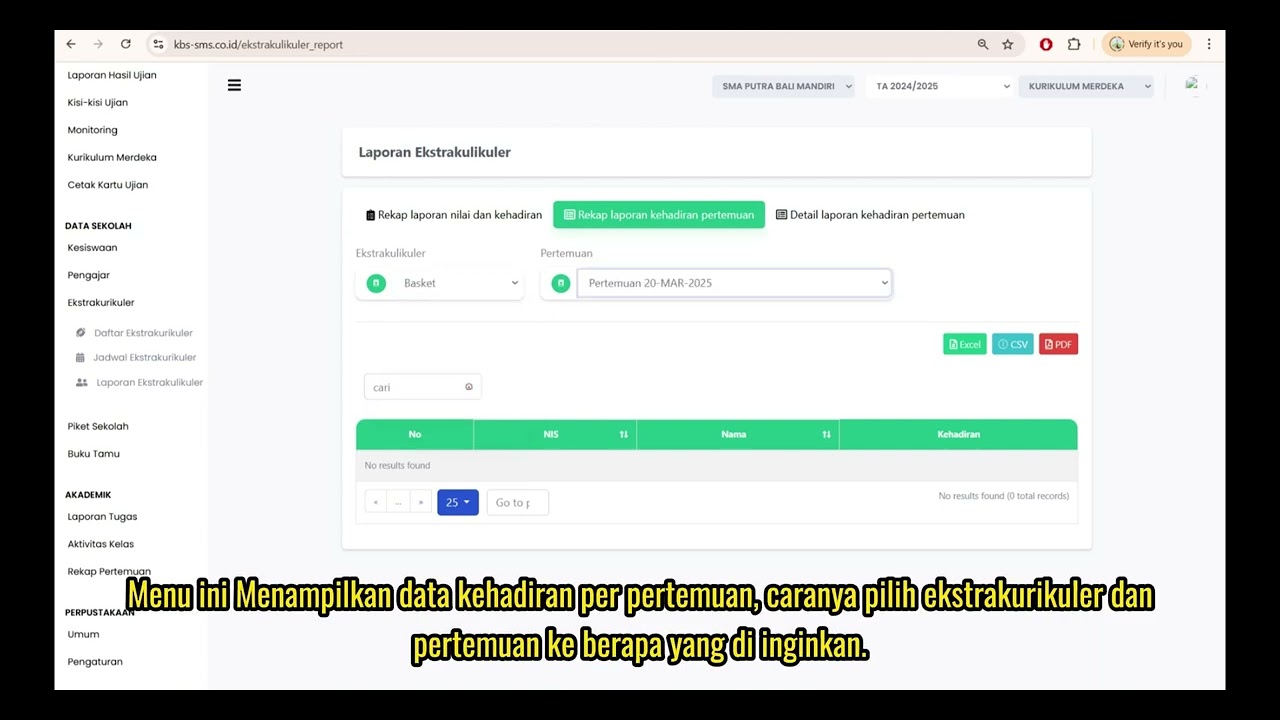
Extracurricular Report
87 views
 4:32
4:32
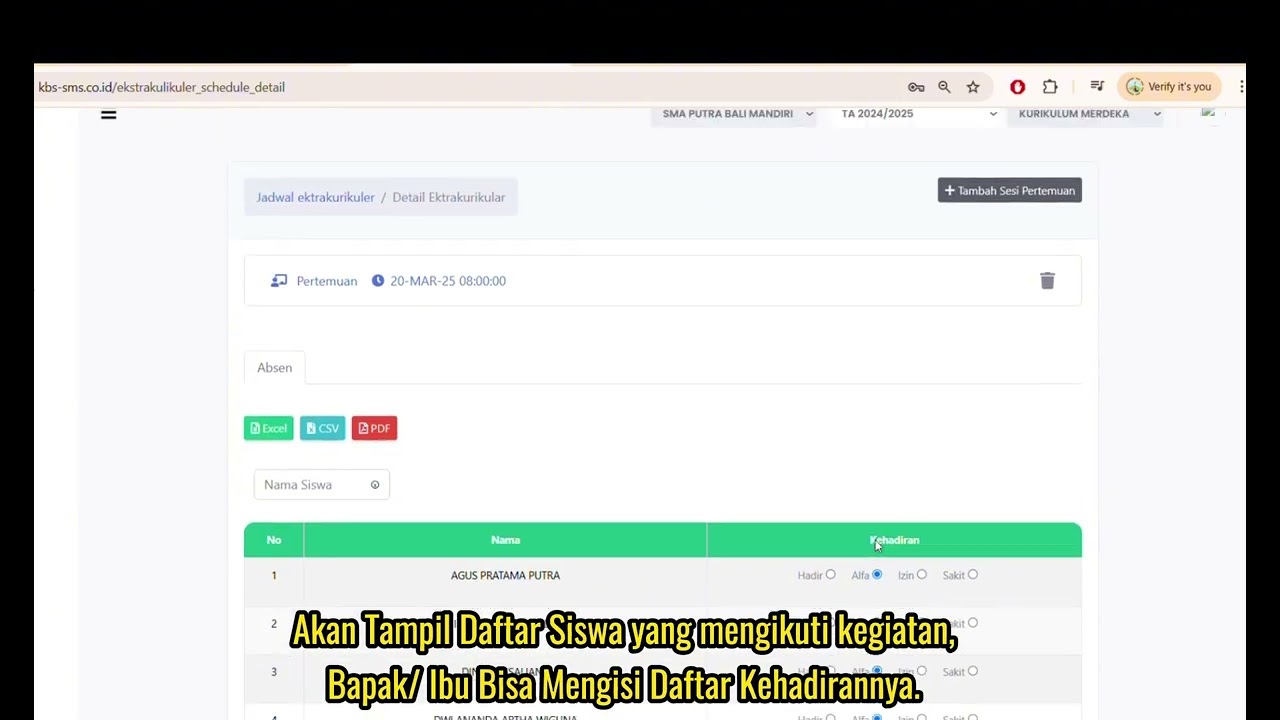
Jadwal Ekstrakulikuler
74 views
 7:32
7:32
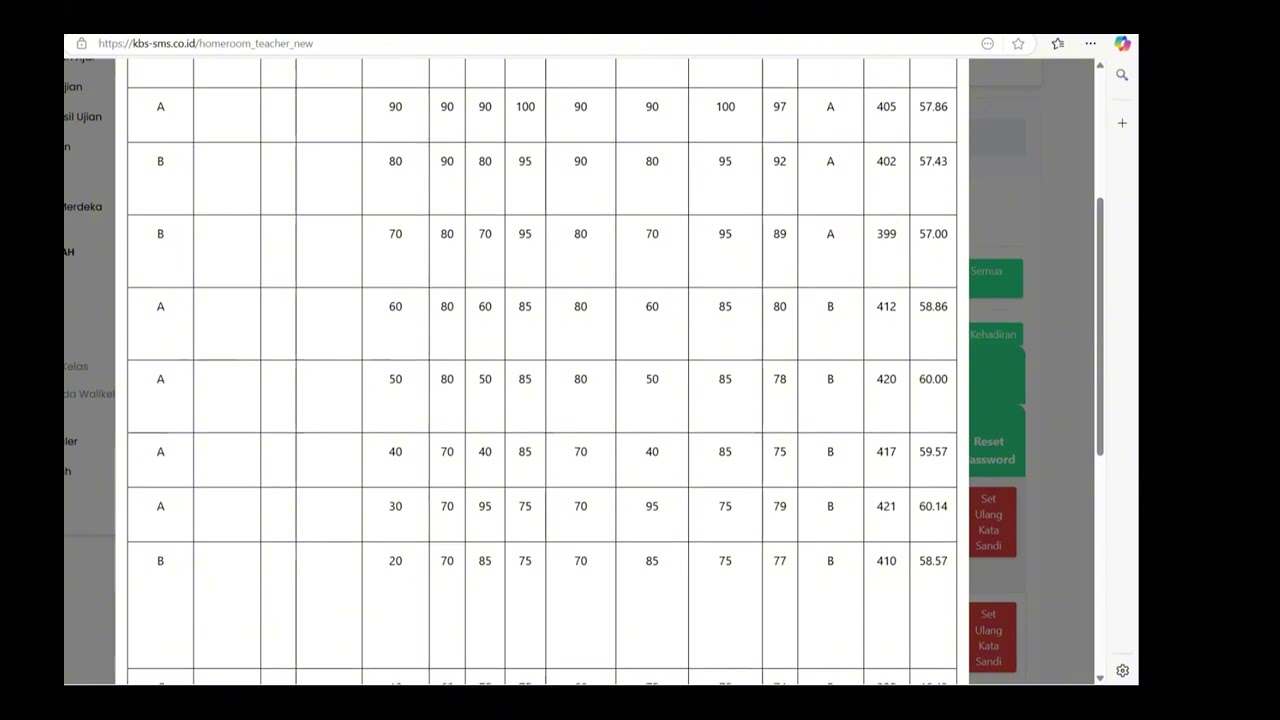
Beranda Walikelas
77 views
 0:55
0:55
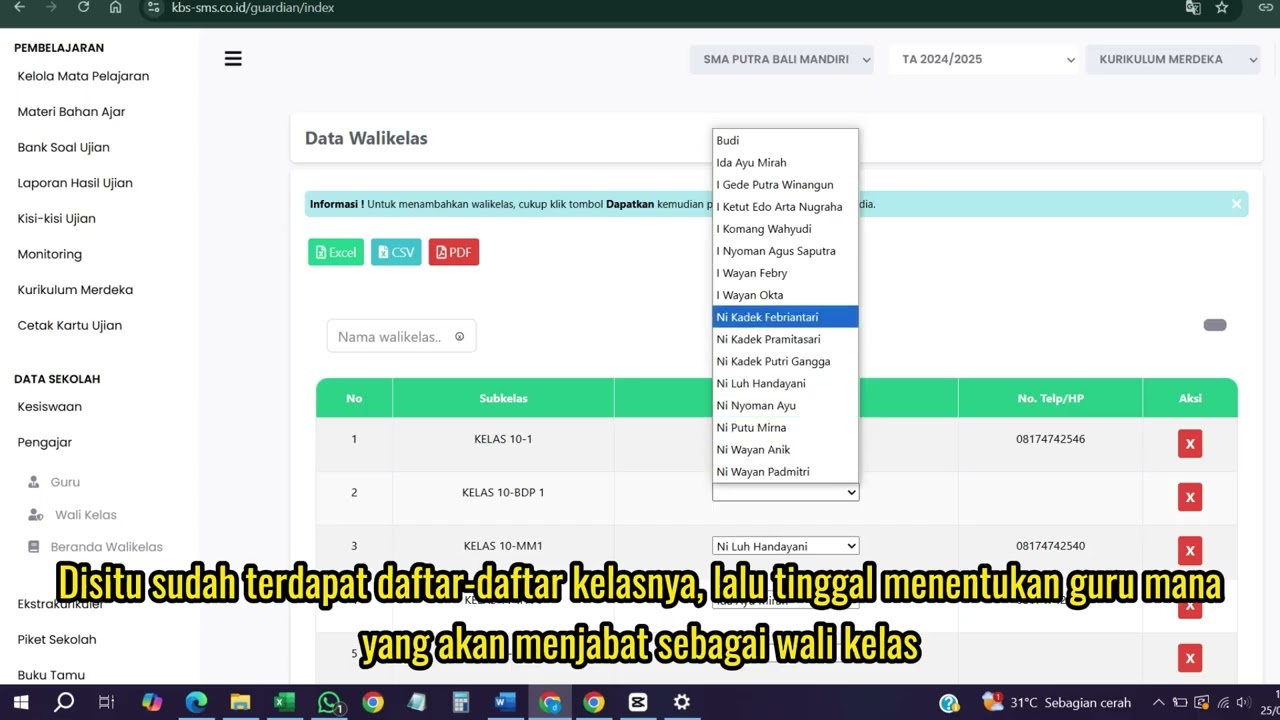
Wali kelas
76 views
 1:04
1:04
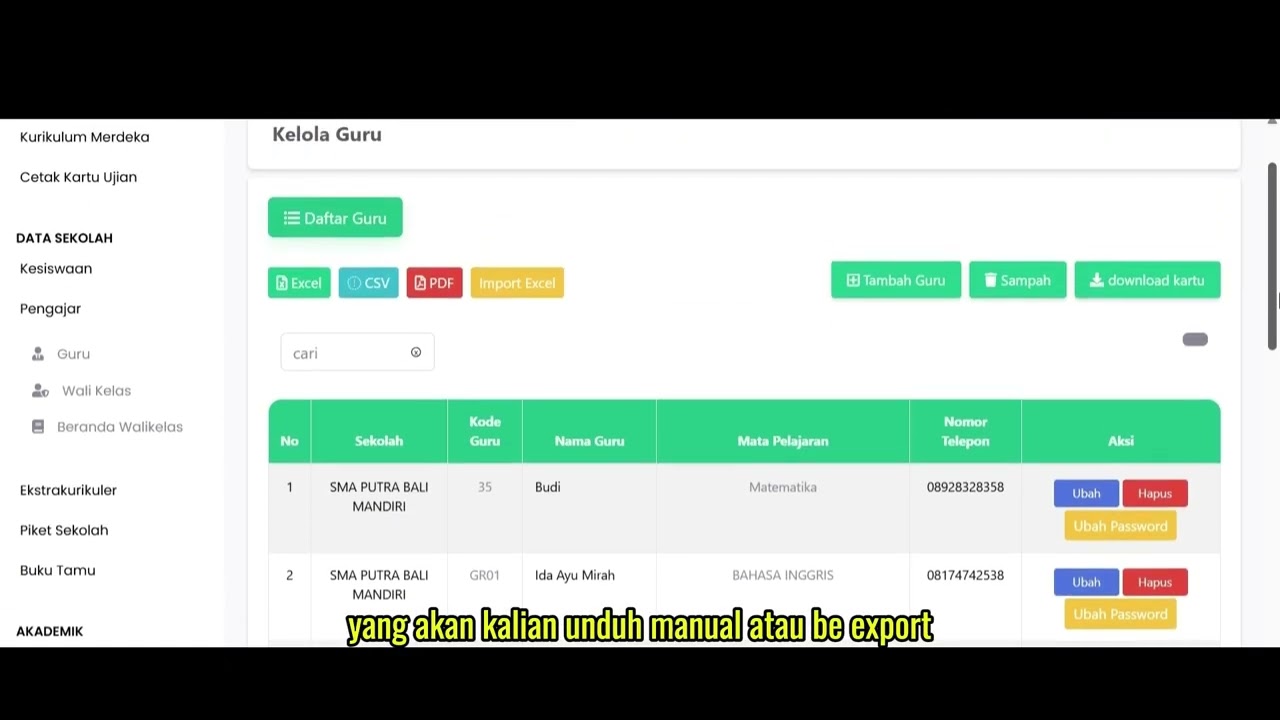
Data Rombel Guru
99 views
 0:53
0:53
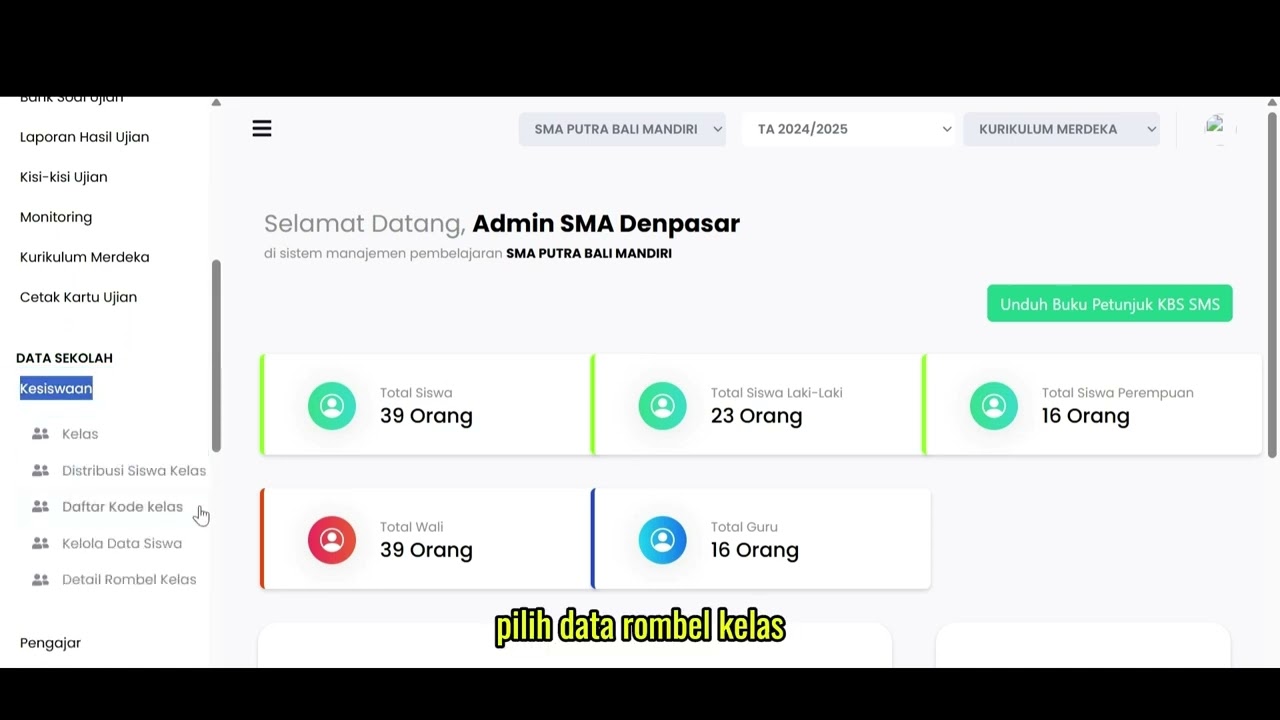
Data Rombel kelas
88 views
 1:02
1:02
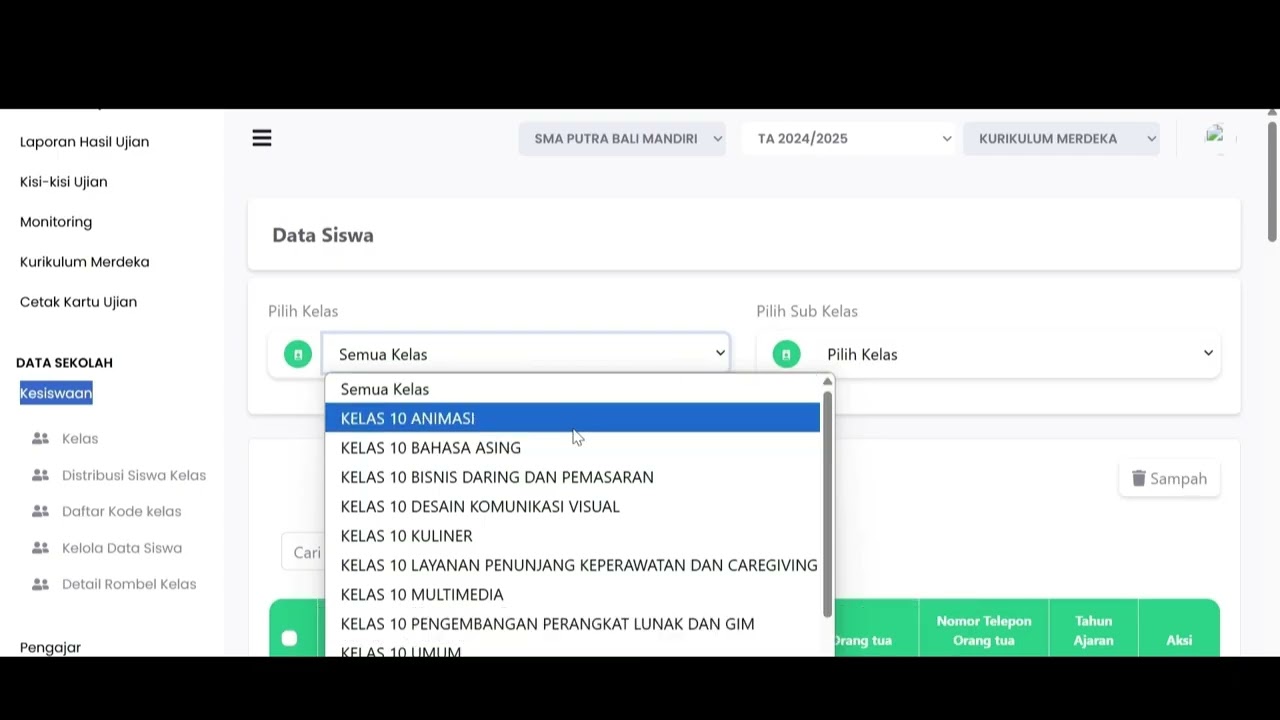
Kelola Data Siswa
92 views
 2:47
2:47
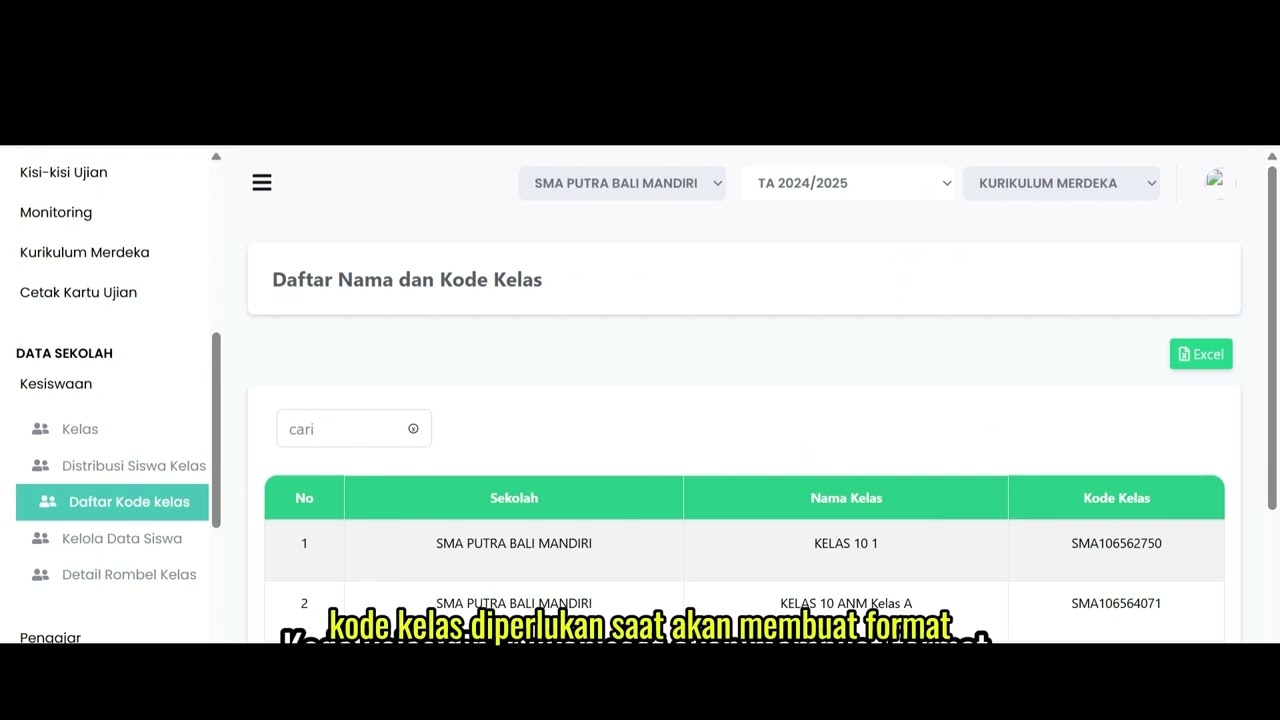
Distribusi Siswa Kelas
79 views
 6:22
6:22
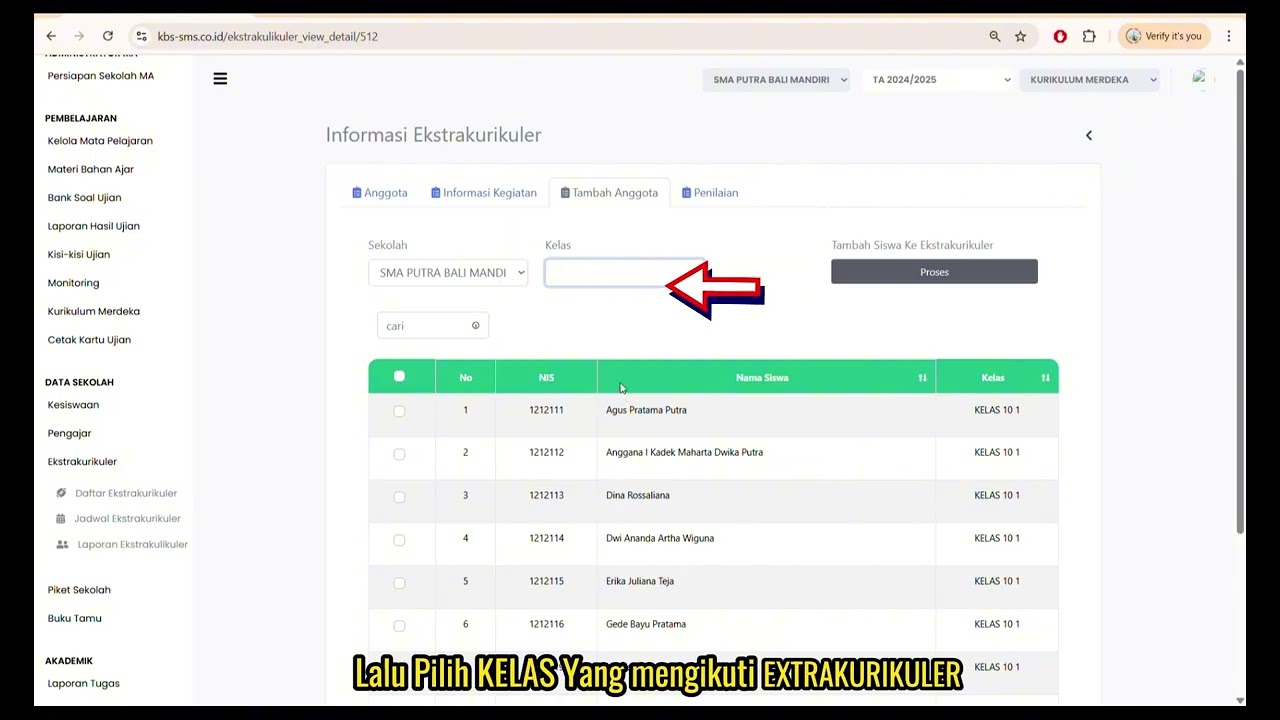
Daftar Ekstrakulikuler
91 views
Tutorial Kesiswaan
89 views
Related Videos
Daily Staff Attendance
92 views • 8 months ago
Teacher Attendance at Meetings
85 views • 8 months ago
student attendance at meetings
81 views • 8 months ago
Daily Attendance Report
94 views • 8 months ago
Guest Book Features
92 views • 8 months ago
School Duty
87 views • 8 months ago