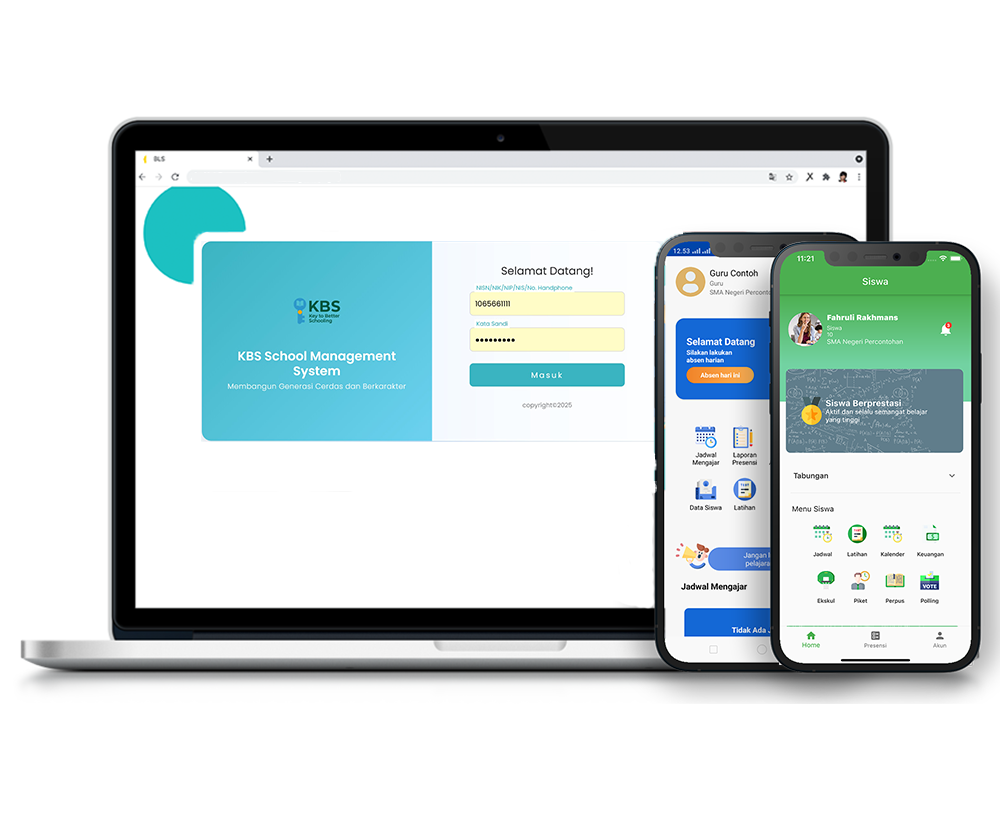
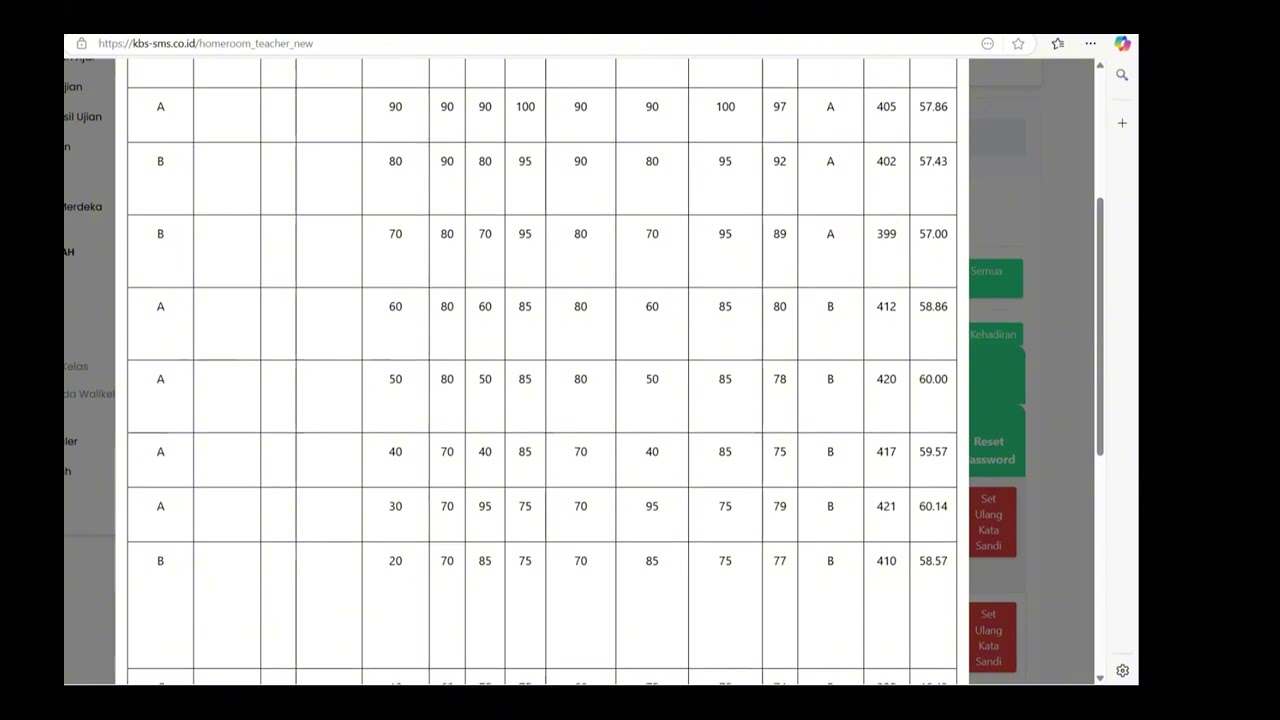
Beranda Walikelas
Description
This tutorial video comprehensively explains how to access and use the Homeroom Teacher Dashboard. It covers the steps to view student learning reports (such as mid-semester/PTS and final semester/PAS grades), check Pancasila profiles, and monitor student violations. Additionally, the video guides homeroom teachers in adding student notes and adjusting (manipulating) attendance data and extracurricular grades using various functions on the dashboard.
Step-by-Step Usage Guide
-
Menu Navigation: On the left-side menu, select School Data (Data Sekolah), click Instructor (Pengajar), and then choose the Homeroom Teacher Dashboard (Beranda Walikelas) menu.
-
Checking Mid-Semester (PTS) Grades: To view the Mid-Semester Learning Report, click the View button (eye icon) on the corresponding student's row.
-
Adding Student Notes: Click the yellow Student Notes (Catatan Siswa) button. In the pop-up window, fill in the notes or student status as needed, then click Save (Simpan) at the bottom.
-
Viewing Grade Ledger: Click the blue Grade Ledger (Legger Nilai) button to view the complete summary of all student grades in that class.
-
Viewing Pancasila Profile: Click the blue View button (eye icon) in the Pancasila Profile column on the student list to see the related profile details.
-
Monitoring Violations: To view a student's violation history, click the warning triangle icon located in the Violations column.
-
Checking Final Semester (PAS) Grades: You can view the Final Semester Assessment by clicking the View button (eye icon) in the PAS column.
-
Manipulating Report Card Attendance: Click the Manipulate Report Card Attendance (Manipulasi Kehadiran Raport) button, then adjust the student's attendance counts (Present, Absent, Excused, Sick) as needed. Once done, click Save (Simpan).
-
Manipulating Extracurricular Grades: Click the Extracurricular tab above the student list. Select the Manipulate Predicate (Manipulasi Predikat) column for the student whose grade needs correction, make the changes, and click Save (Simpan).
School Data
16 videos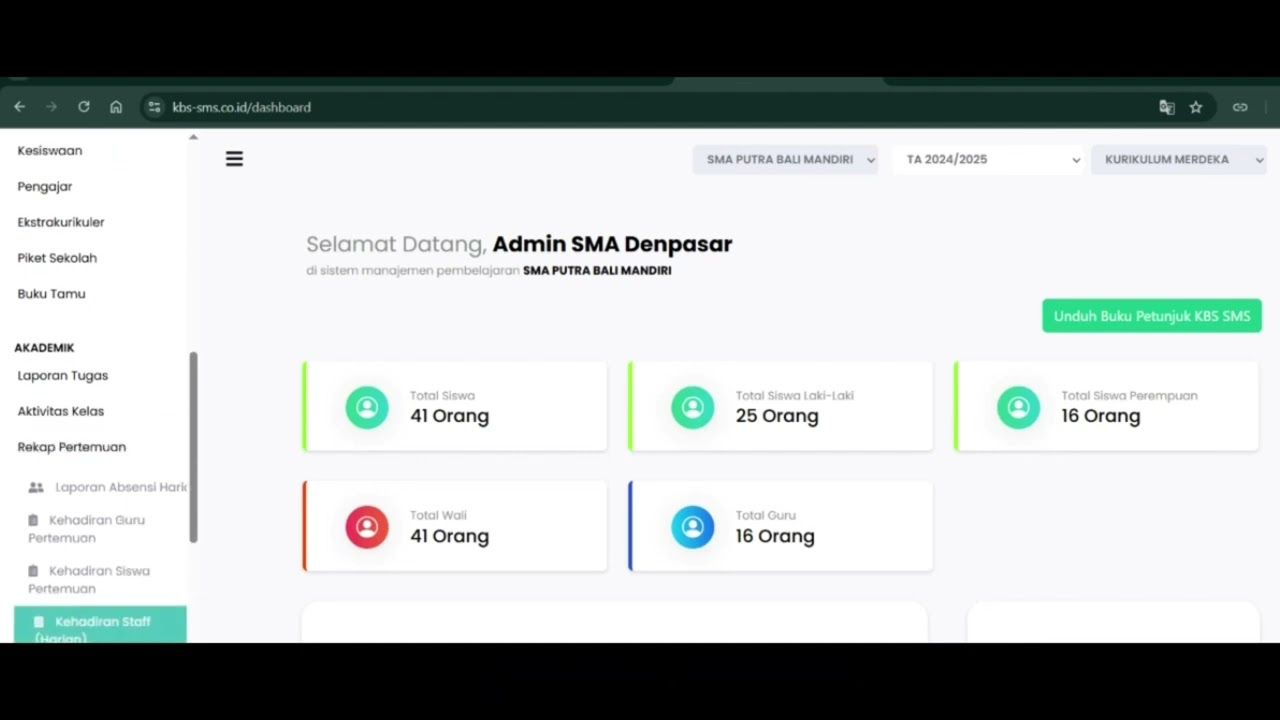 0:42
0:42
Daily Staff Attendance
92 views
 0:44
0:44
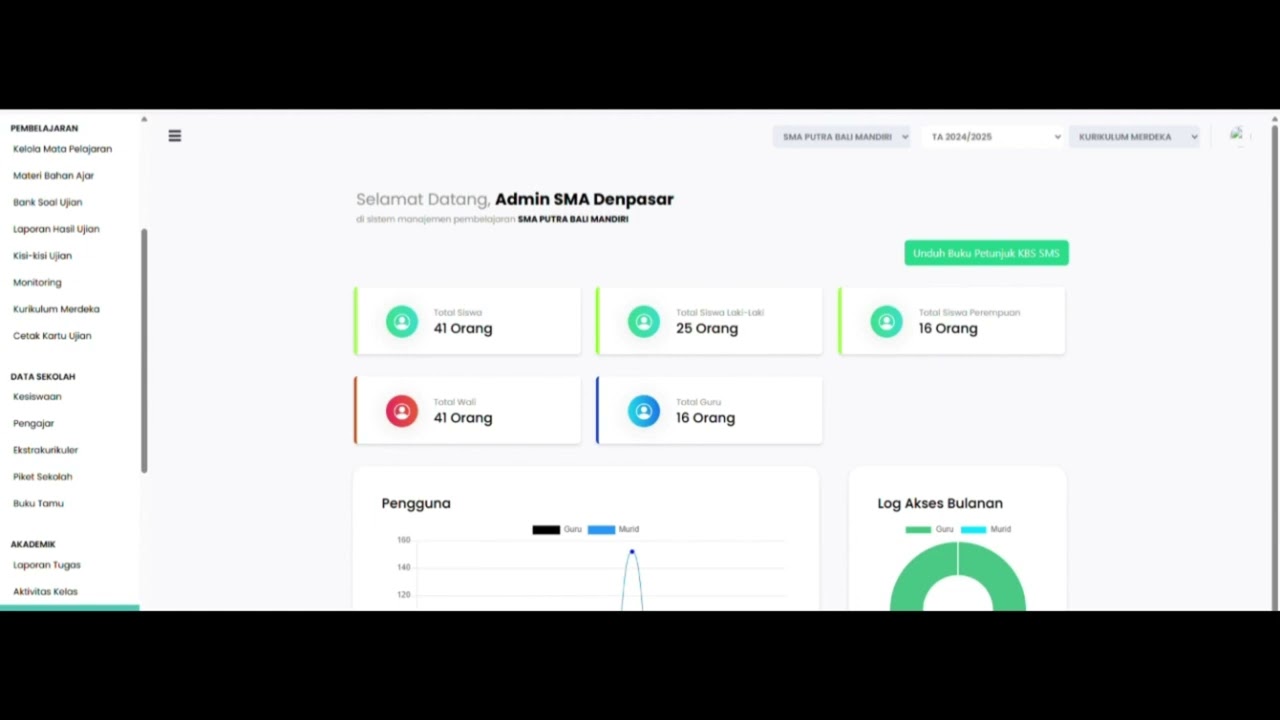
Teacher Attendance at Meetings
85 views
 0:43
0:43
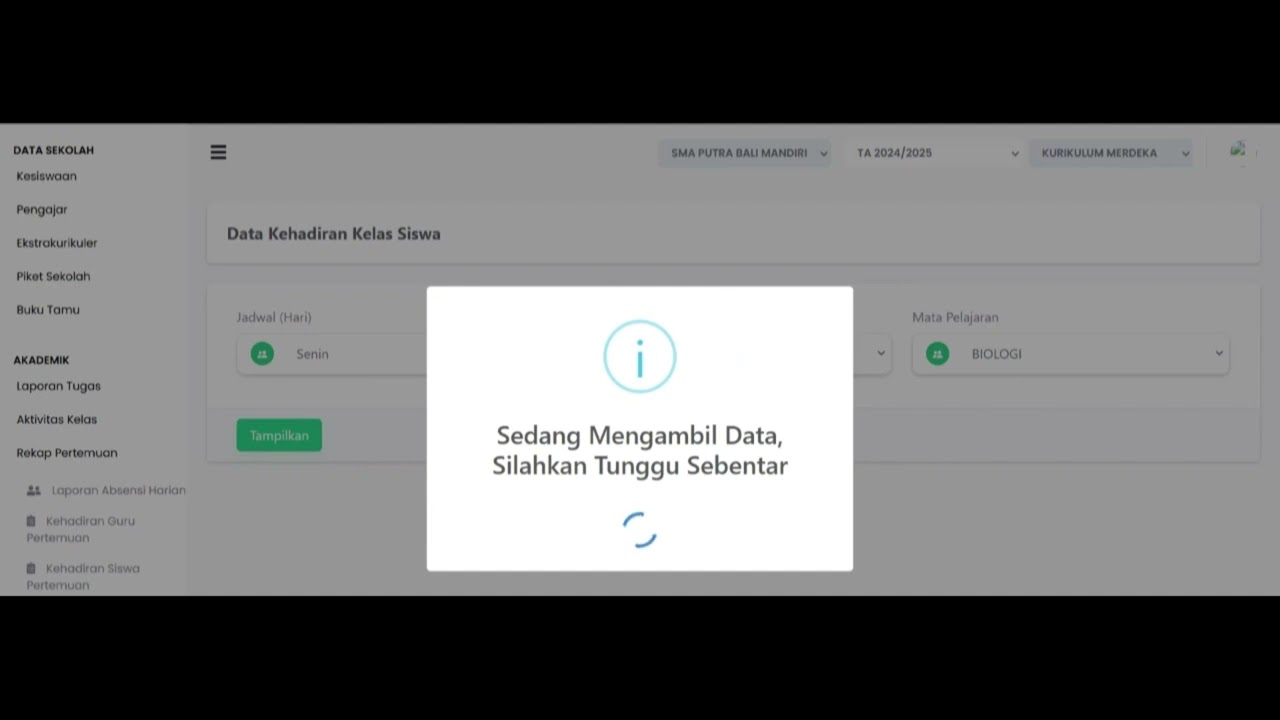
student attendance at meetings
81 views
 1:01
1:01
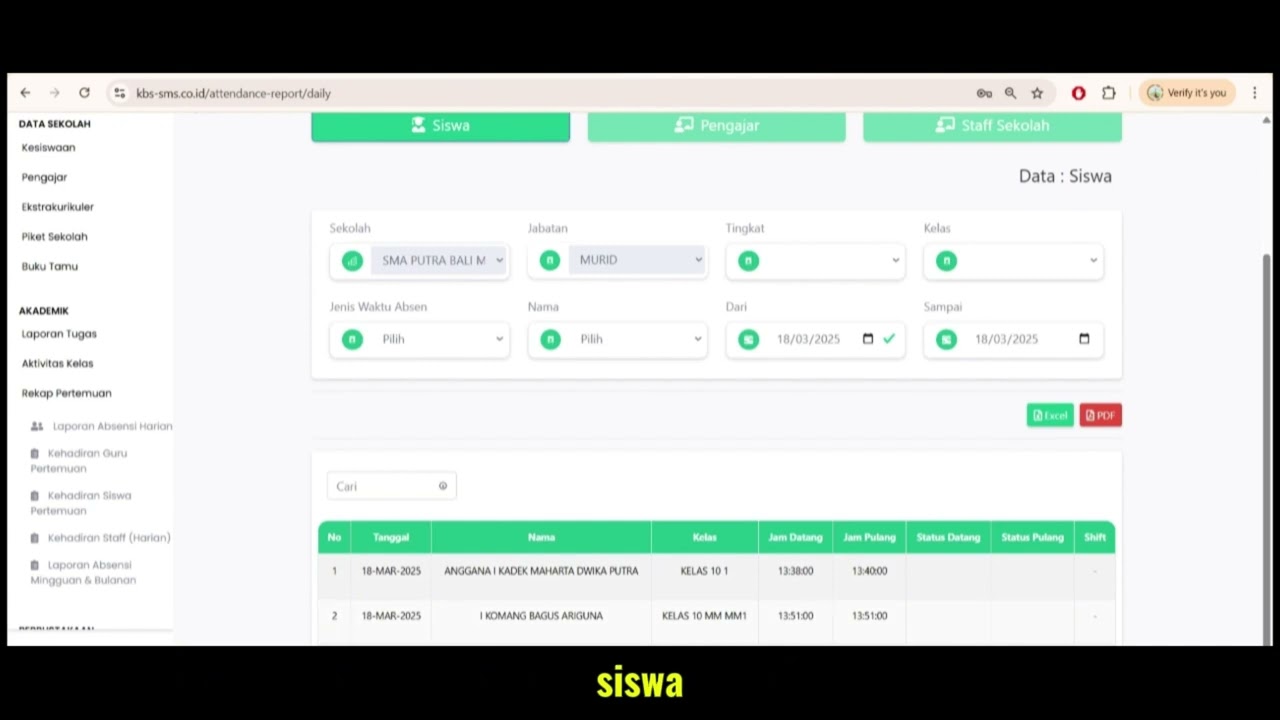
Daily Attendance Report
94 views
 2:11
2:11
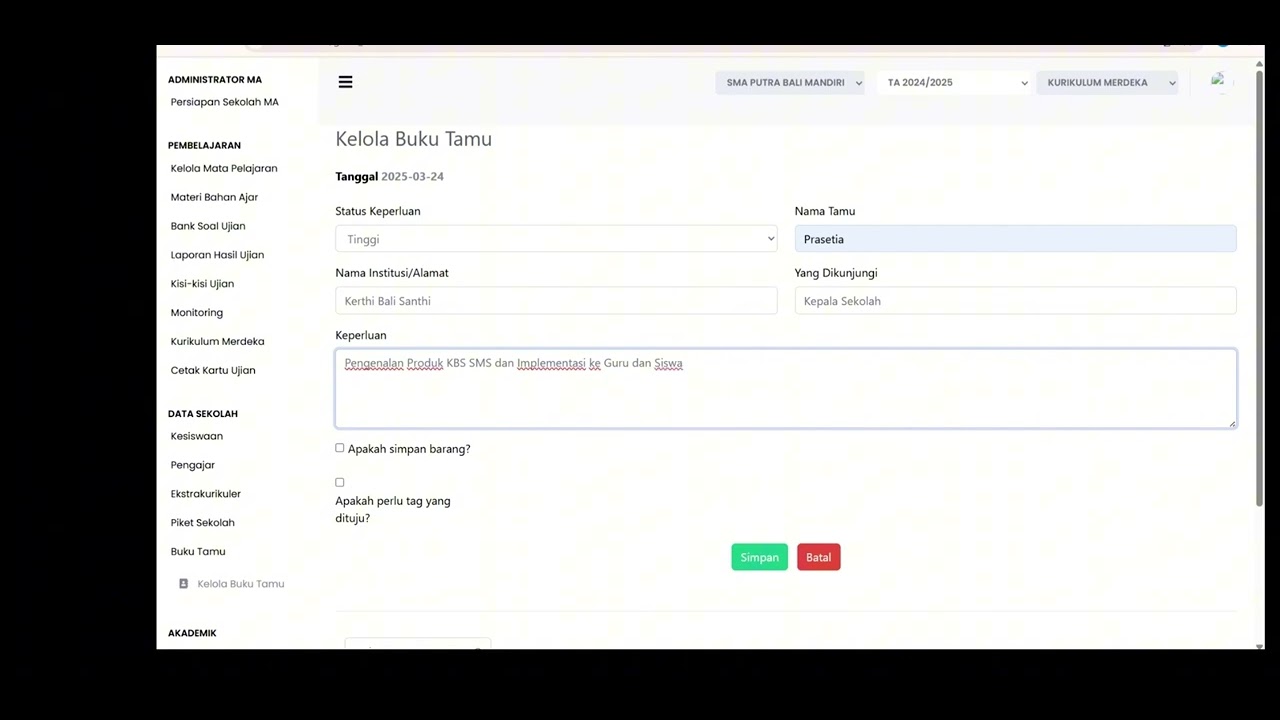
Guest Book Features
92 views
 3:16
3:16
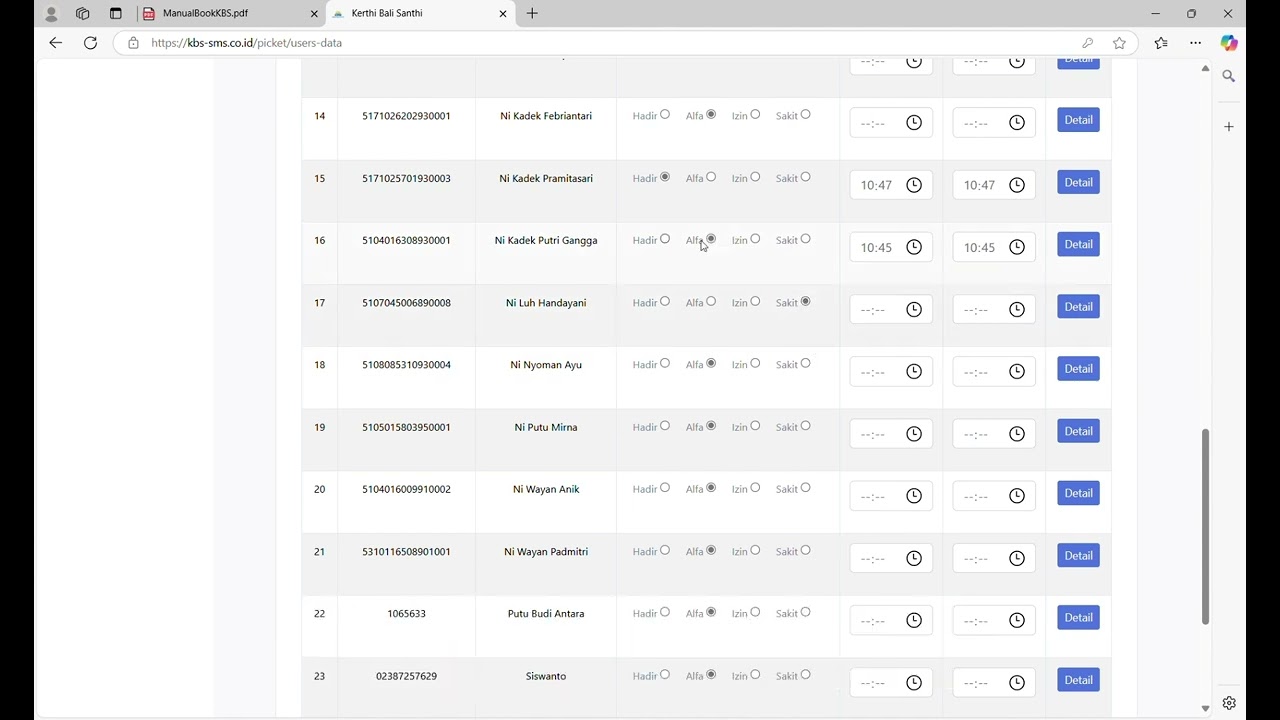
School Duty
87 views
 1:15
1:15
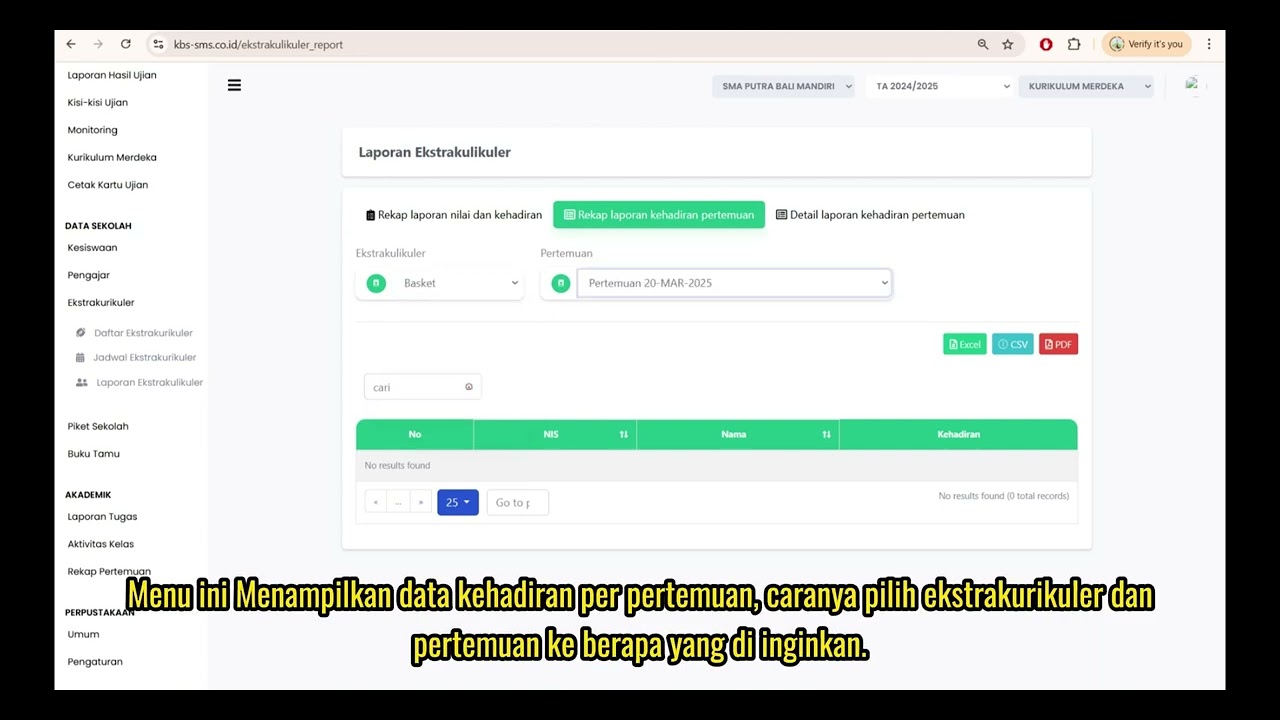
Extracurricular Report
87 views
 4:32
4:32
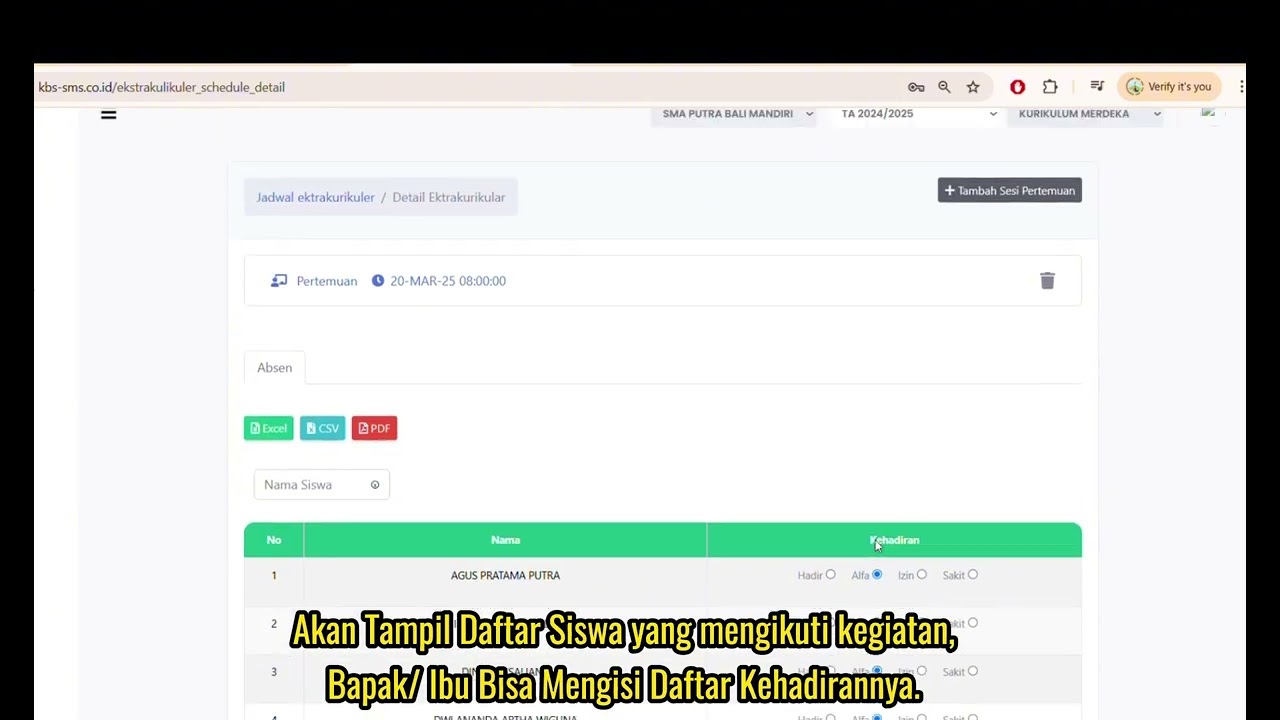
Jadwal Ekstrakulikuler
73 views
Beranda Walikelas
77 views
 0:55
0:55
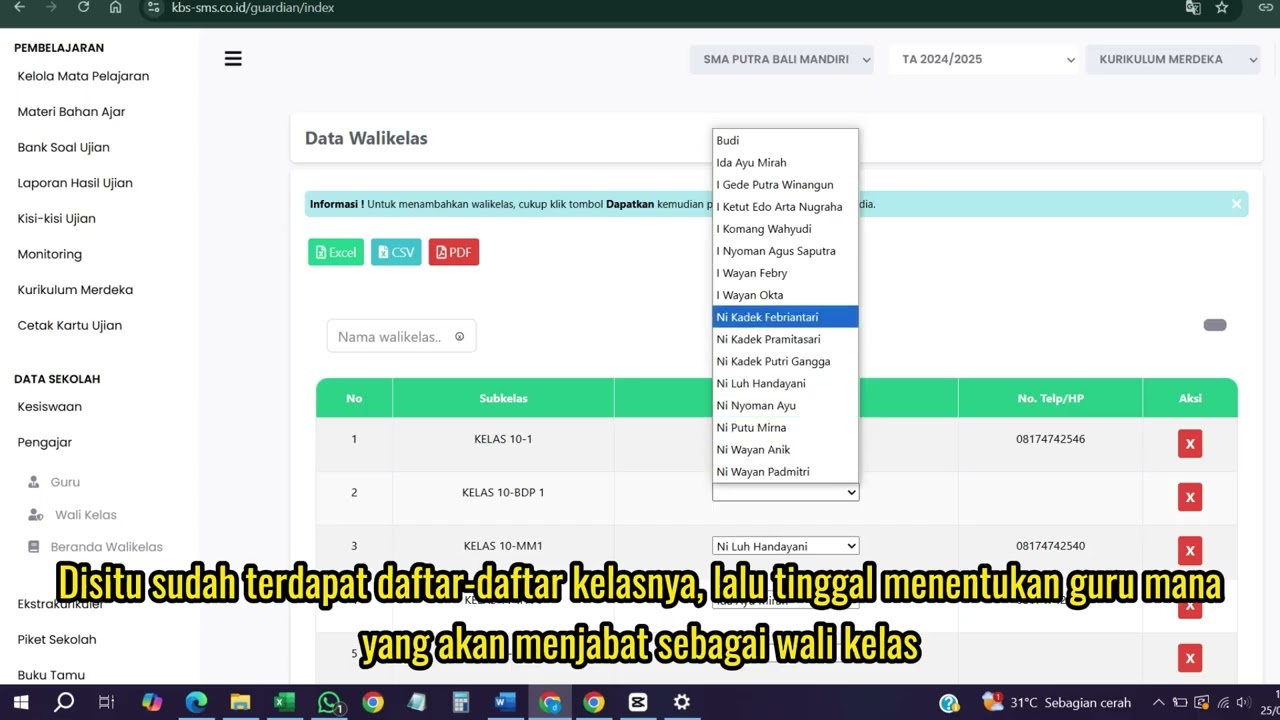
Wali kelas
75 views
 1:04
1:04
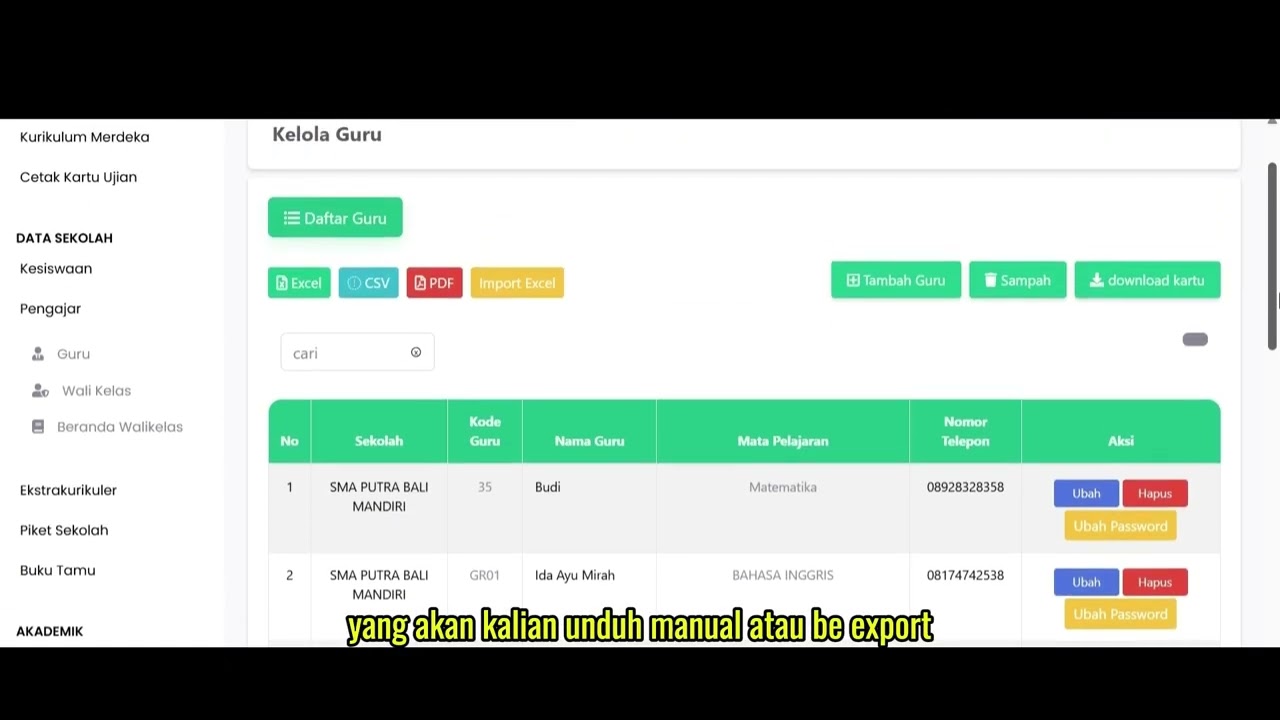
Data Rombel Guru
98 views
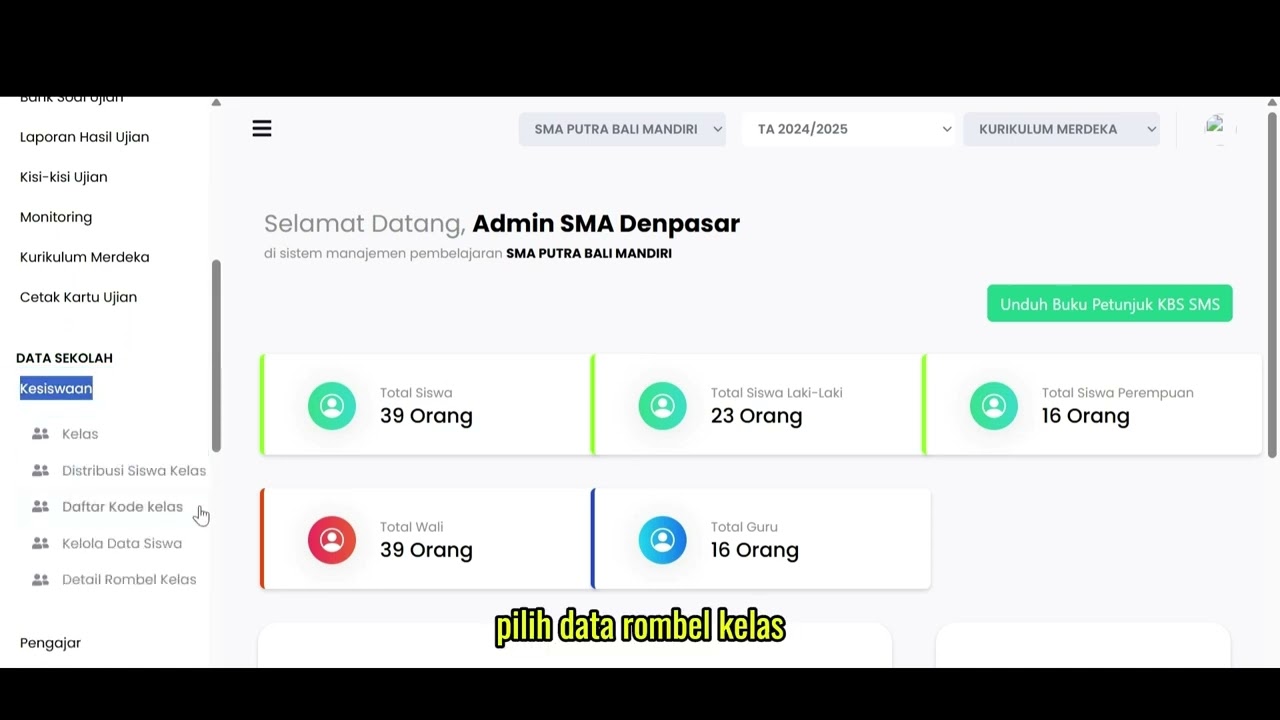 0:53
0:53
Data Rombel kelas
88 views
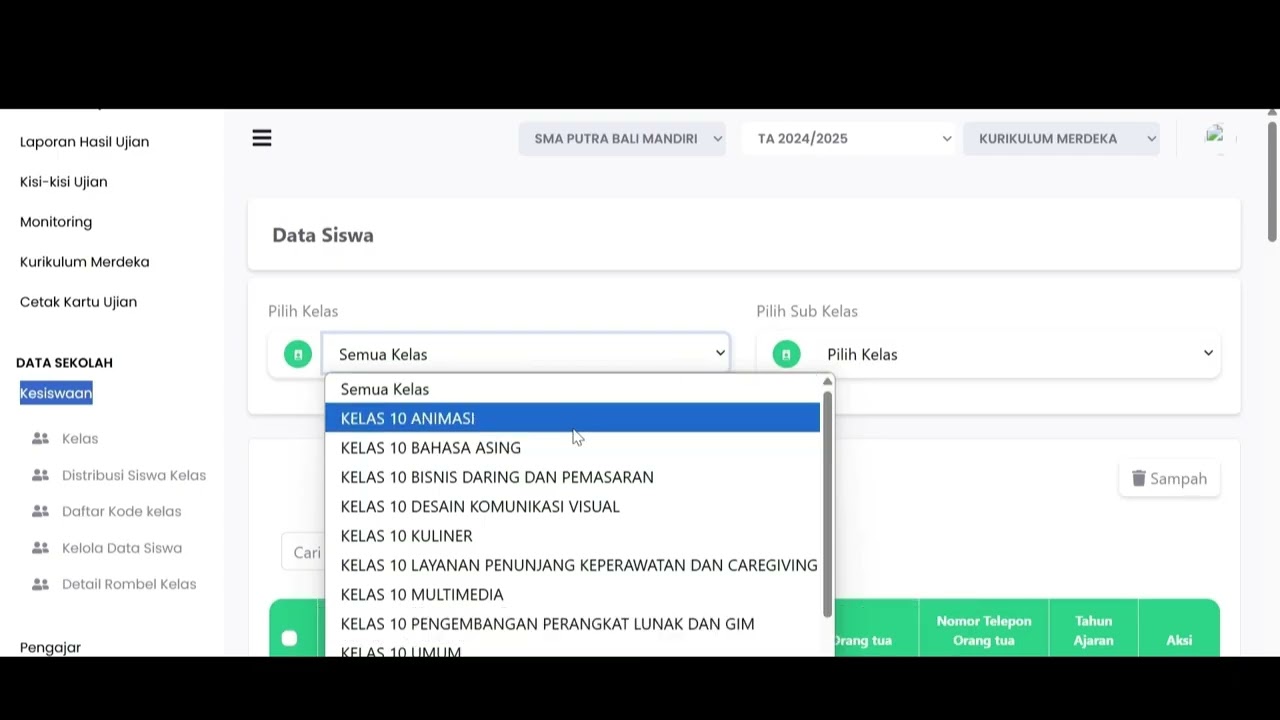 1:02
1:02
Kelola Data Siswa
92 views
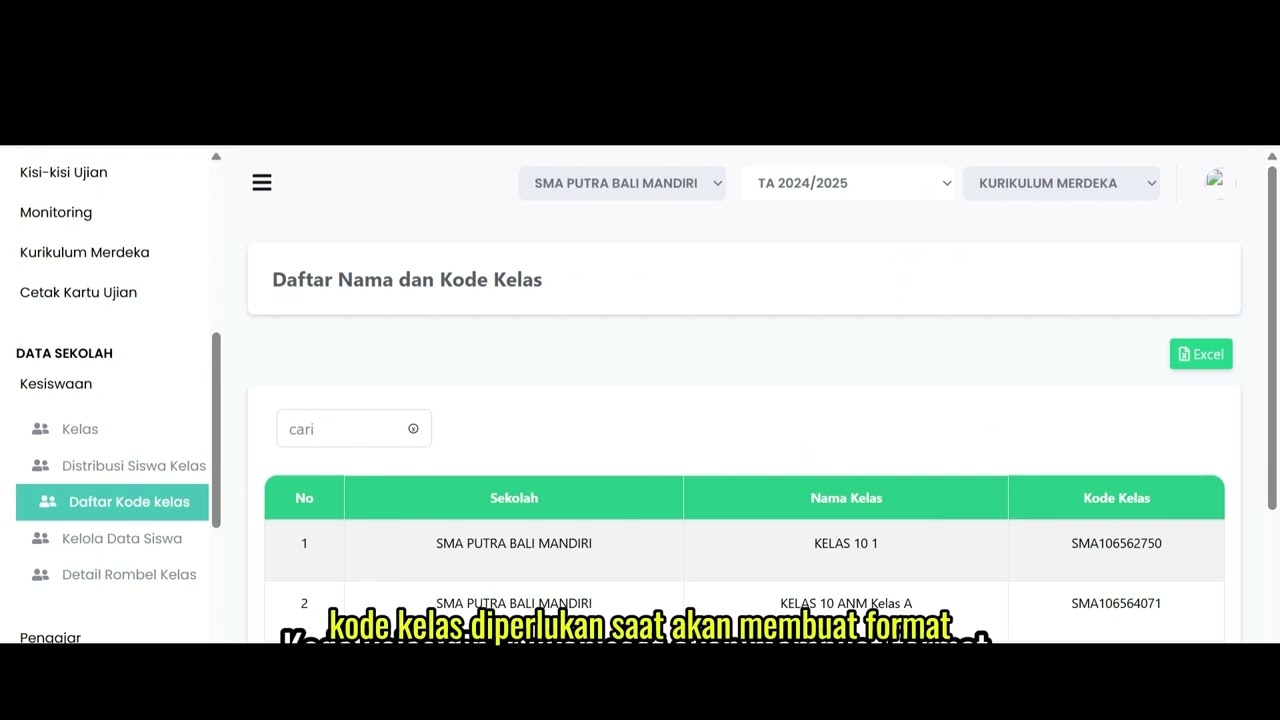 2:47
2:47
Distribusi Siswa Kelas
79 views
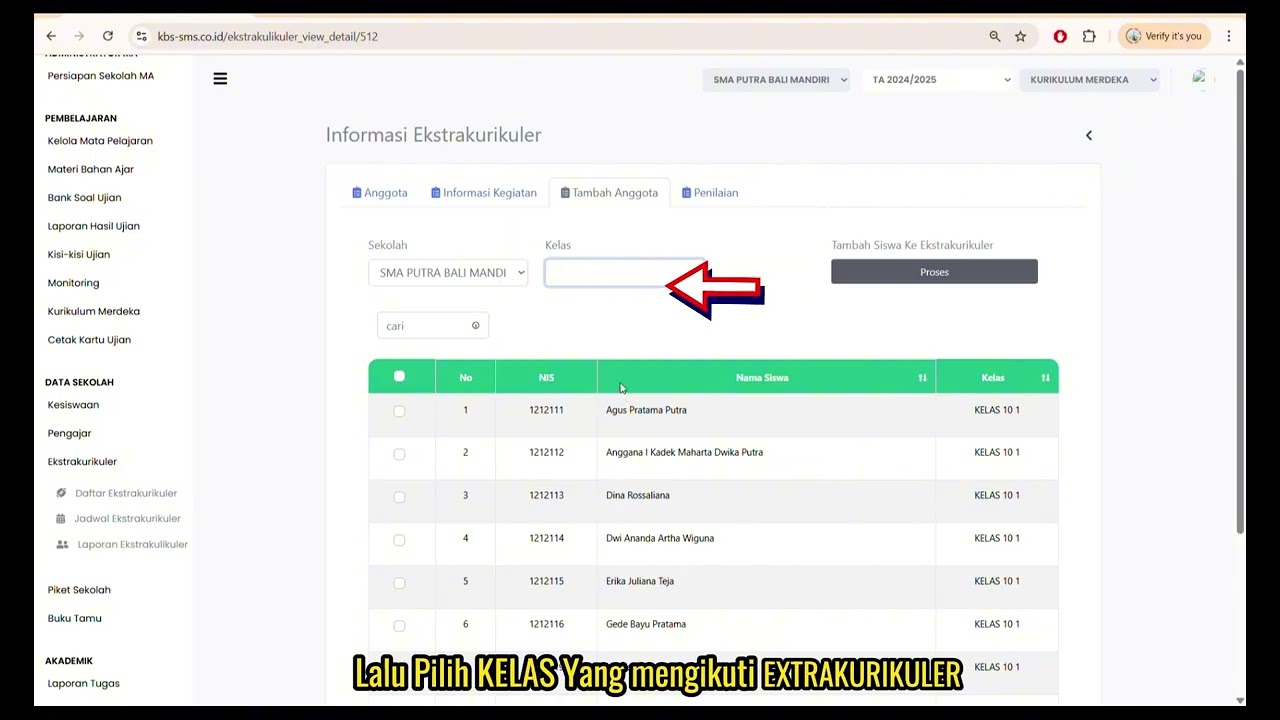 6:22
6:22
Daftar Ekstrakulikuler
90 views
 3:32
3:32
Tutorial Kesiswaan
88 views
Related Videos
Daily Staff Attendance
92 views • 8 months ago
Teacher Attendance at Meetings
85 views • 8 months ago
student attendance at meetings
81 views • 8 months ago
Daily Attendance Report
94 views • 8 months ago
Guest Book Features
92 views • 8 months ago
School Duty
87 views • 8 months ago