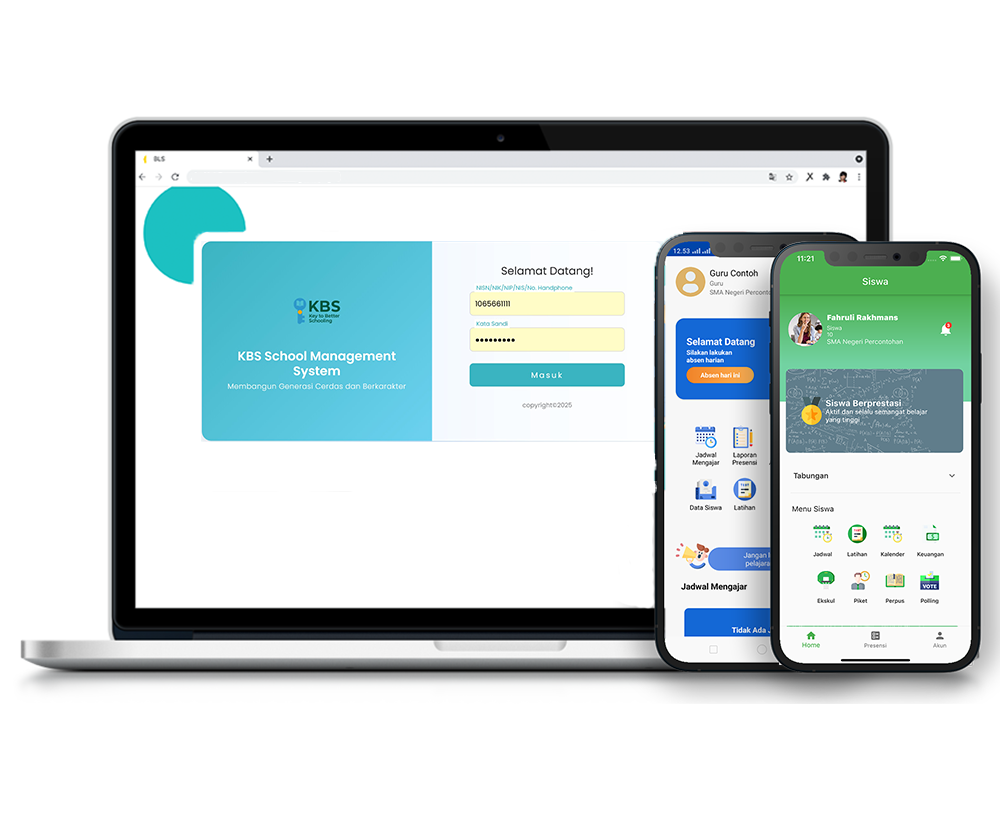
Data Rombel Guru
Description
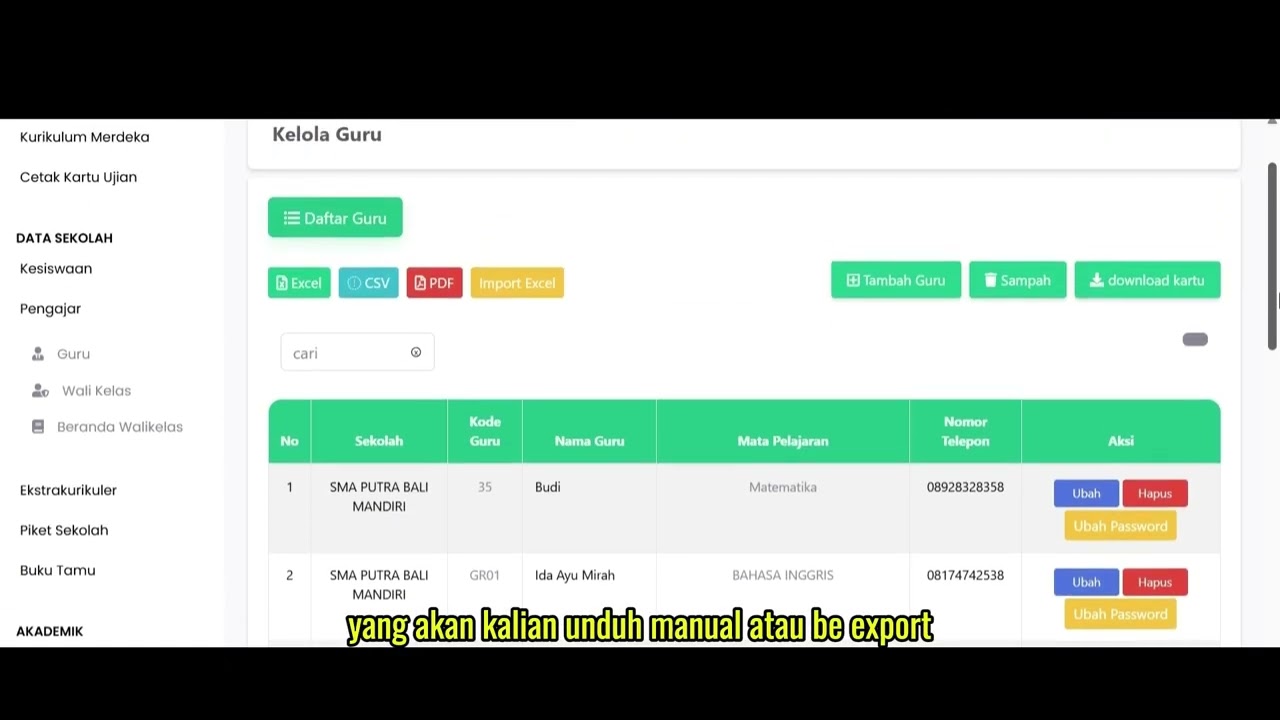
This tutorial video guides users on how to view and manage teacher or instructor data within the system. The discussion covers the steps to access the teacher data menu, manually add new teacher data via the entry form, and export or download the teacher list into document formats (such as PDF).
Step-by-Step Usage Guide
-
Menu Navigation: On the left menu bar, select the School Data (Data Sekolah) feature, then choose Instructor (Pengajar), and click the Teacher (Guru) menu.
-
Adding Teacher Data: To add new instructor data manually, click the Add Teacher (Tambah Guru) button (green color).
-
Filling the Data Form: Complete all fields in the provided form with valid data (including Full Name, Teacher Code, Subject, NIK, NIP, Password, Email, and other details).
-
Saving Data: Once all fields are correctly filled in, click the Save (Simpan) button located at the bottom left of the page.
-
Downloading Teacher Data: To export the teacher list to your device, select one of the format option buttons (Excel, CSV, or PDF) located above the teacher list. For example, you can click the red PDF button.
-
Opening the Downloaded File: After the download is complete, click the downloaded PDF file to view the detailed list of teacher data.
School Data
16 videos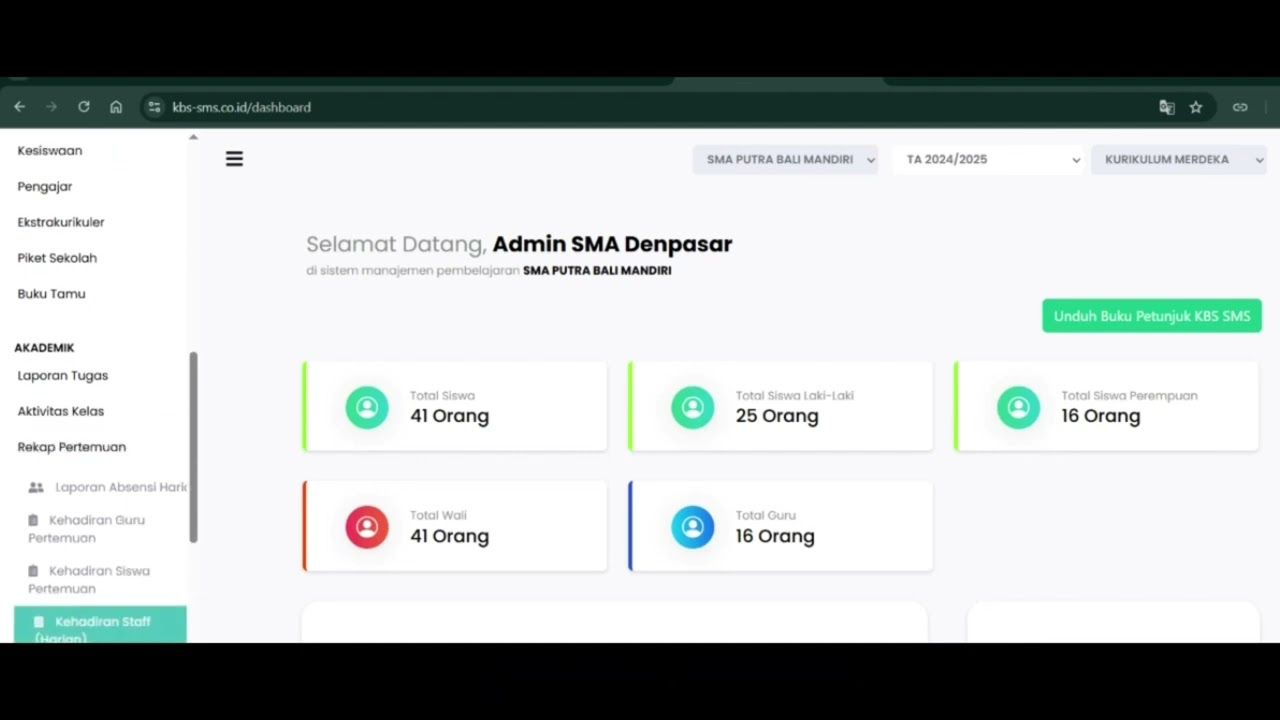 0:42
0:42
Daily Staff Attendance
92 views
 0:44
0:44
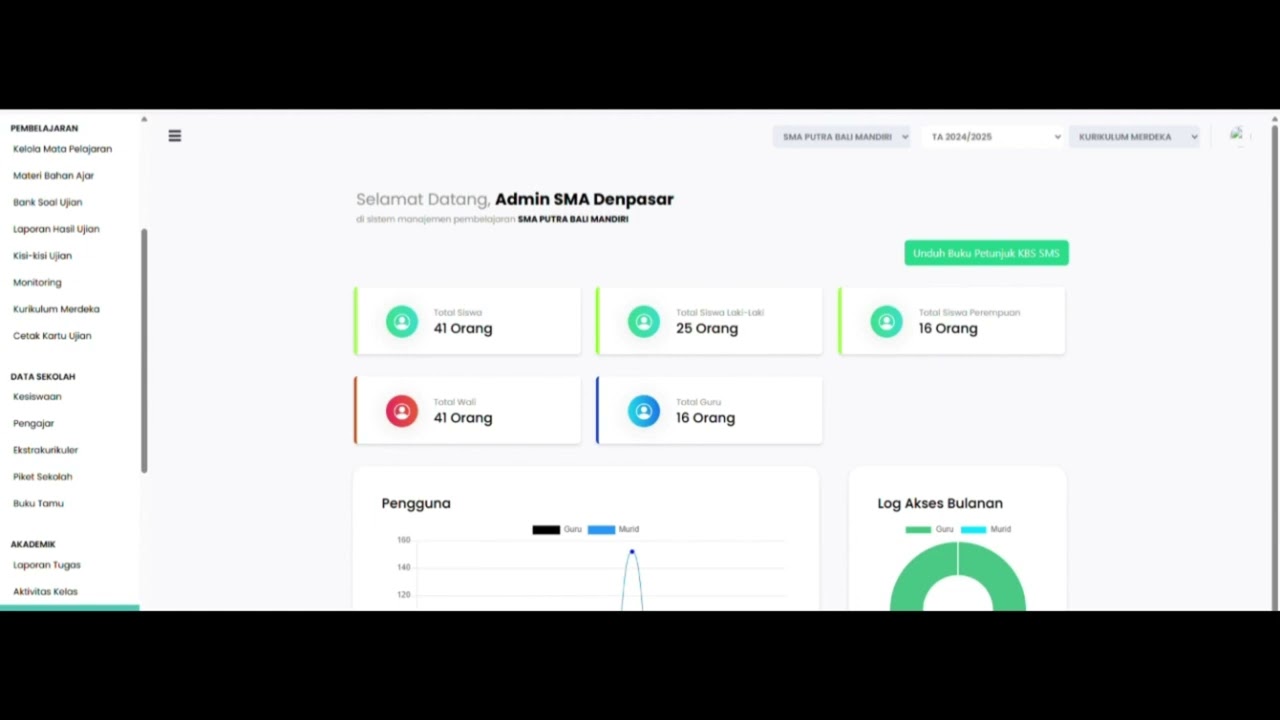
Teacher Attendance at Meetings
85 views
 0:43
0:43
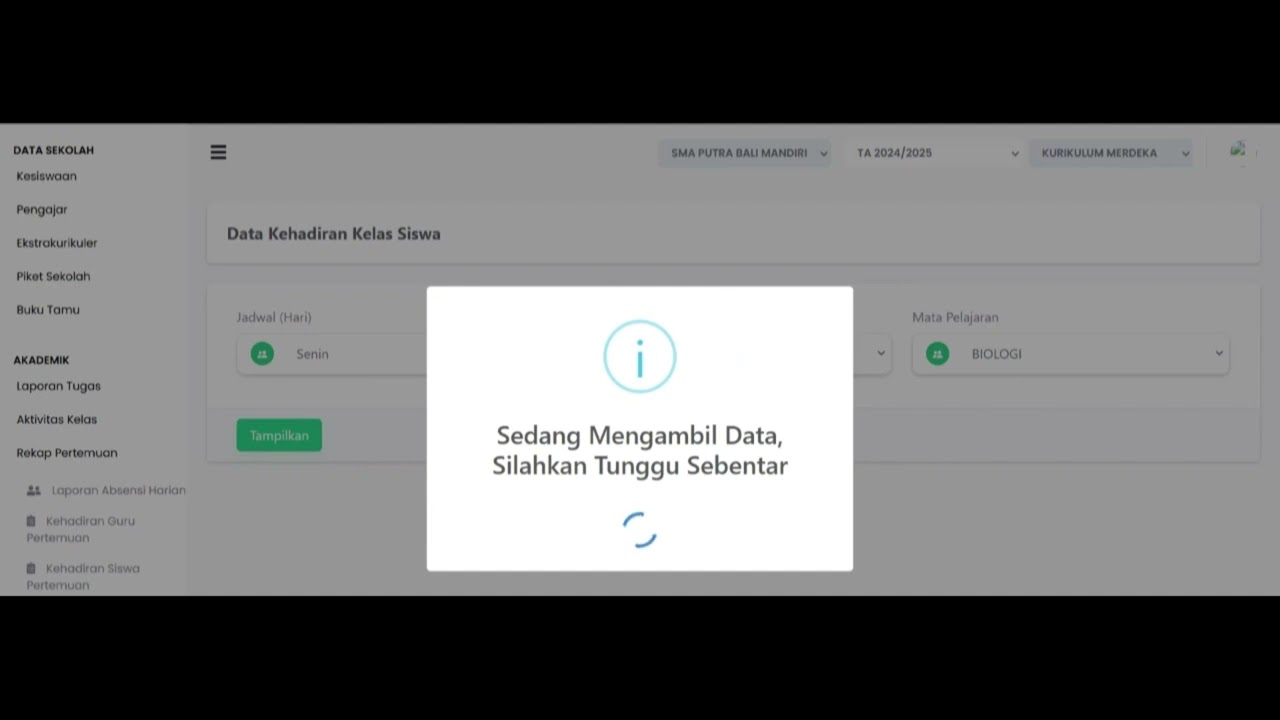
student attendance at meetings
81 views
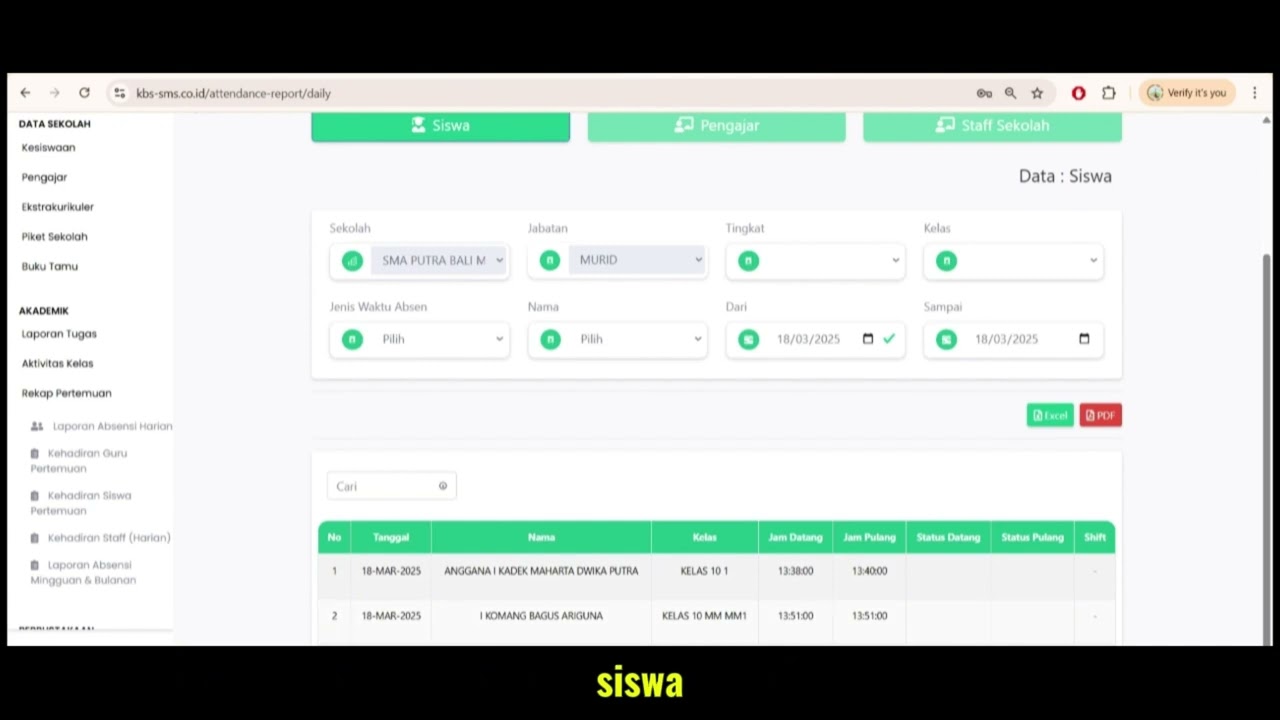 1:01
1:01
Daily Attendance Report
94 views
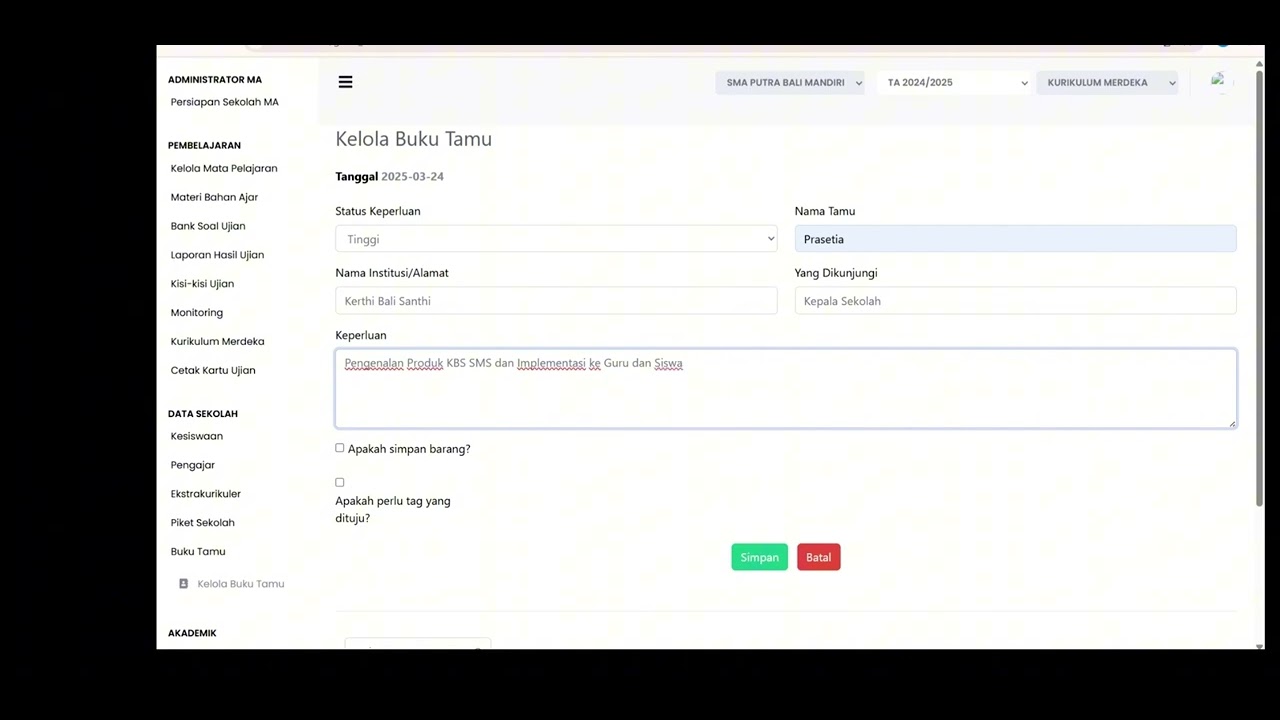 2:11
2:11
Guest Book Features
92 views
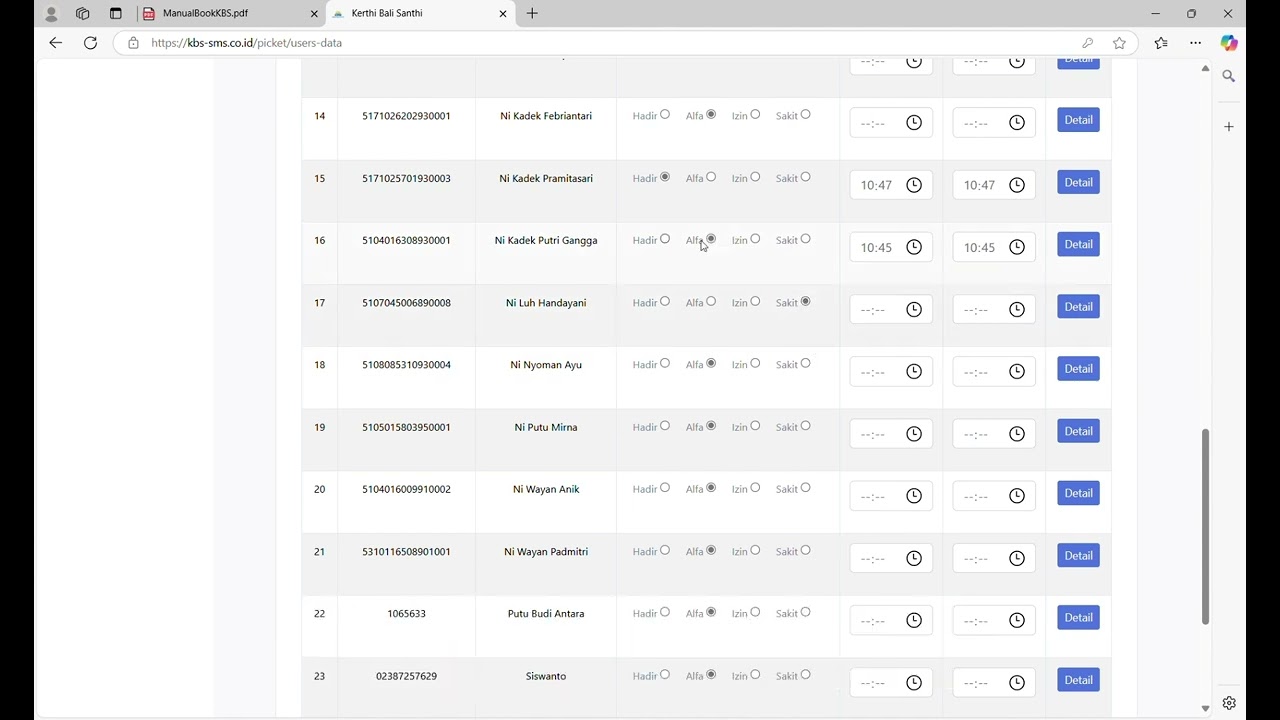 3:16
3:16
School Duty
87 views
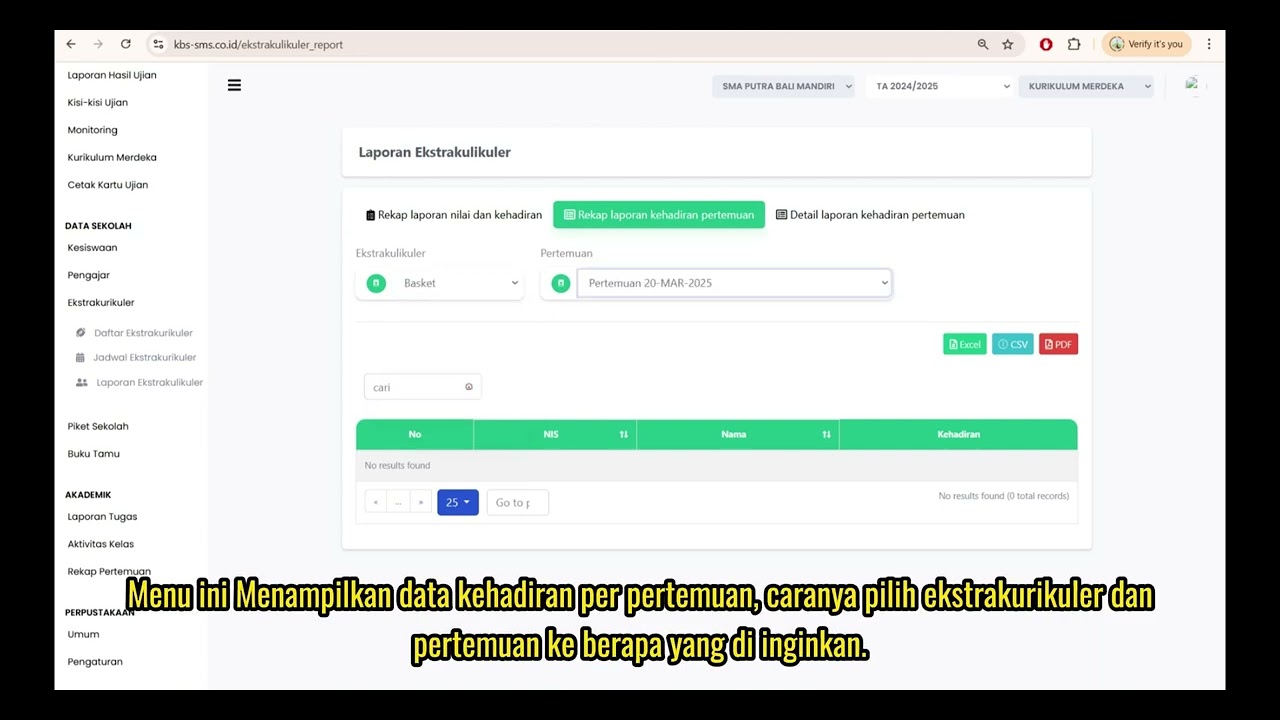 1:15
1:15
Extracurricular Report
87 views
 4:32
4:32
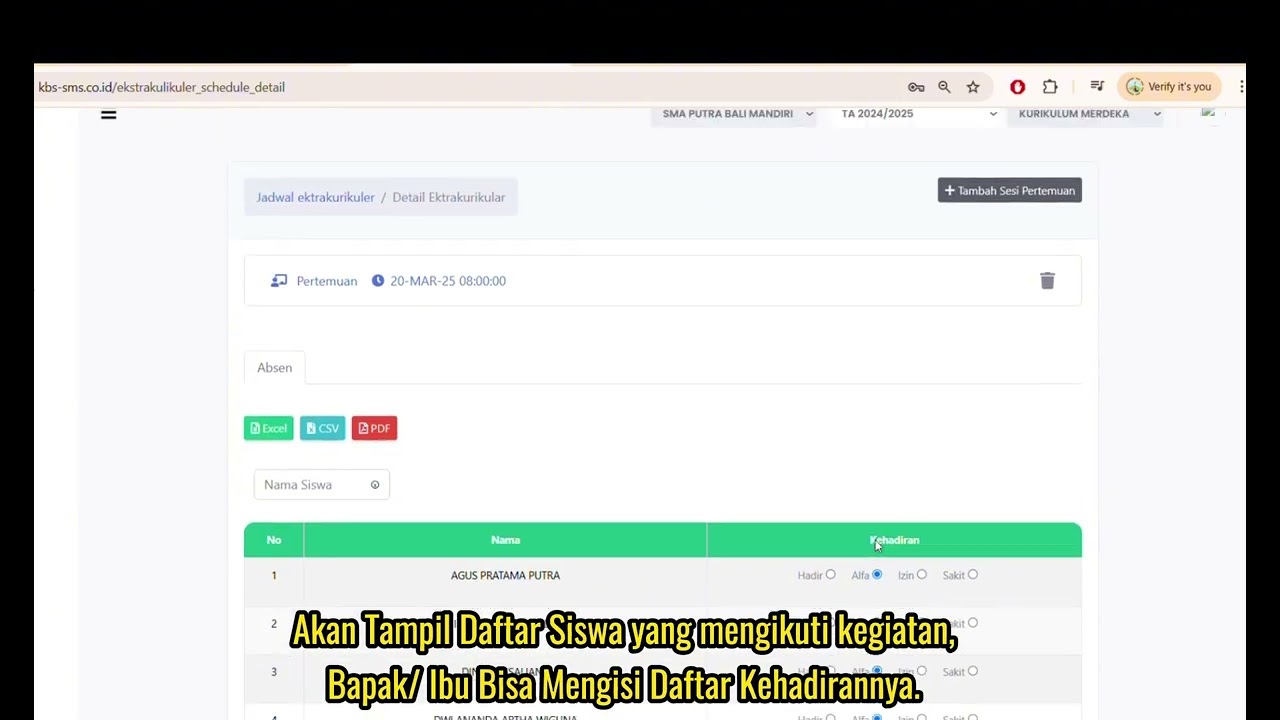
Jadwal Ekstrakulikuler
74 views
 7:32
7:32
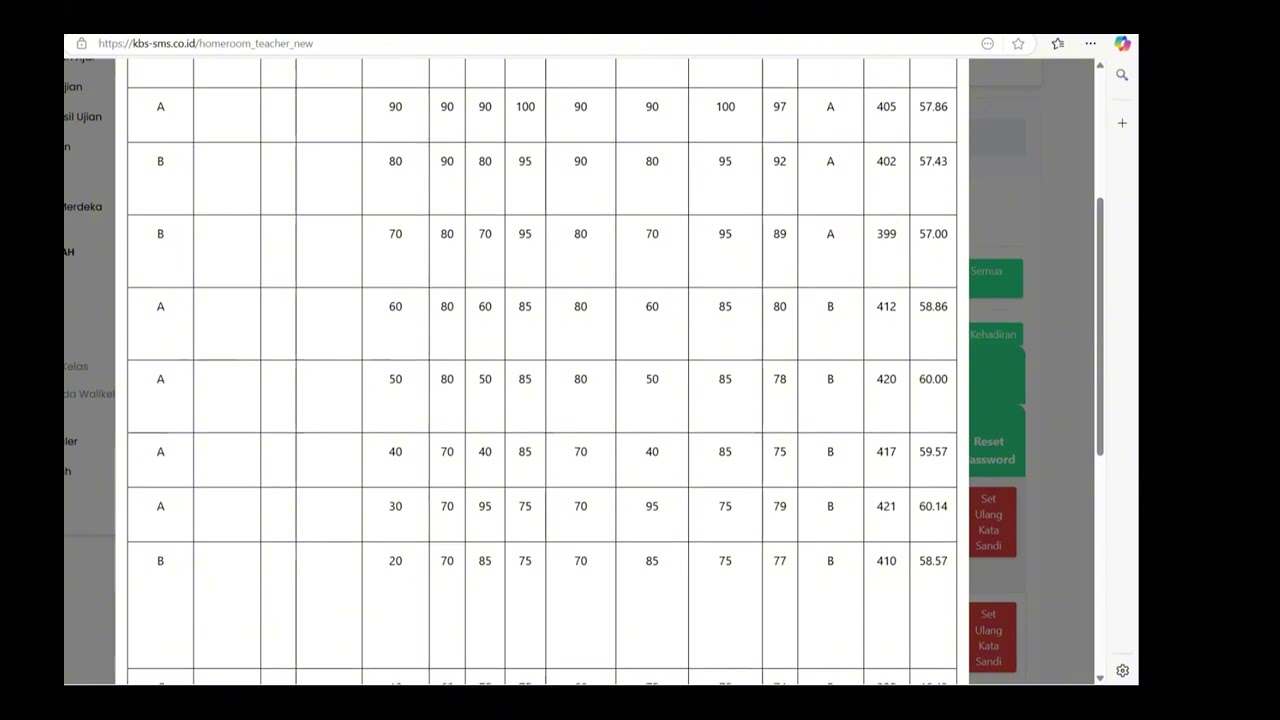
Beranda Walikelas
77 views
 0:55
0:55
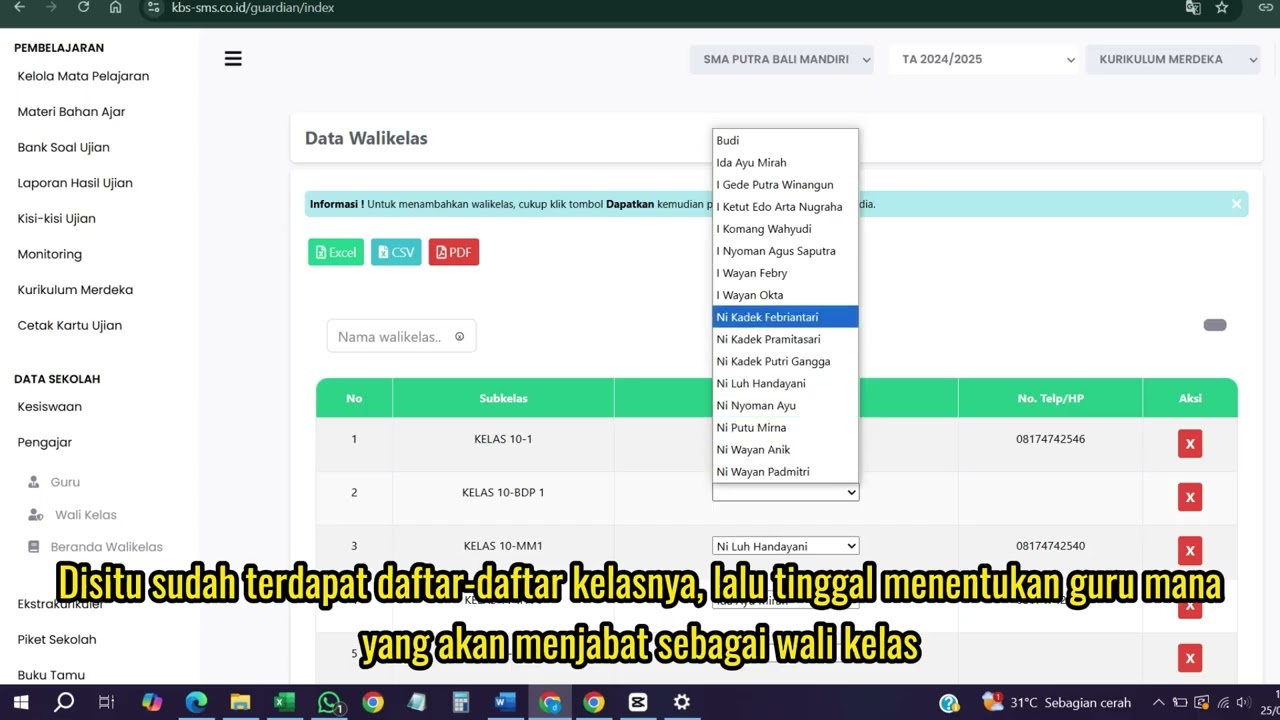
Wali kelas
75 views
Data Rombel Guru
99 views
 0:53
0:53
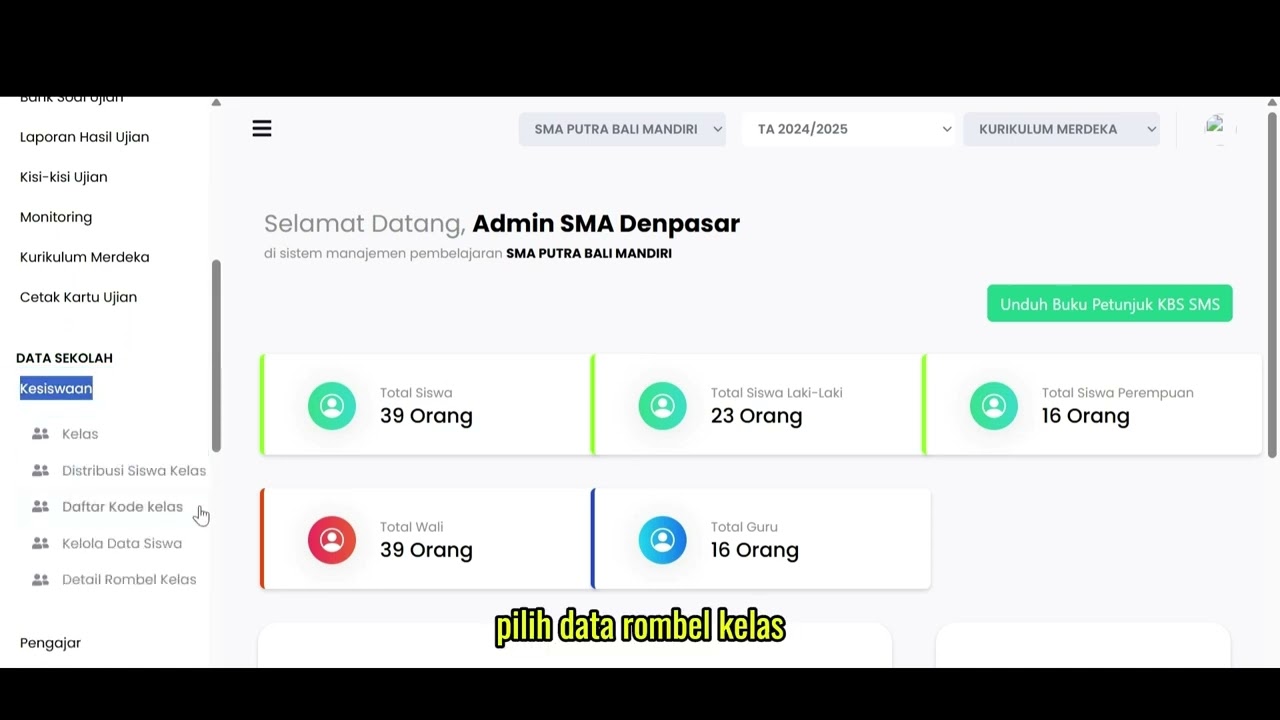
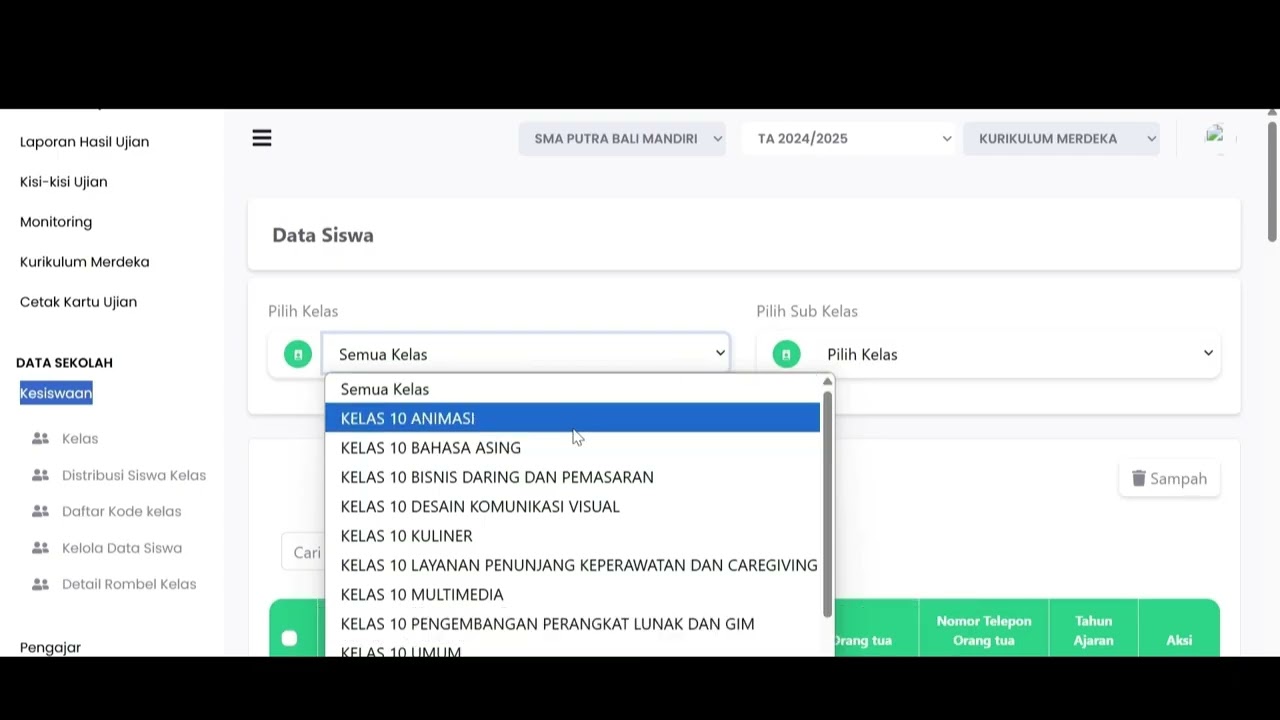
Data Rombel kelas
88 views
 1:02
1:02
Kelola Data Siswa
92 views
 2:47
2:47
Distribusi Siswa Kelas
79 views
 6:22
6:22
Daftar Ekstrakulikuler
91 views
 3:32
3:32
Tutorial Kesiswaan
88 views
Related Videos
Daily Staff Attendance
92 views • 8 months ago
Teacher Attendance at Meetings
85 views • 8 months ago
student attendance at meetings
81 views • 8 months ago
Daily Attendance Report
94 views • 8 months ago
Guest Book Features
92 views • 8 months ago
School Duty
87 views • 8 months ago