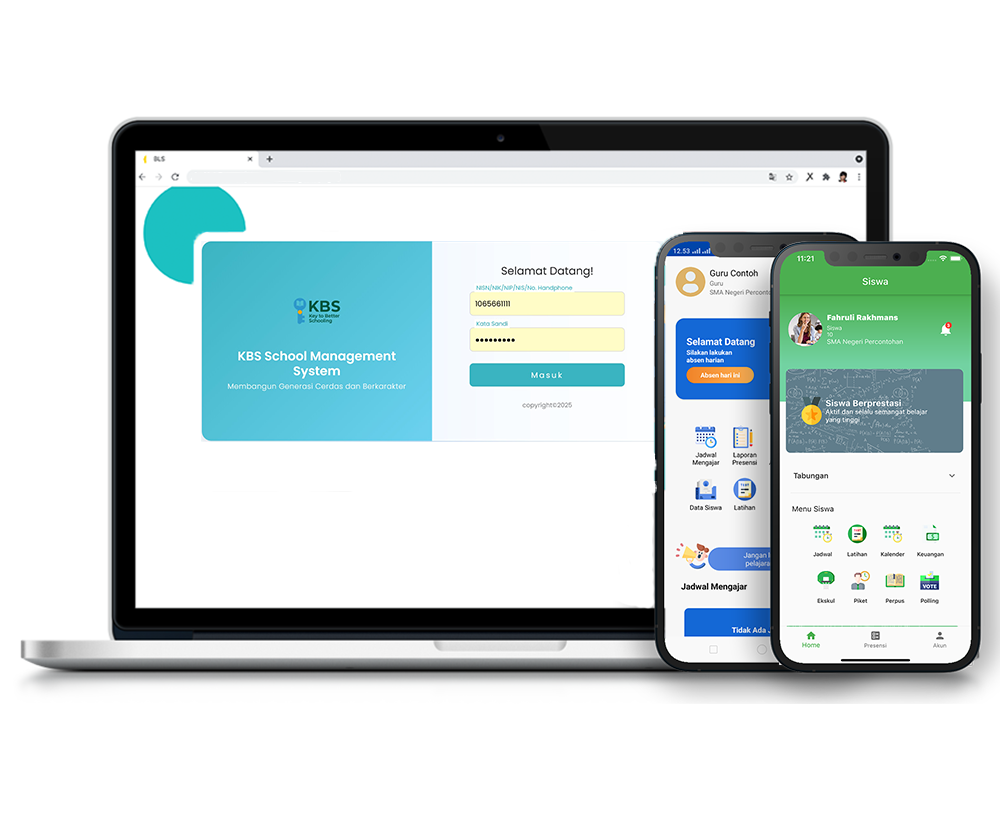
Distribusi Siswa Kelas
Description
This tutorial video focuses on explaining how to use the Class Student Distribution feature, which includes mass-updating final-year students' status to alumni and viewing subclass data for the new academic year to obtain Class Codes. Additionally, the video briefly reviews the supplementary steps on how to delete incorrect student data and download class study group (rombel) details.
Step-by-Step Usage Guide
-
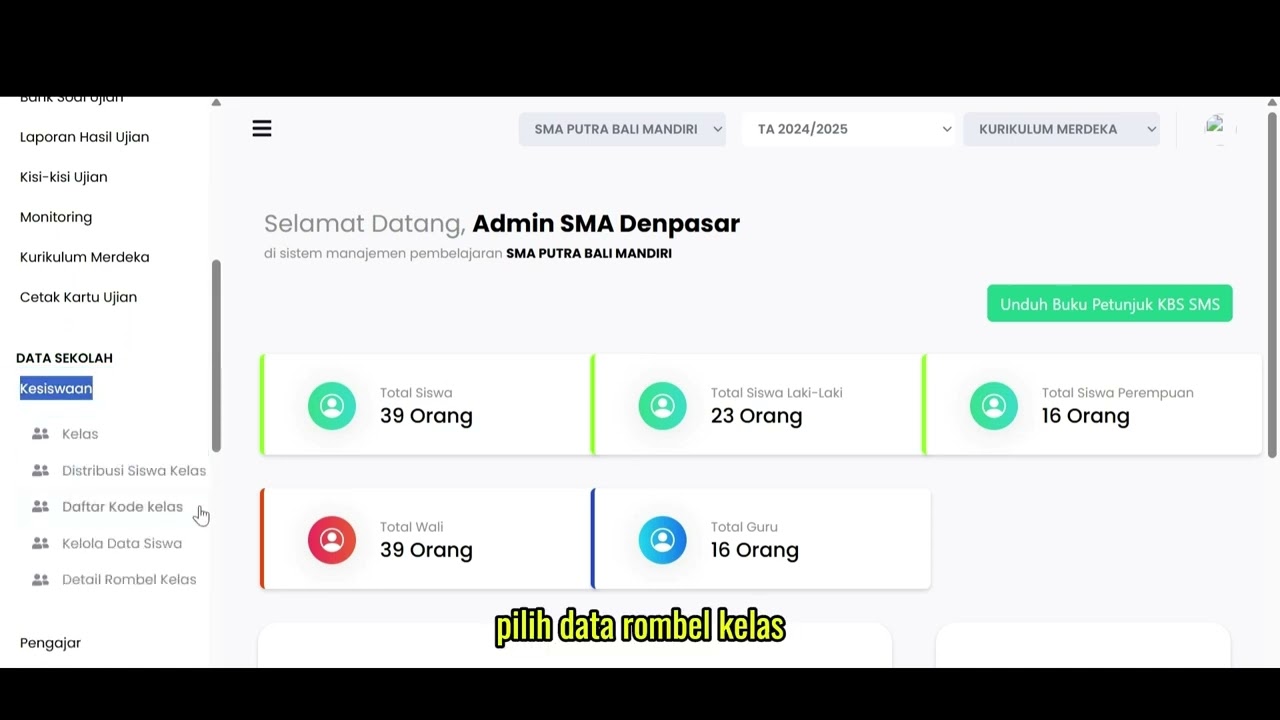
Navigating Student Distribution: On the left menu bar, select the Student Affairs (Kesiswaan) feature, then click the Class Student Distribution (Distribusi Siswa Kelas) submenu.
-
Selecting Graduation Data: Select the "Academic Year" from the dropdown column, then choose the class that will be marked as alumni.
-
Marking Alumni & Saving: Check the ALUMNI checkbox, then click the Save Process (Proses Simpan) button.
-
Confirming the Process: The system will display a confirmation pop-up on the screen. Select and click Yes! (Ya!).
-
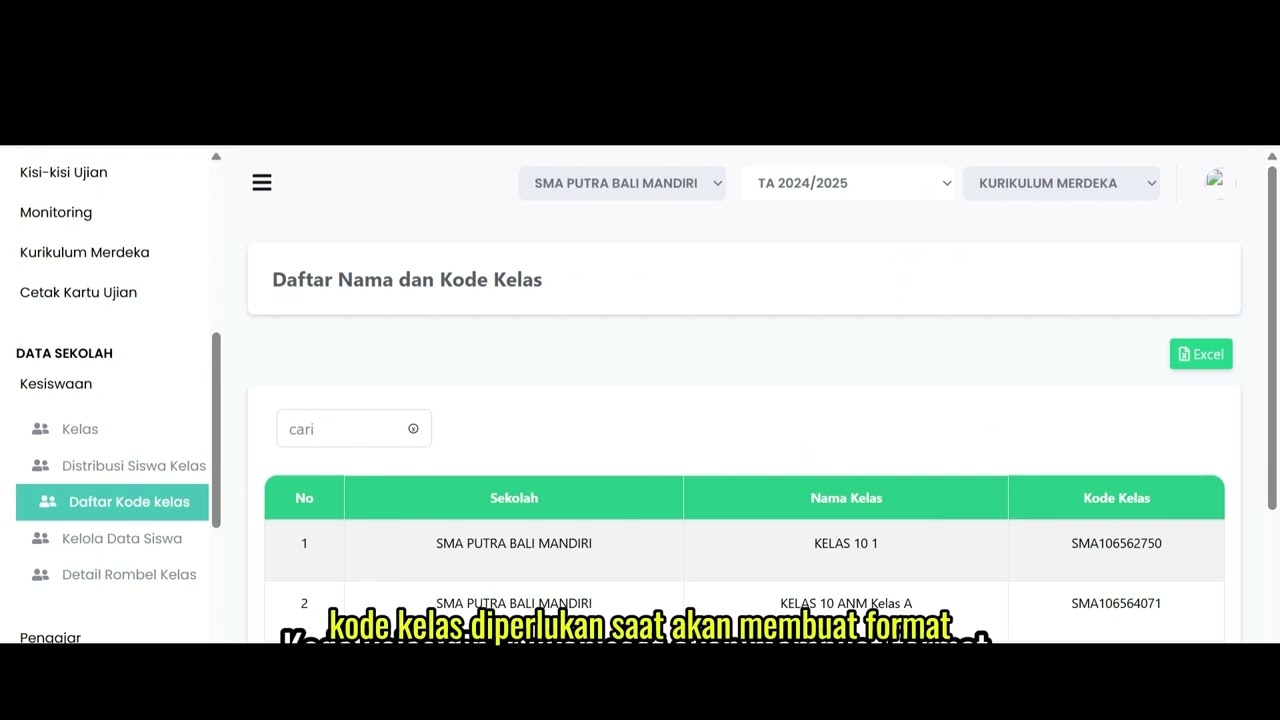
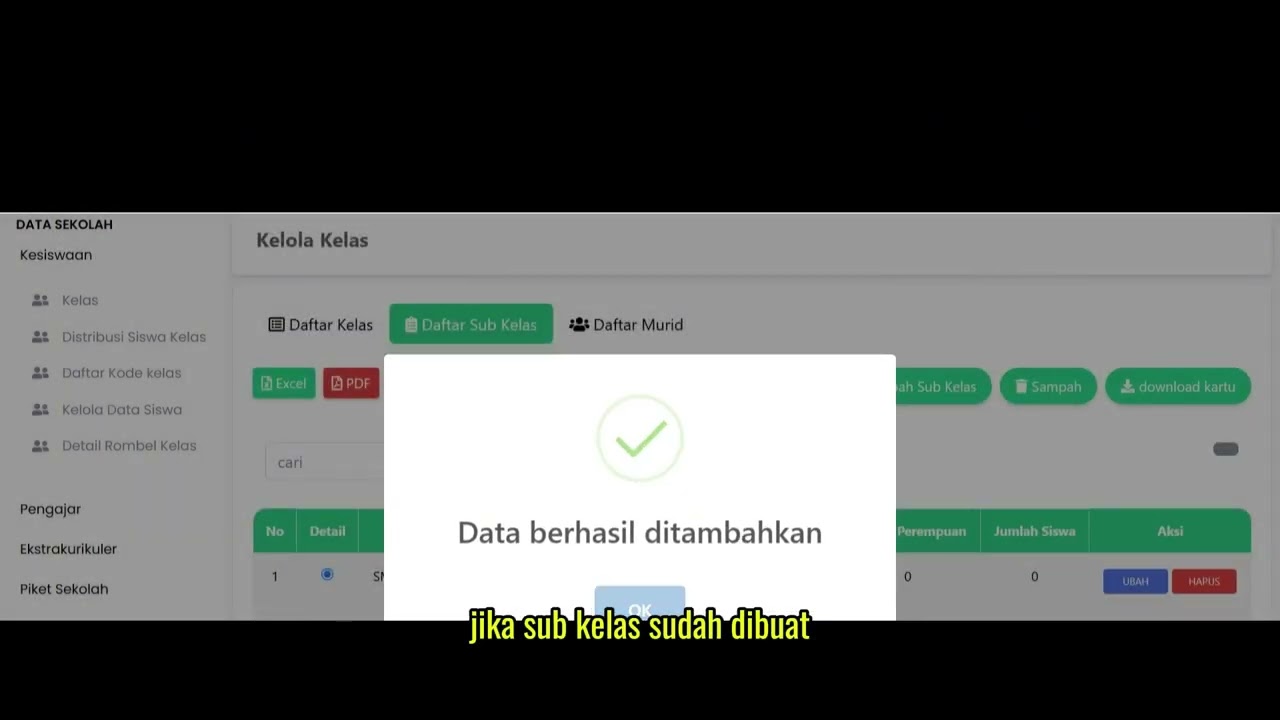
Viewing Class Codes (Promotion): To process class promotions, open the Sub Class data tab for the academic year in the same menu. Pay attention to and note the displayed Class Code (Kode Kelas).
-
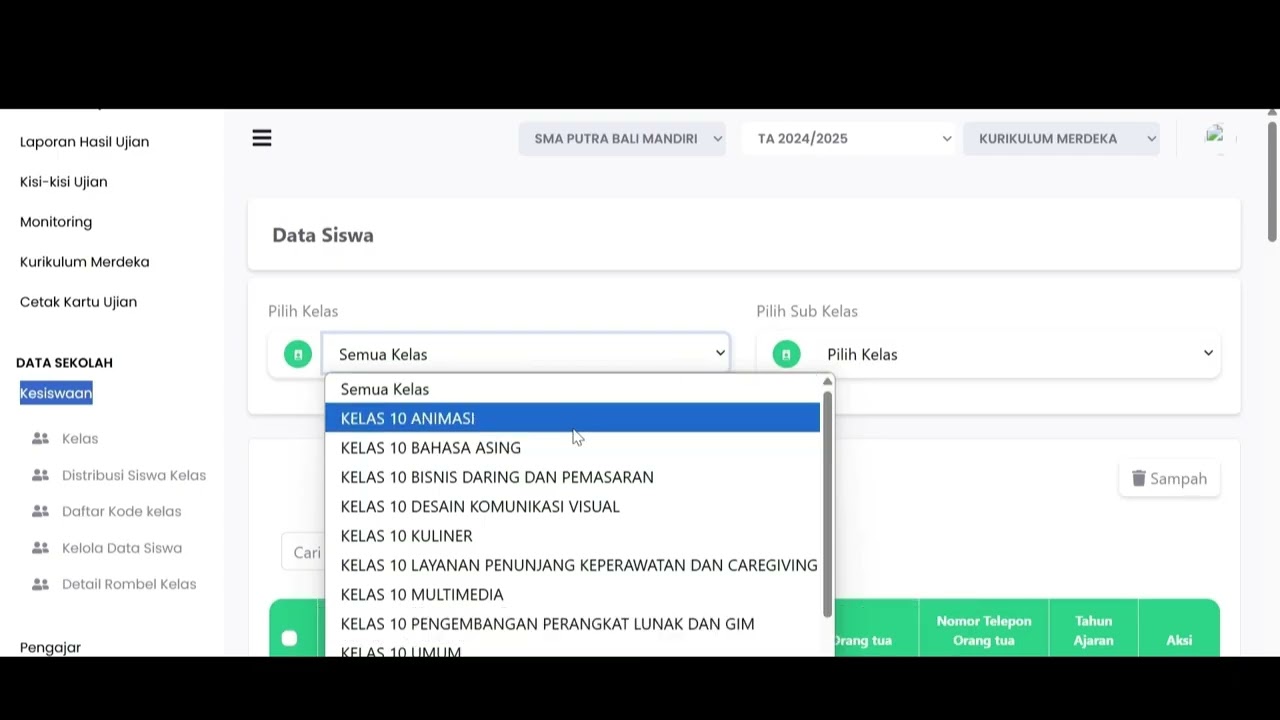
Deleting Student Data (Additional): If there is an initial data entry error, navigate to School Data > Student Affairs > Manage Student Data. Select the class and subclass, find the incorrect student's name, and click the Delete (Hapus) button in the action column.
-
Downloading Rombel Details (Additional): To view the recap of the number of students, open the Class Rombel Details (Detail Rombel Kelas) submenu, then click the Excel or PDF button to download the report to your device.
School Data
16 videos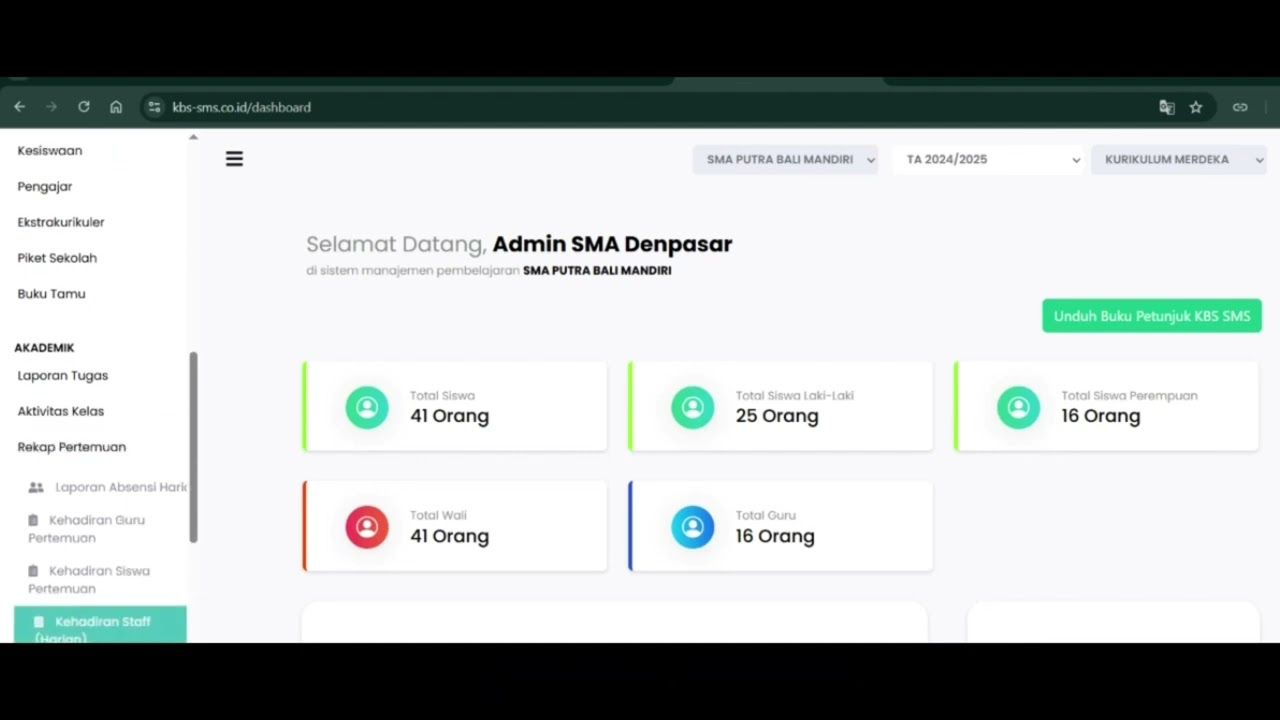 0:42
0:42
Daily Staff Attendance
92 views
 0:44
0:44
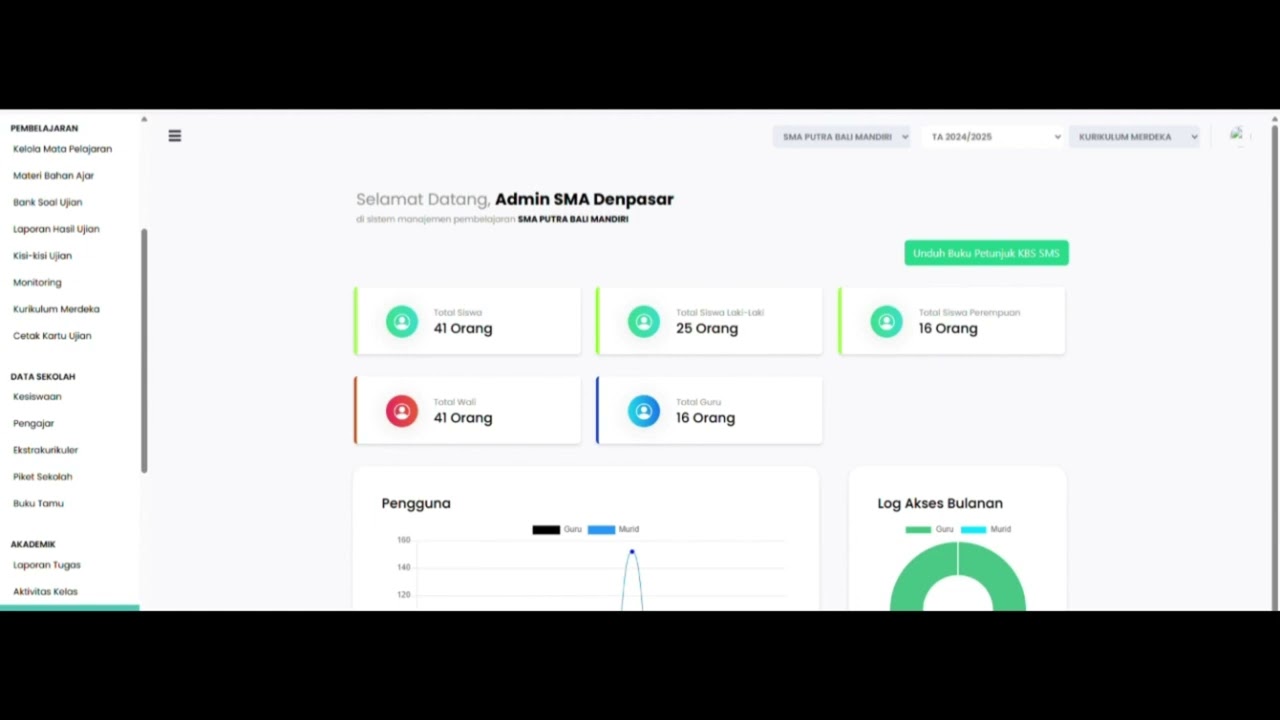
Teacher Attendance at Meetings
85 views
 0:43
0:43
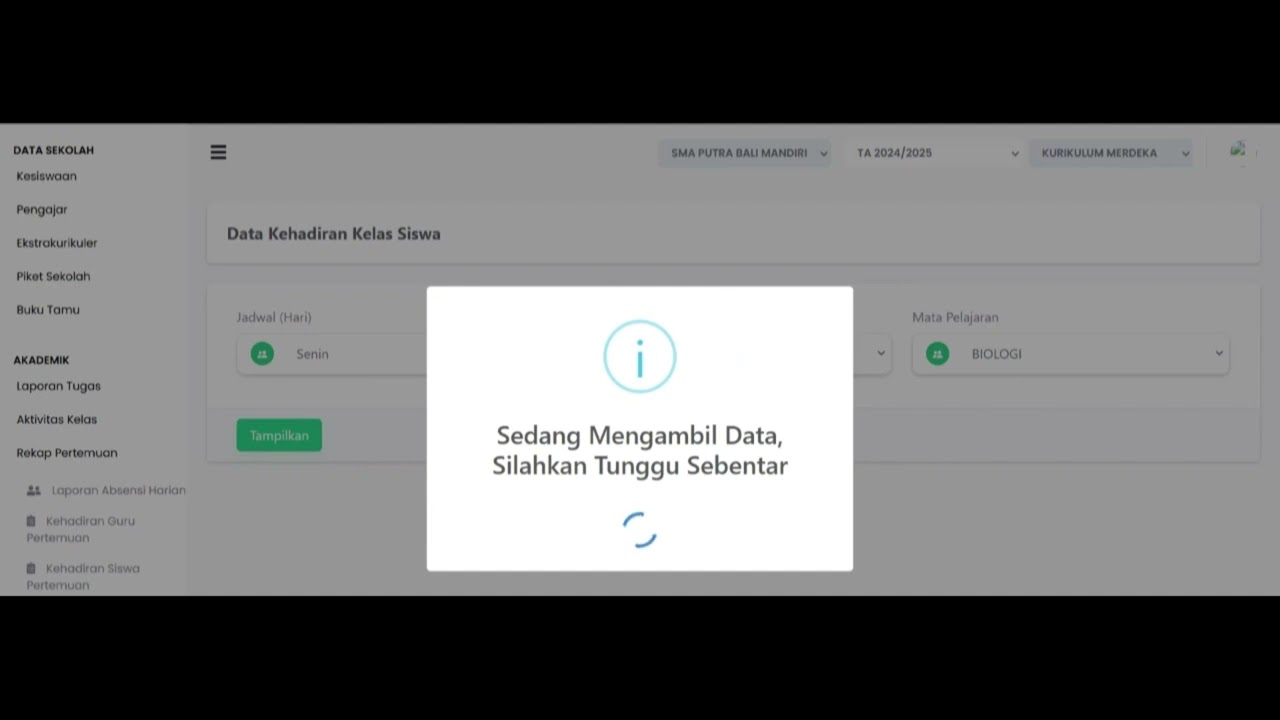
student attendance at meetings
81 views
 1:01
1:01
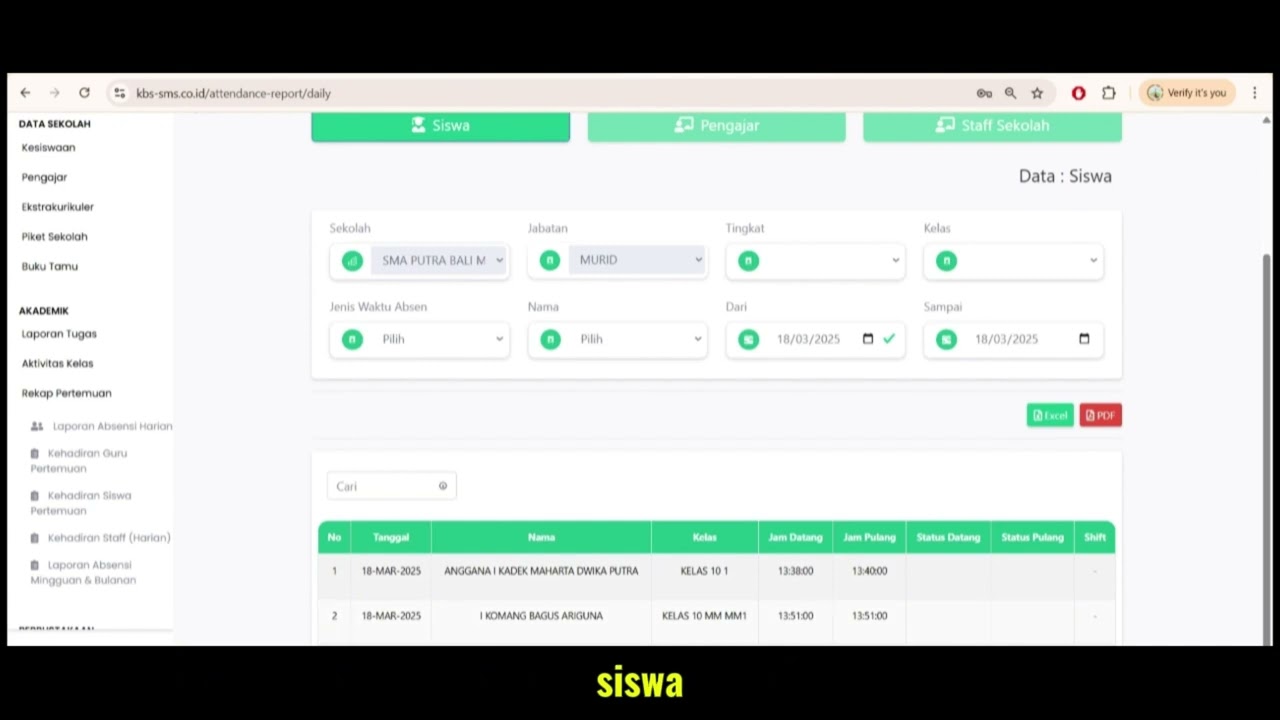
Daily Attendance Report
94 views
 2:11
2:11
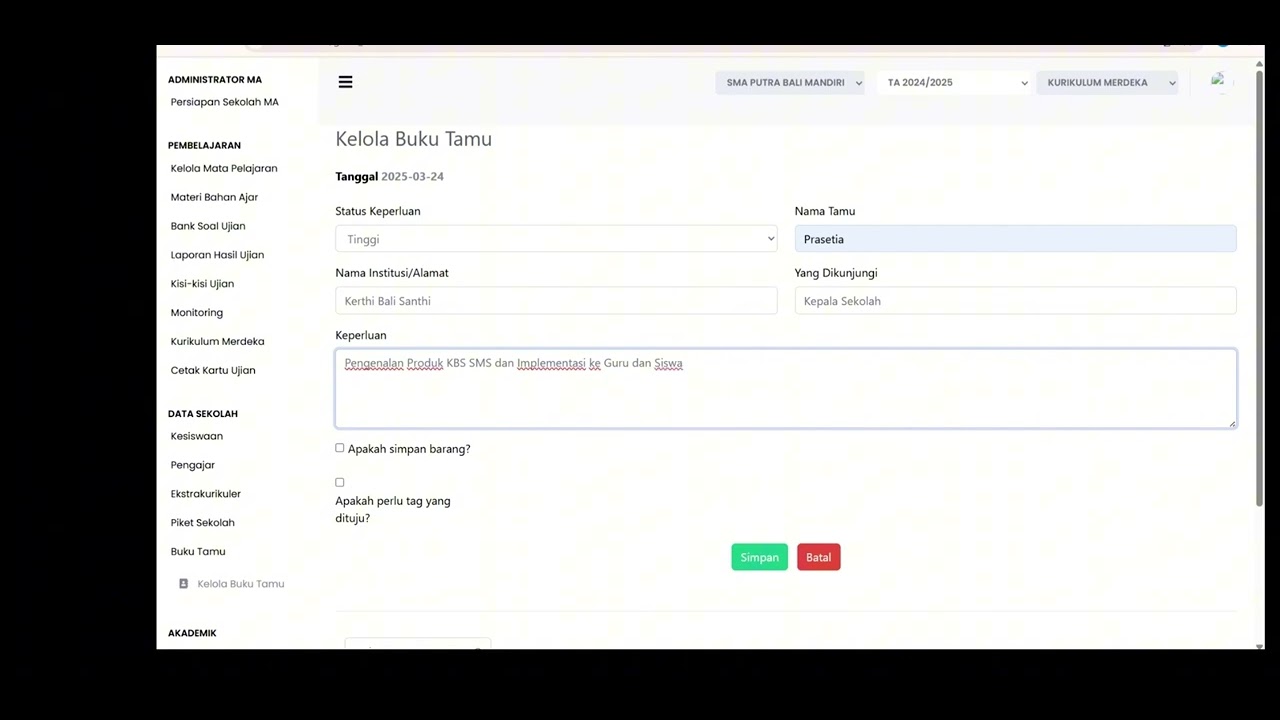
Guest Book Features
92 views
 3:16
3:16
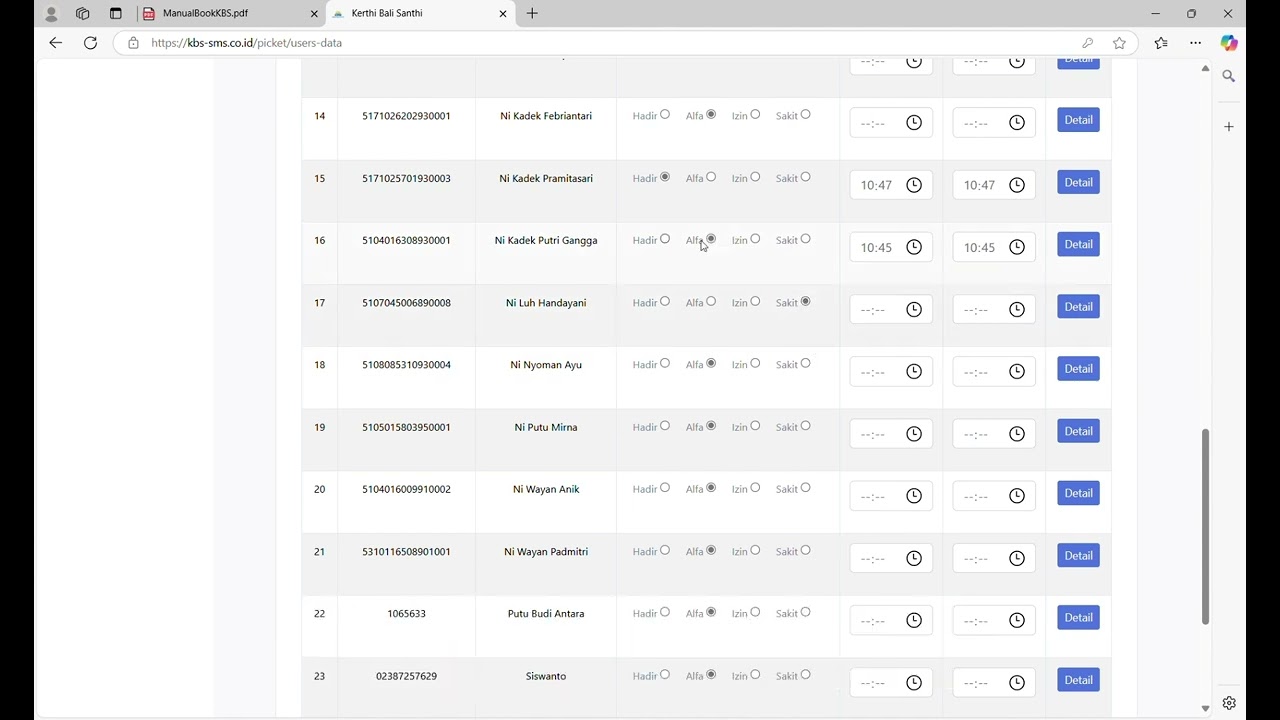
School Duty
87 views
 1:15
1:15
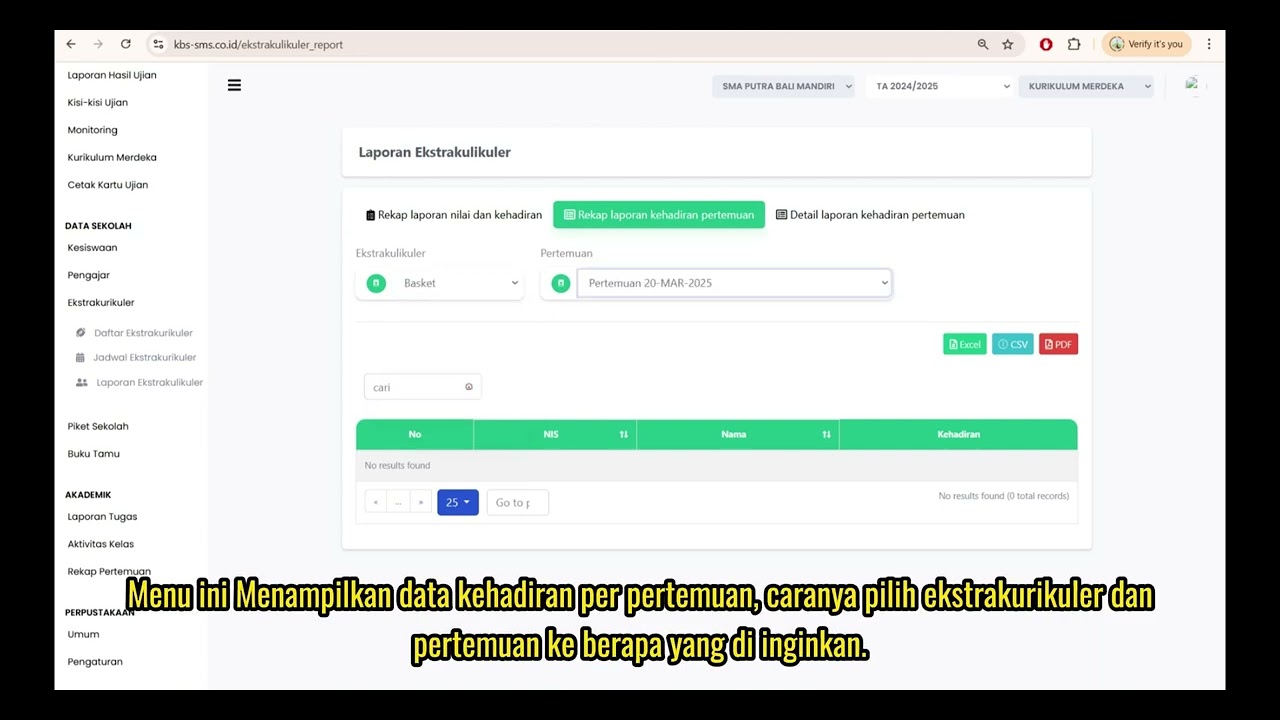
Extracurricular Report
87 views
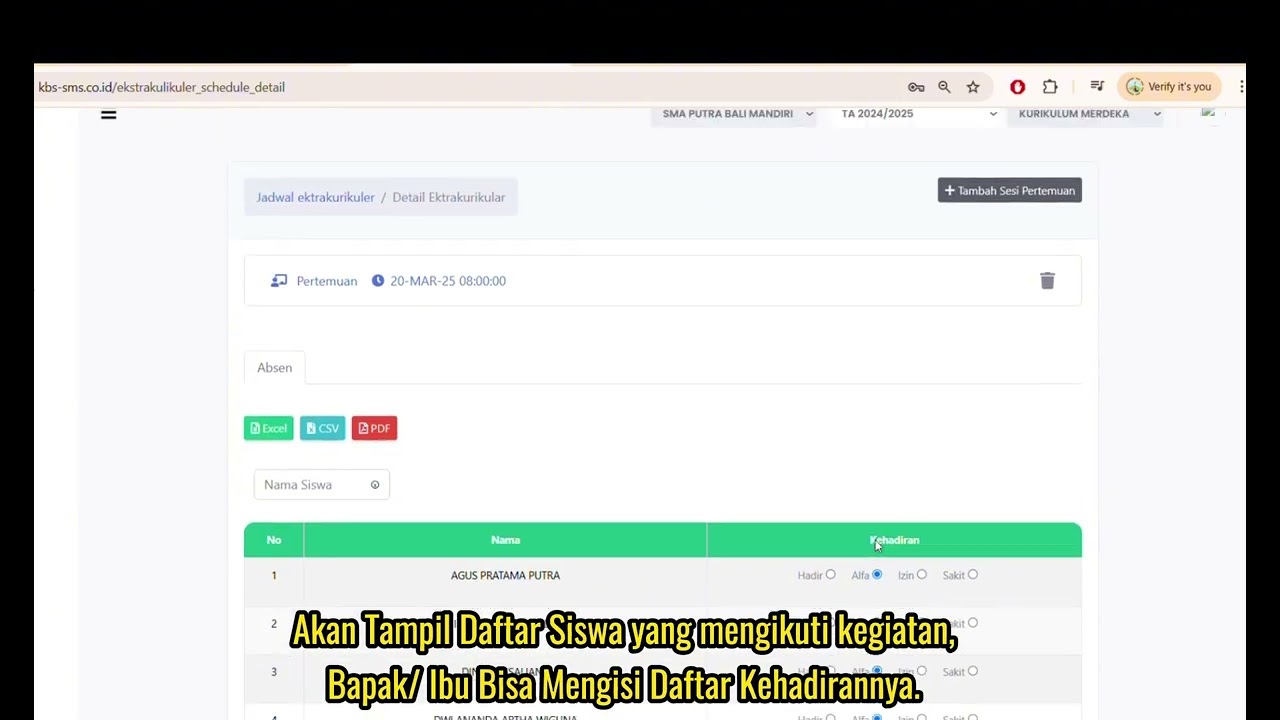 4:32
4:32
Jadwal Ekstrakulikuler
74 views
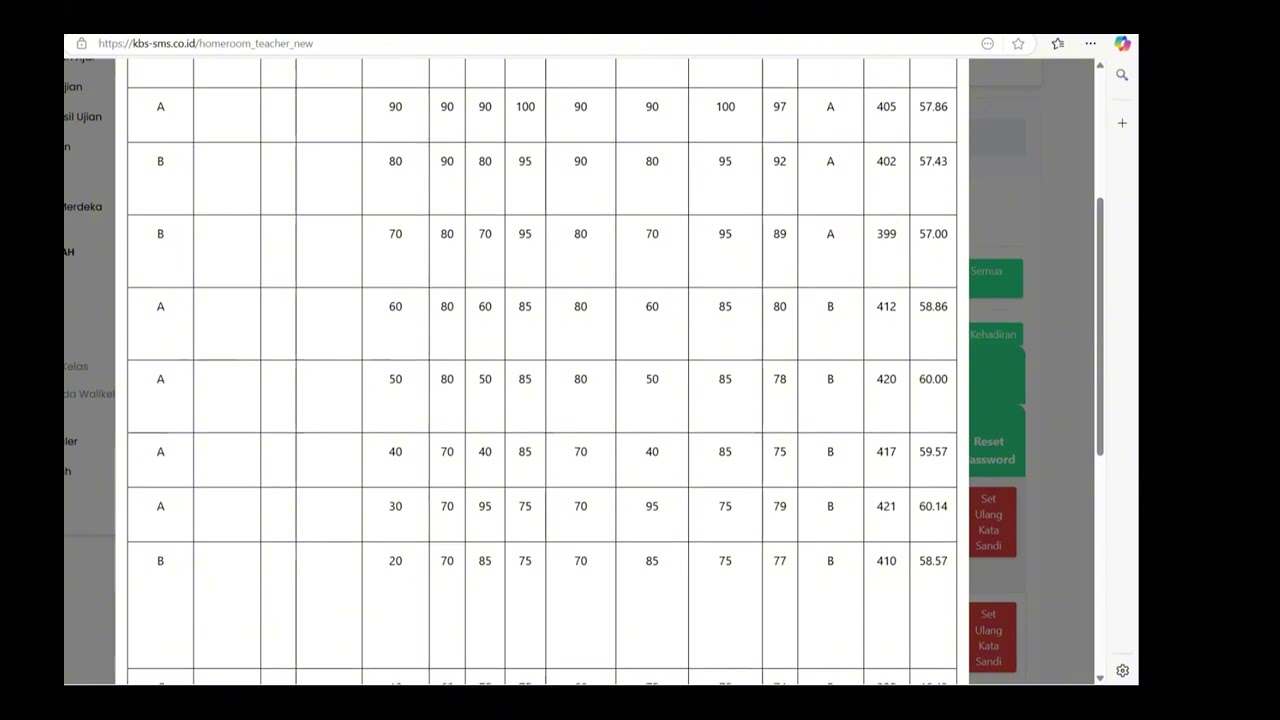 7:32
7:32
Beranda Walikelas
77 views
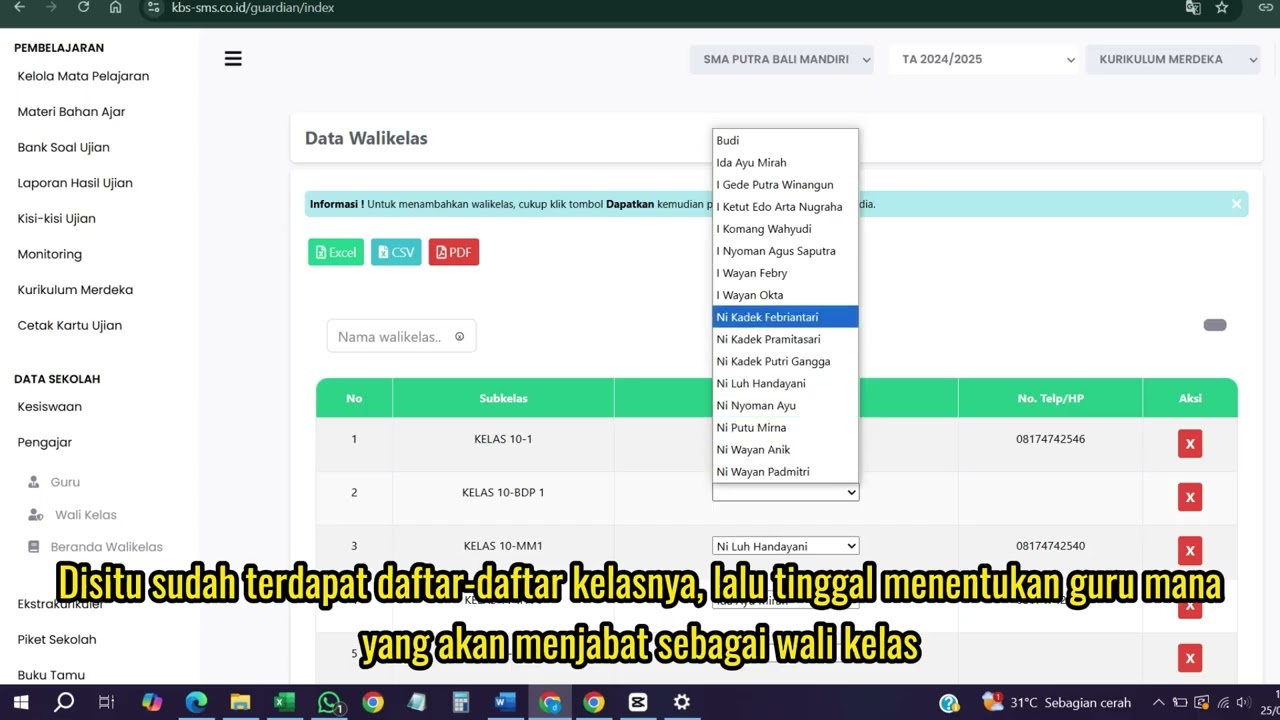 0:55
0:55
Wali kelas
76 views
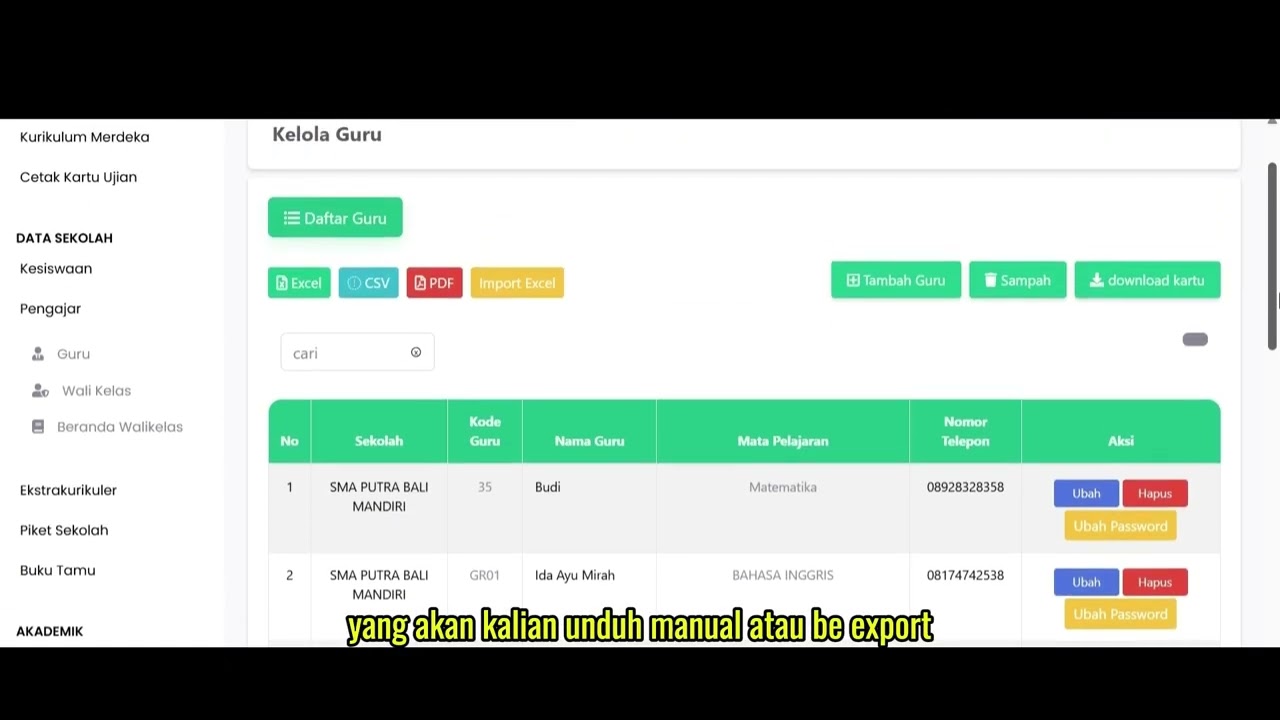 1:04
1:04
Data Rombel Guru
99 views
 0:53
0:53
Data Rombel kelas
88 views
 1:02
1:02
Kelola Data Siswa
93 views
Distribusi Siswa Kelas
80 views
 6:22
6:22
Daftar Ekstrakulikuler
91 views
 3:32
3:32
Tutorial Kesiswaan
89 views
Related Videos
Daily Staff Attendance
92 views • 8 months ago
Teacher Attendance at Meetings
85 views • 8 months ago
student attendance at meetings
81 views • 8 months ago
Daily Attendance Report
94 views • 8 months ago
Guest Book Features
92 views • 8 months ago
School Duty
87 views • 8 months ago