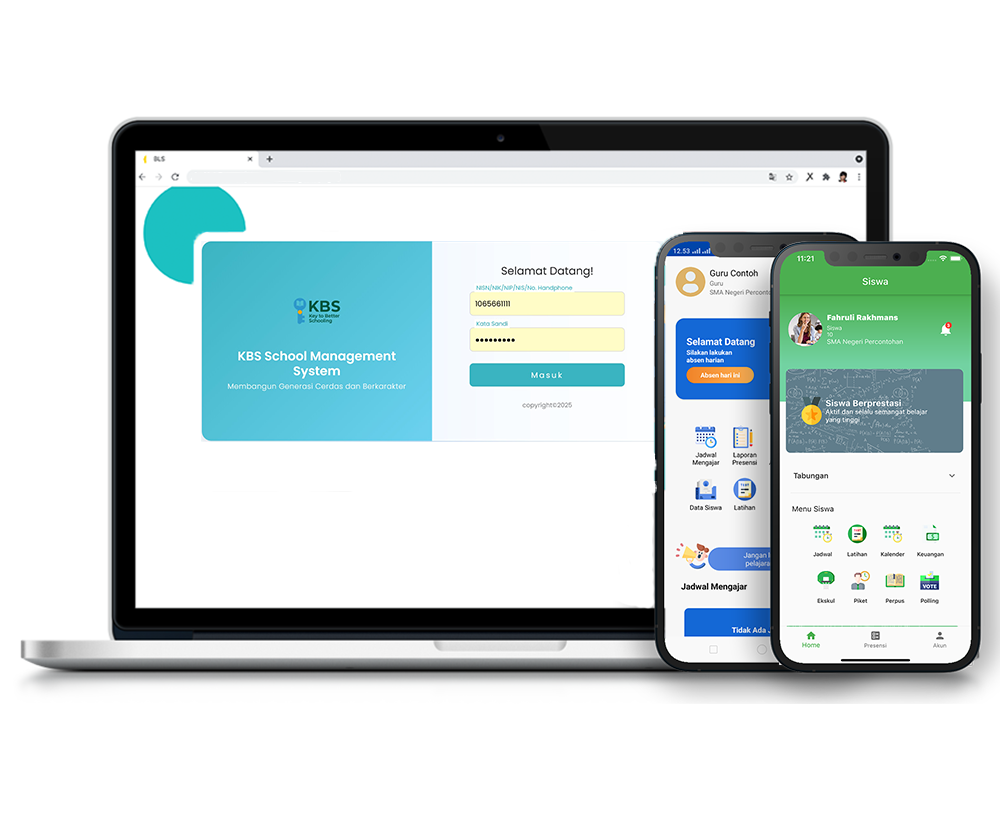
Daftar Ekstrakulikuler
Description
This tutorial video provides a comprehensive guide on managing school extracurricular activities. The covered steps include creating new extracurricular data, registering advising teachers, adding student members based on their class, creating activity schedules or information, and finally, inputting extracurricular grades for each student.
Step-by-Step Usage Guide
-
Creating a New Extracurricular: On the left menu bar, select School Data (Data Sekolah) > Extracurricular (Ekstrakurikuler), then click the Extracurricular List (Daftar Ekstrakurikuler) submenu. Click the green Add Extracurricular (Tambah Ekstrakurikuler) button, fill in the "Extracurricular Name" and "Description", then click Save (Simpan).
-
Adding an Advisor: Open the Extracurricular Advisor (Pembimbing Ekstrakurikuler) submenu, then click the Add Advisor (Tambah Pembimbing/Pembina) button. Select the extracurricular name, teacher's name, and position from the dropdown menus, then click Save (Simpan).
-
Adding Student Members: Return to the Extracurricular List menu, then click the Exclamation Mark (!) symbol on the newly created extracurricular box. Select the Add Member (Tambah Anggota) tab, choose the "Class" from the dropdown, and check the boxes next to the enrolled students' names. Finally, click the Process (Proses) button.
-
Recording Activity Information: Switch to the Activity Information (Informasi Kegiatan) tab, then click the Add Activity (Tambah Aktifitas) button. Complete the activity name, description, and execution date fields, then click Save (Simpan).
-
Inputting Grades: Open the Assessment (Penilaian) tab, then select the "Semester" from the dropdown menu. Enter the grade or predicate (e.g., A, B, C) in the column next to each student's name. Once all grades are filled, click the Save (Simpan) button at the bottom.
Important Notes
-
When assigning grades in the Assessment tab, you must select the Semester first so that the system displays the grading columns.
-
Ensure all student grades have been inputted and do not forget to click the Save button at the very bottom so that the entered grades are not lost or reset.
School Data
16 videos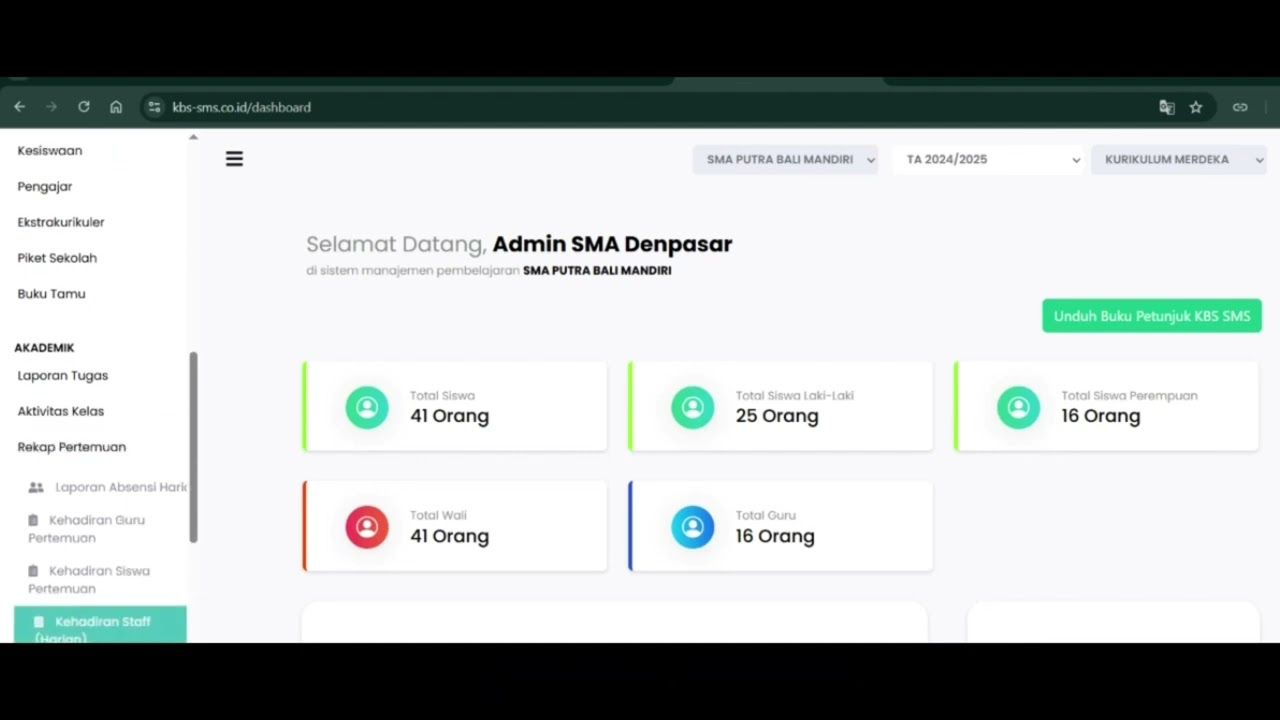 0:42
0:42
Daily Staff Attendance
92 views
 0:44
0:44
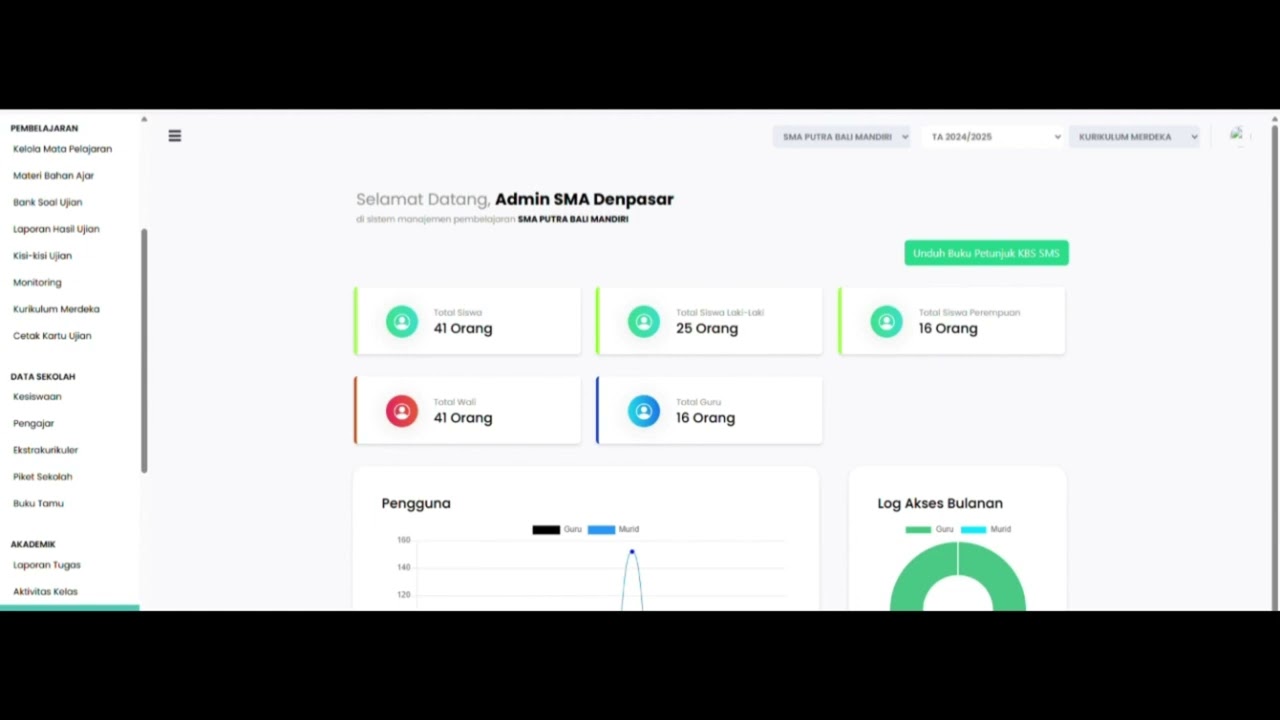
Teacher Attendance at Meetings
85 views
 0:43
0:43
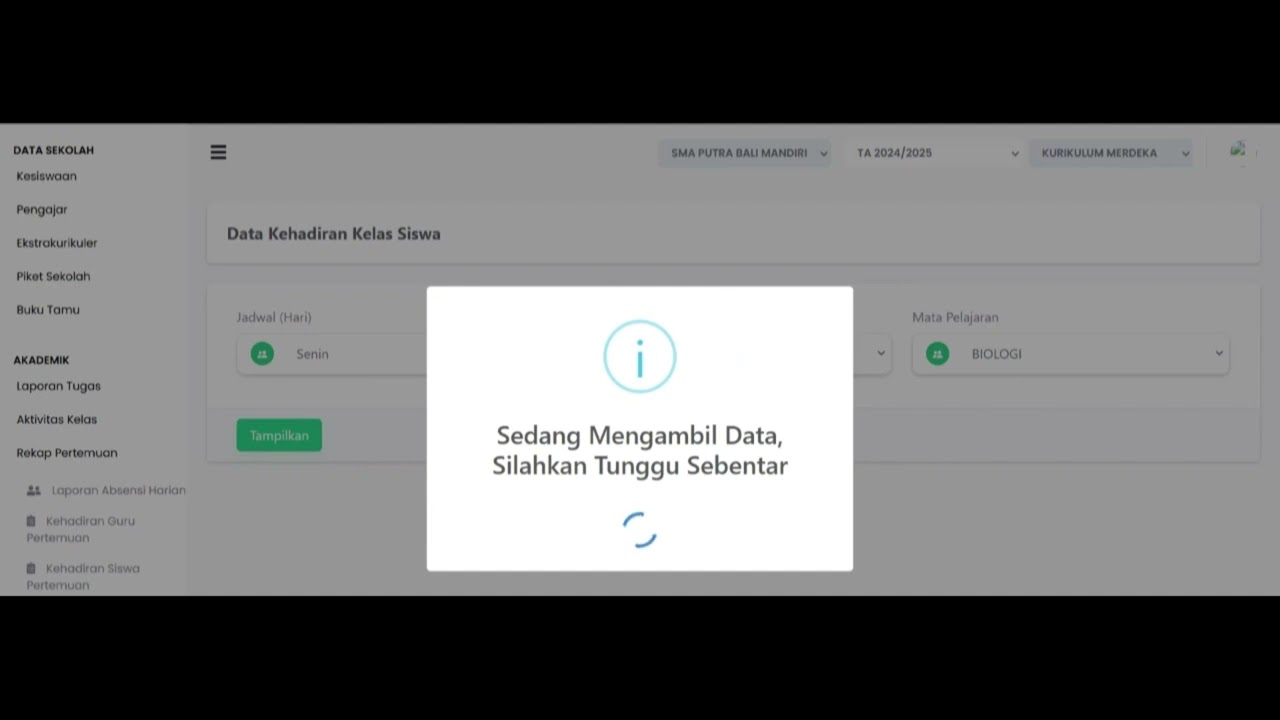
student attendance at meetings
81 views
 1:01
1:01
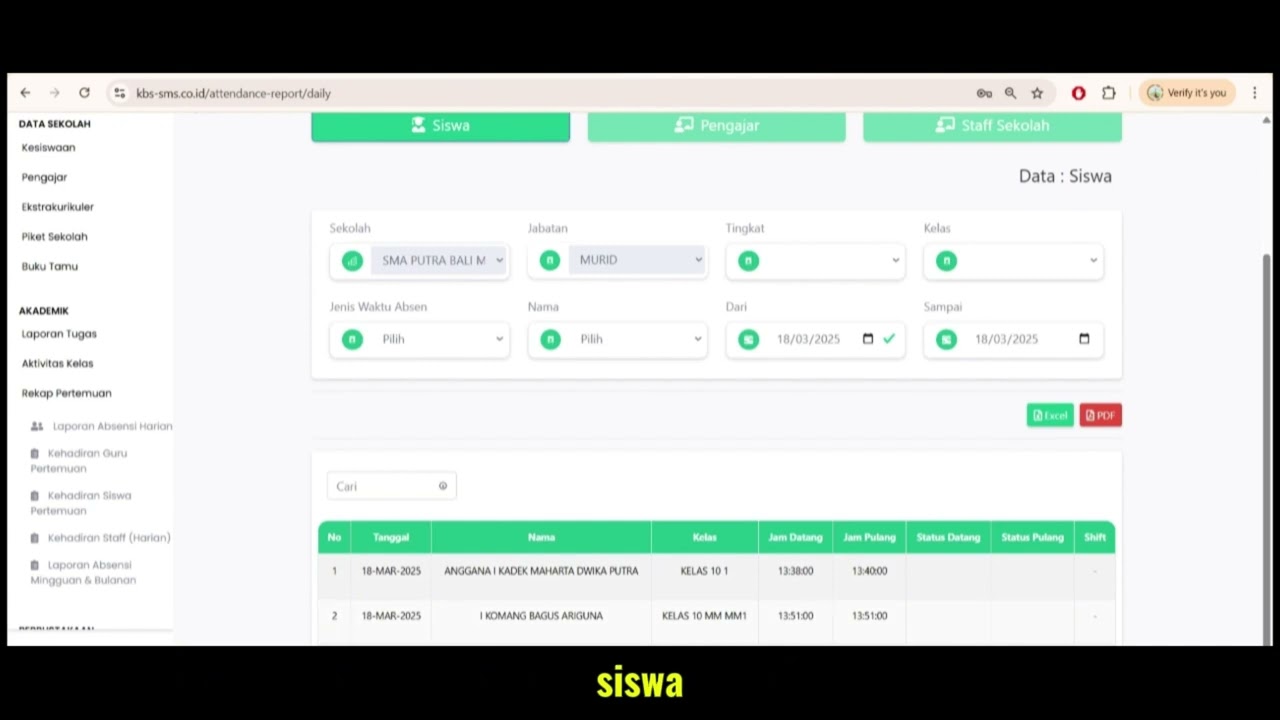
Daily Attendance Report
94 views
 2:11
2:11
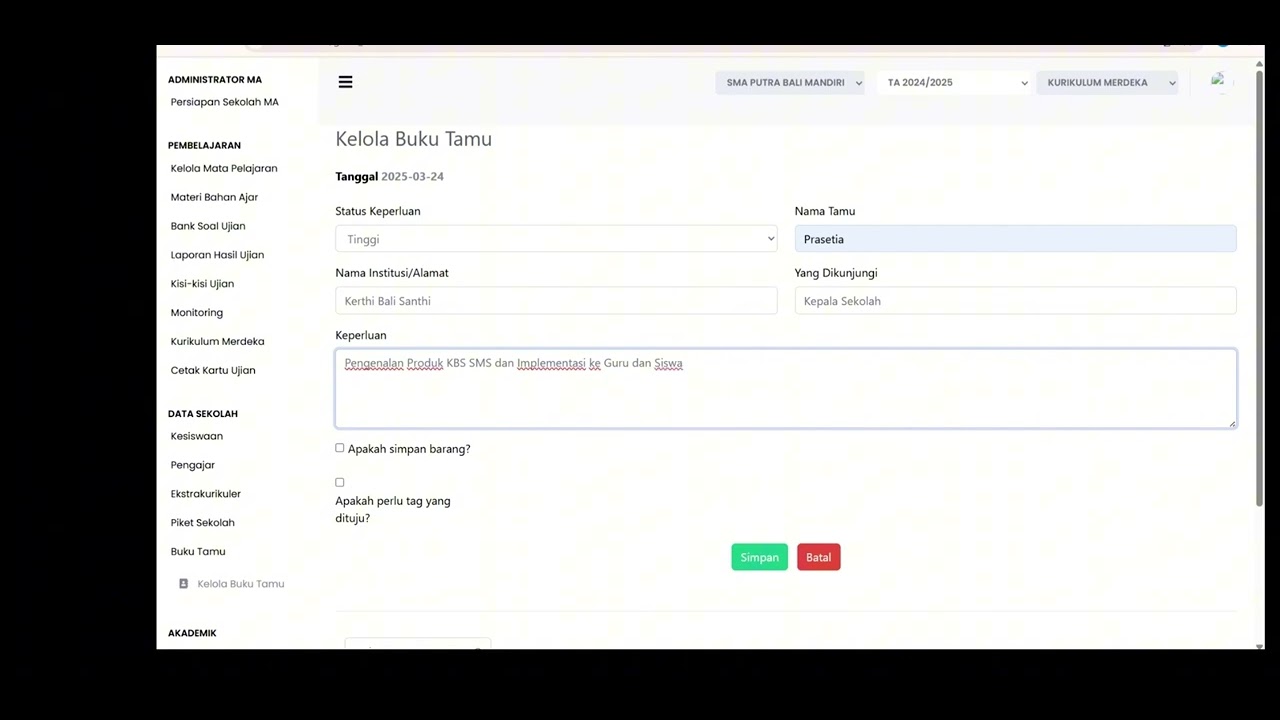
Guest Book Features
92 views
 3:16
3:16
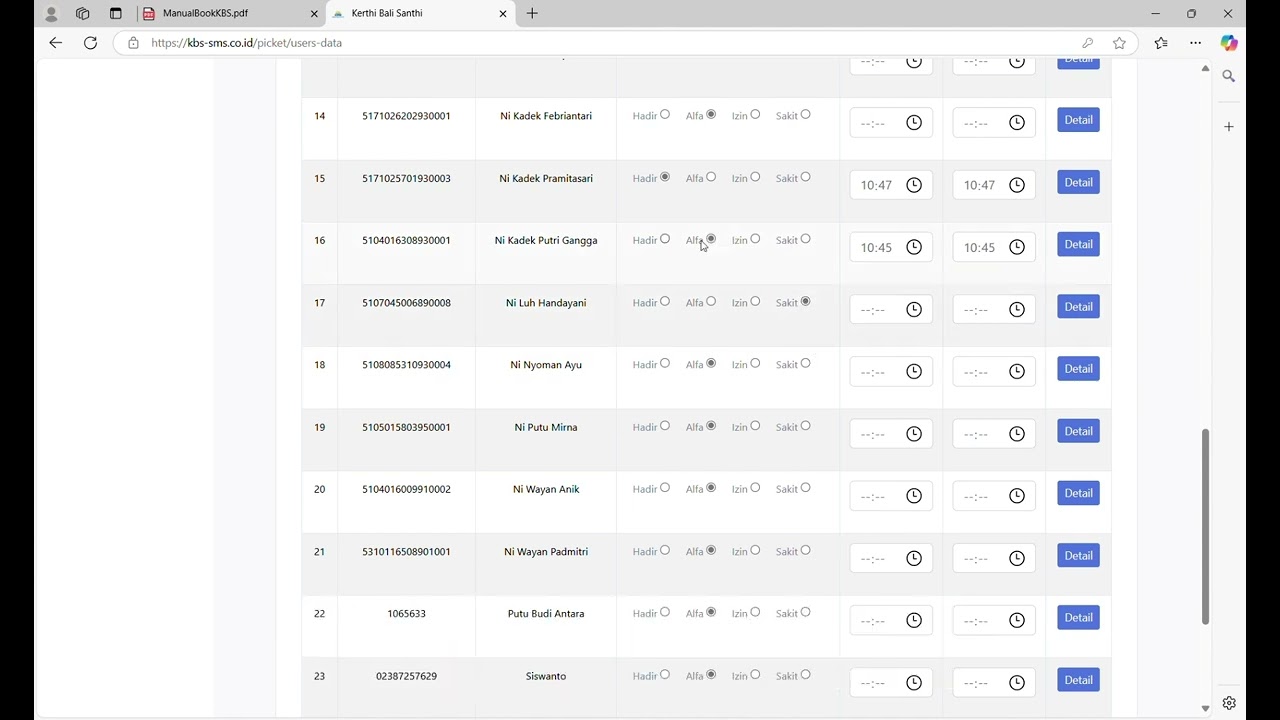
School Duty
87 views
 1:15
1:15
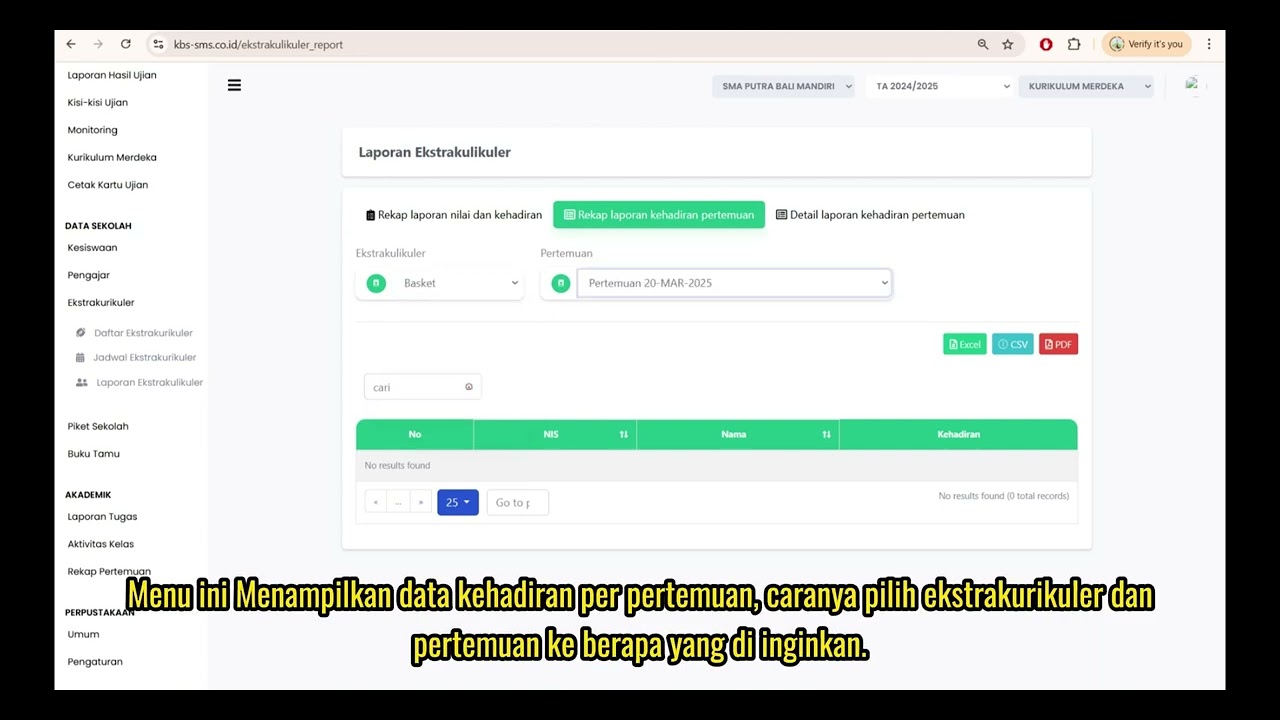
Extracurricular Report
87 views
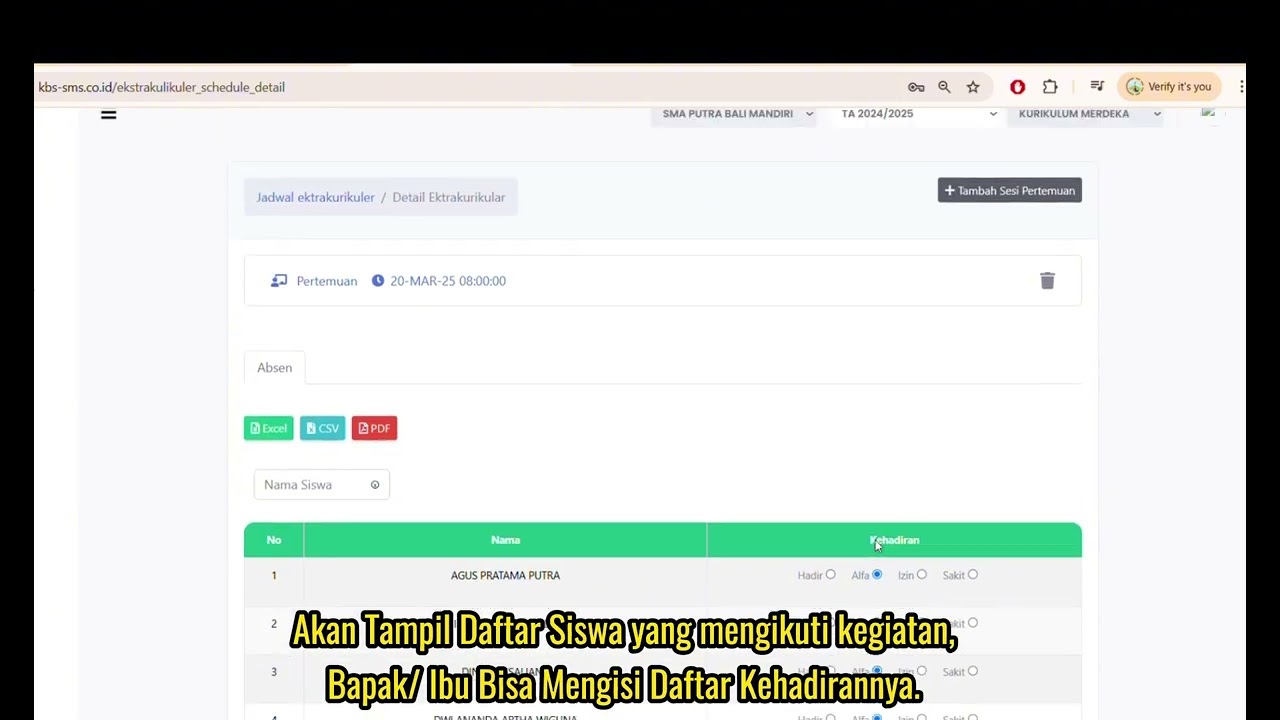 4:32
4:32
Jadwal Ekstrakulikuler
74 views
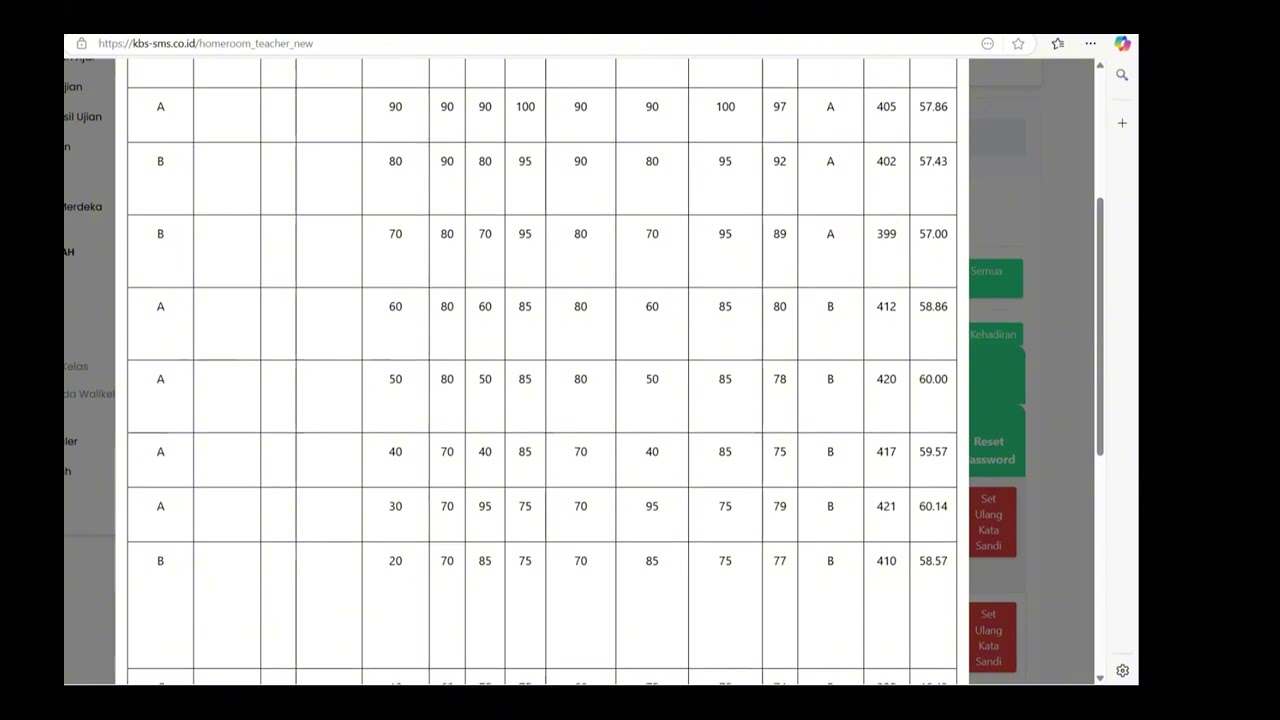 7:32
7:32
Beranda Walikelas
77 views
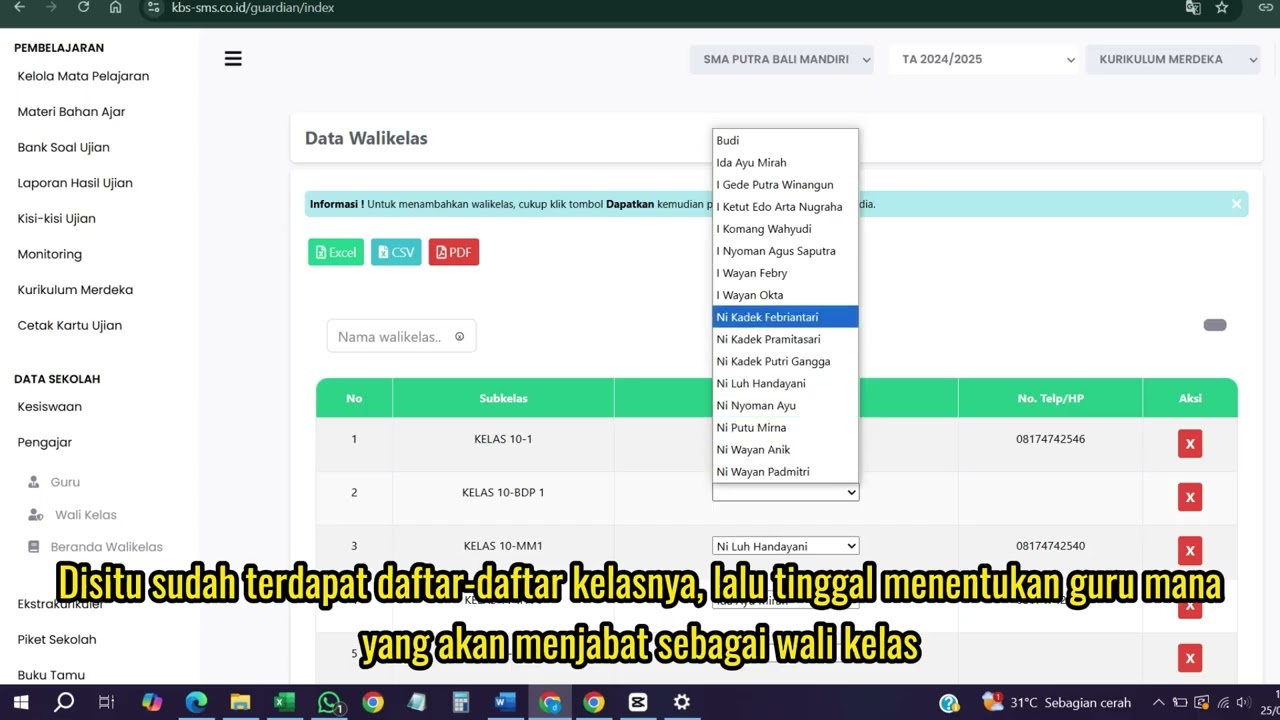 0:55
0:55
Wali kelas
75 views
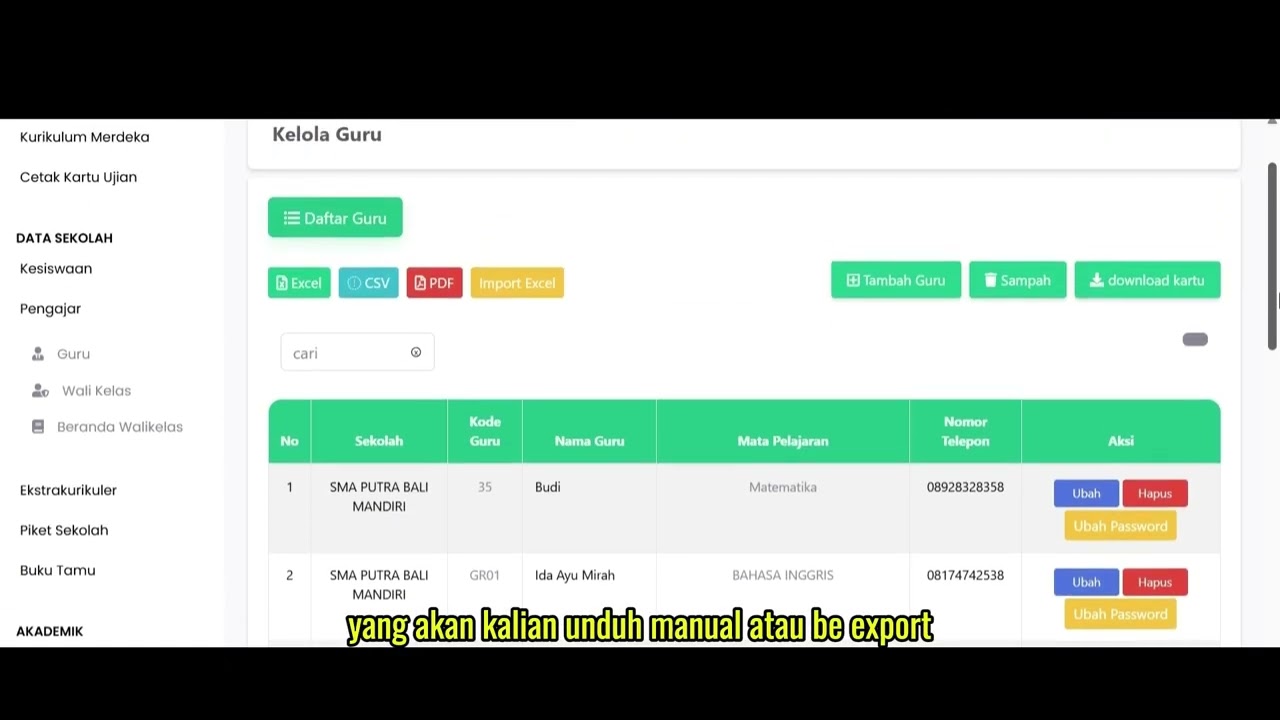 1:04
1:04
Data Rombel Guru
98 views
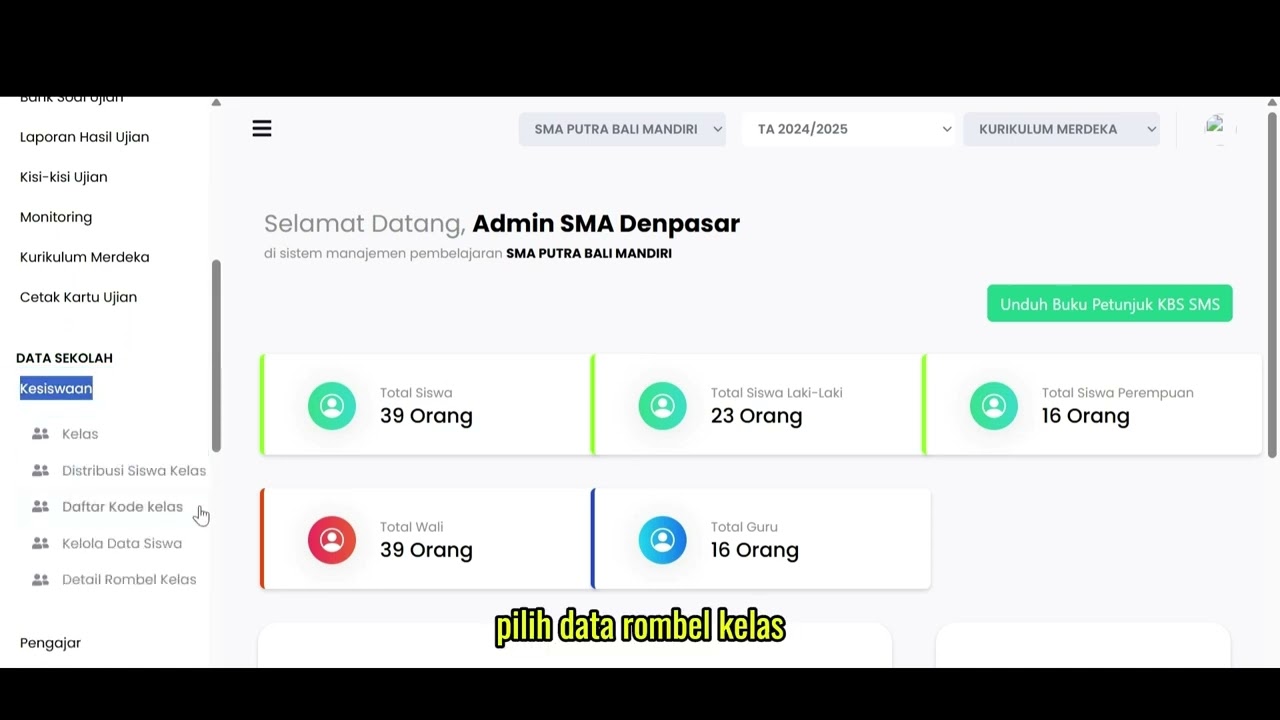 0:53
0:53
Data Rombel kelas
88 views
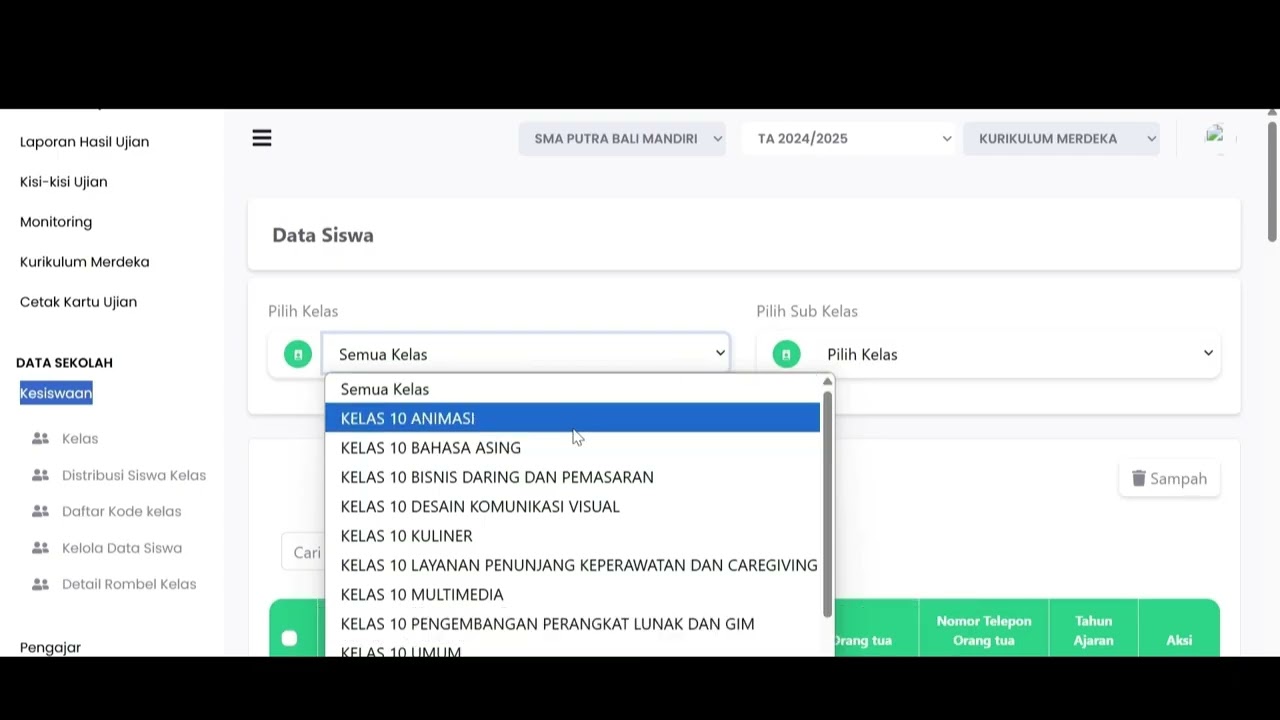 1:02
1:02
Kelola Data Siswa
92 views
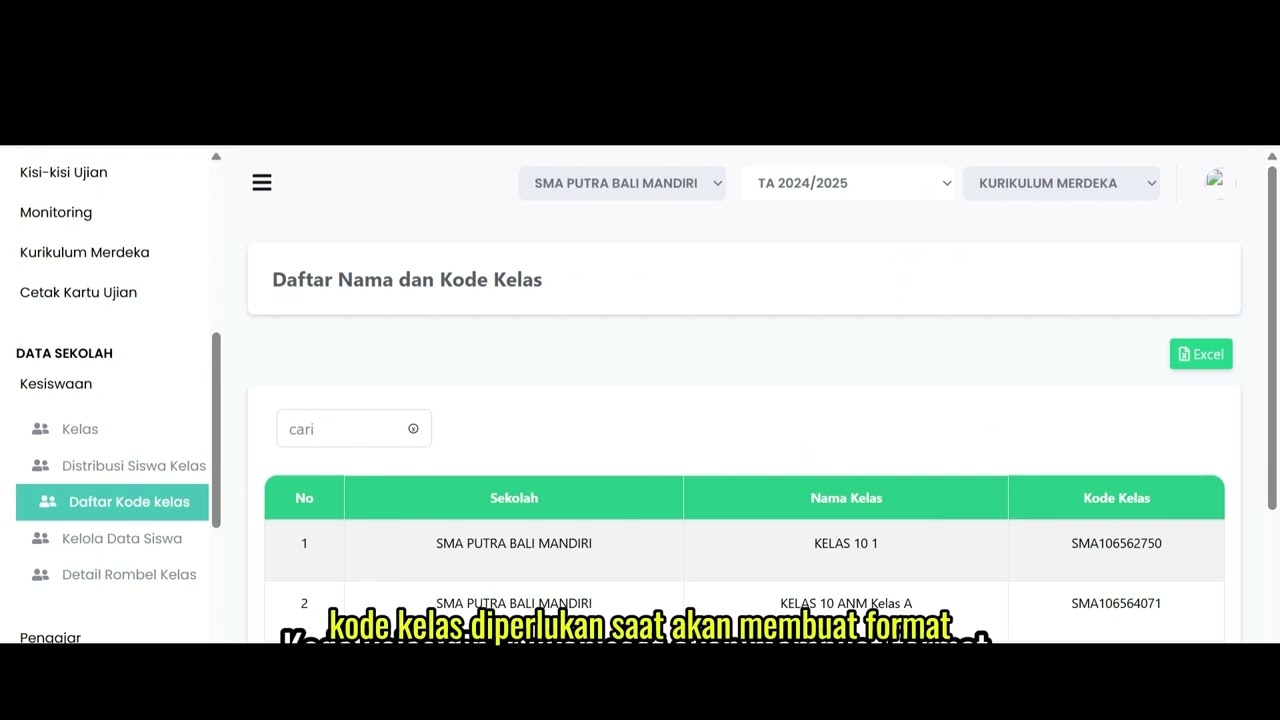 2:47
2:47
Distribusi Siswa Kelas
79 views
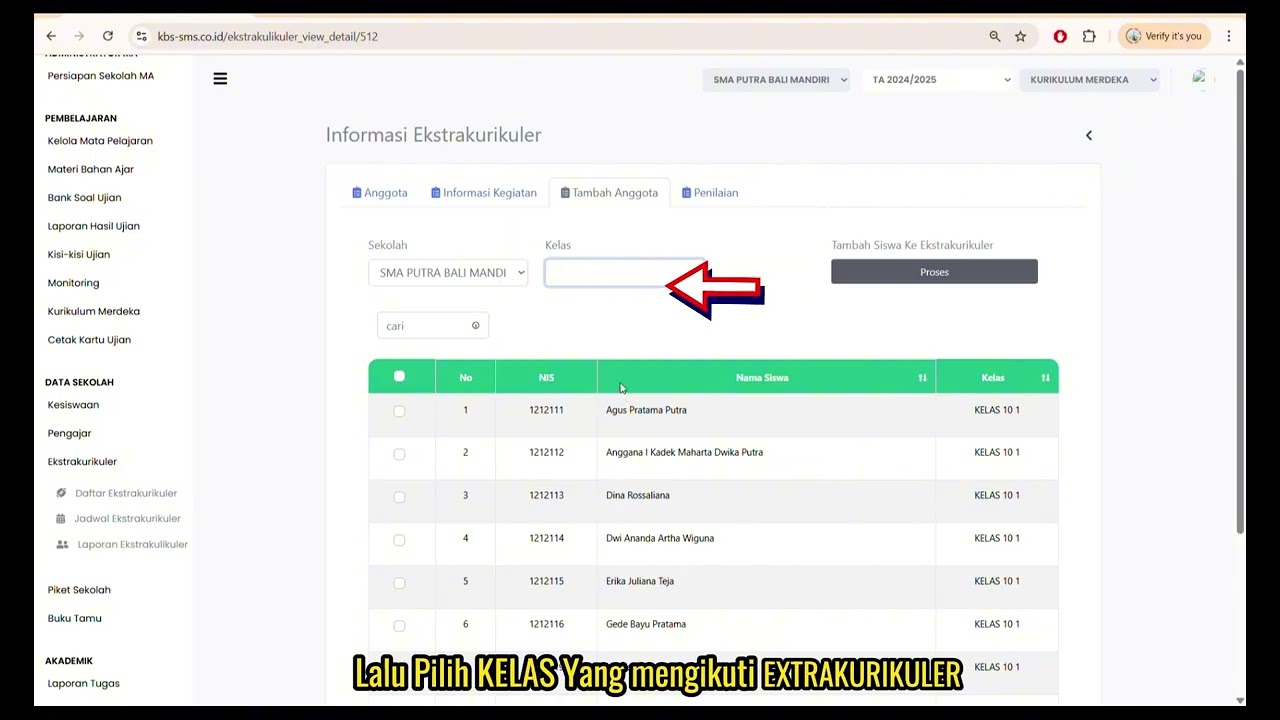
Daftar Ekstrakulikuler
91 views
 3:32
3:32
Tutorial Kesiswaan
88 views
Related Videos
Daily Staff Attendance
92 views • 8 months ago
Teacher Attendance at Meetings
85 views • 8 months ago
student attendance at meetings
81 views • 8 months ago
Daily Attendance Report
94 views • 8 months ago
Guest Book Features
92 views • 8 months ago
School Duty
87 views • 8 months ago