Kelola Data Siswa
Description
This guide video focuses on explaining the procedure for deleting student data through the Manage Student Data menu in the KBS SMS. The discussion covers how to navigate the menu, filter student data searches by class, select specific data to delete, and the final confirmation stage for permanent data deletion.
Step-by-Step Usage Guide
-
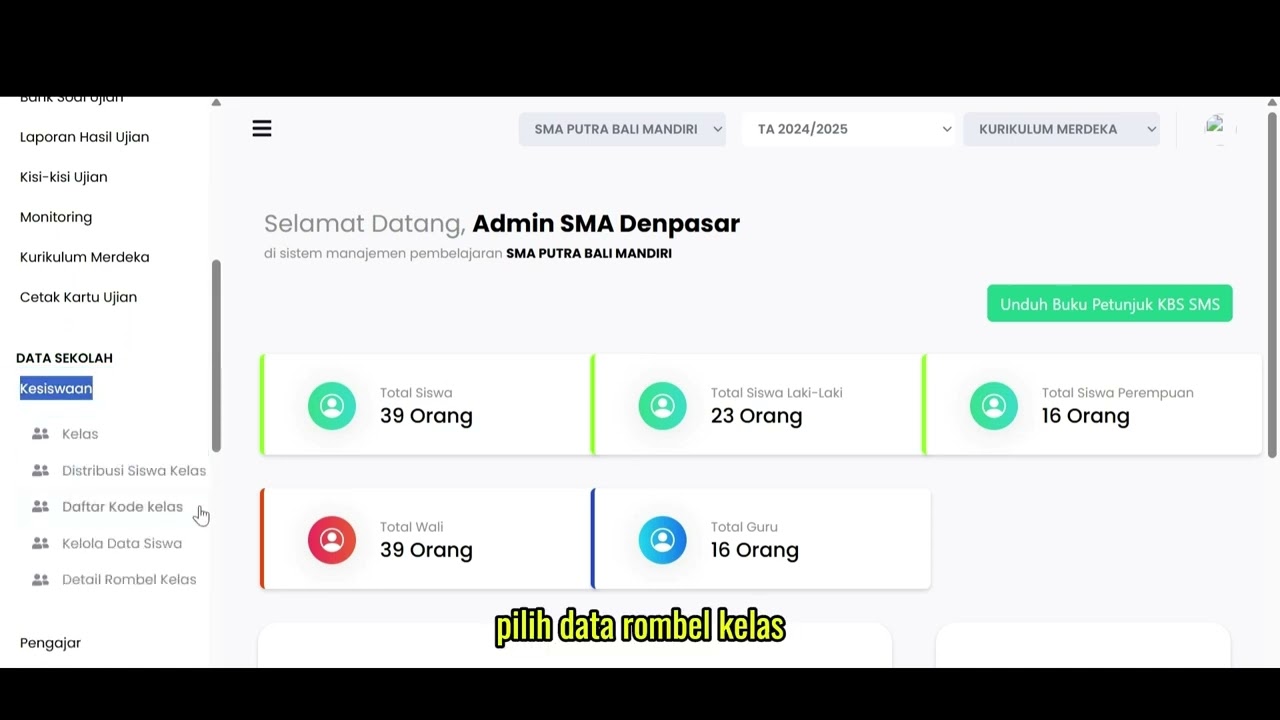
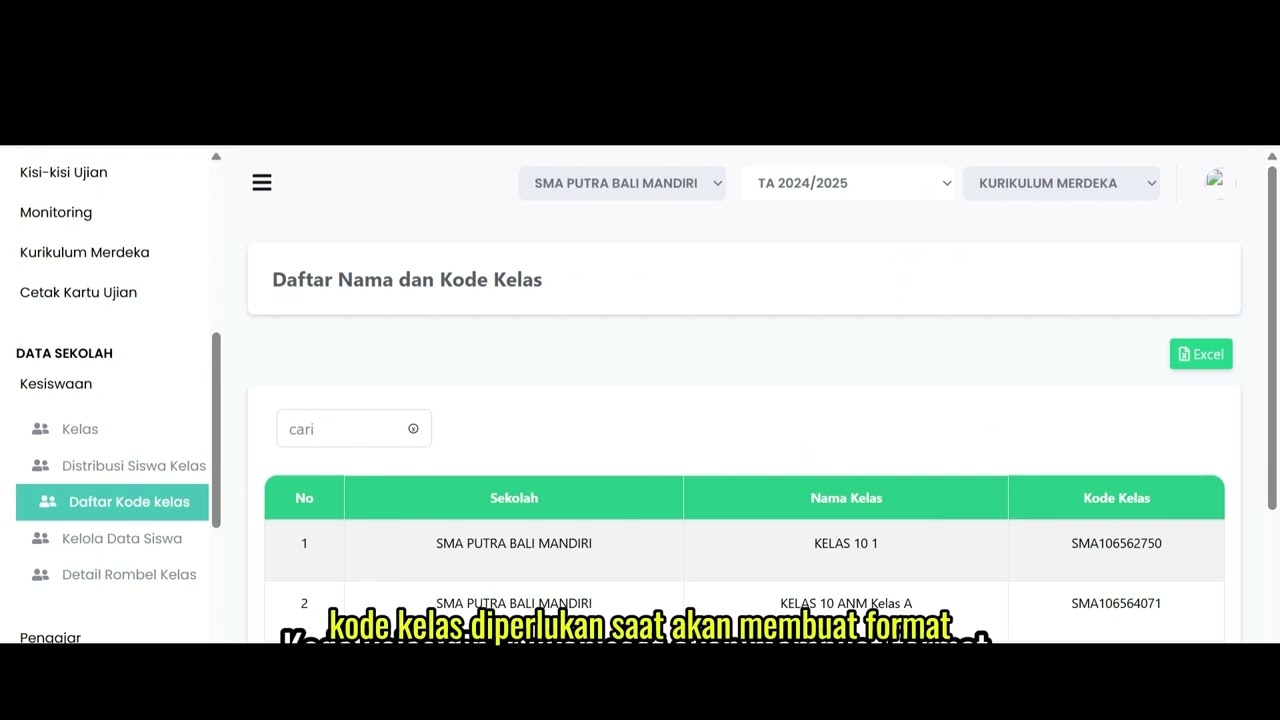
Menu Navigation: From the left menu bar, select School Data (Data Sekolah), choose the Student Affairs (Kesiswaan) menu, then click the Manage Student Data (Kelola Data Siswa) submenu.
-
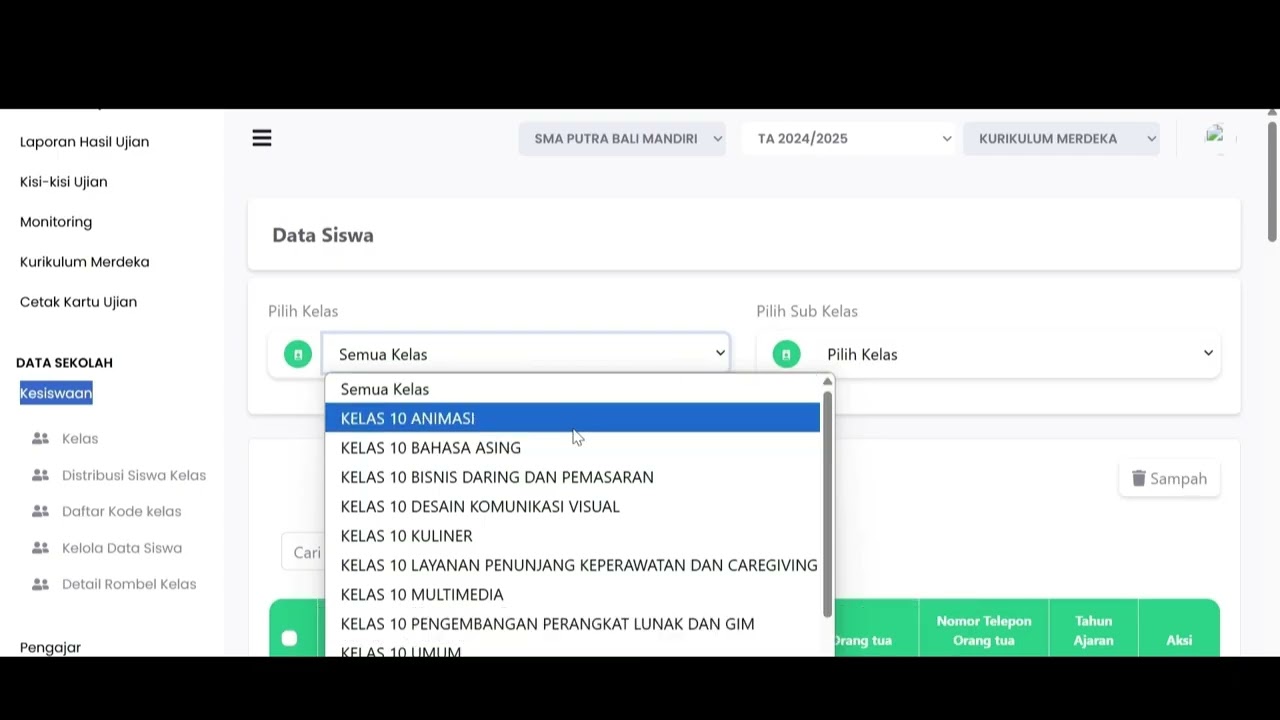
Selecting a Class: On the Student Data page, specify the class through the "Select Class" (Pilih Kelas) and "Select Sub Class" (Pilih Sub Kelas) dropdown columns to display the list of students in the desired class.
-
Deleting Data: Once the table displays all students in that class, locate the row of the student you wish to delete, then click the Delete (Hapus) button in the action column on the far right.
-
Confirming Deletion: The system will display a warning pop-up asking "Are you sure you want to delete this data?" (Yakin hapus data ini?). Click the Yes, delete! (Ya, hapus!) button to approve the process.
-
Completing the Process: The system will show a "Success!" notification. Click the OK button to return to the table page.
School Data
16 videos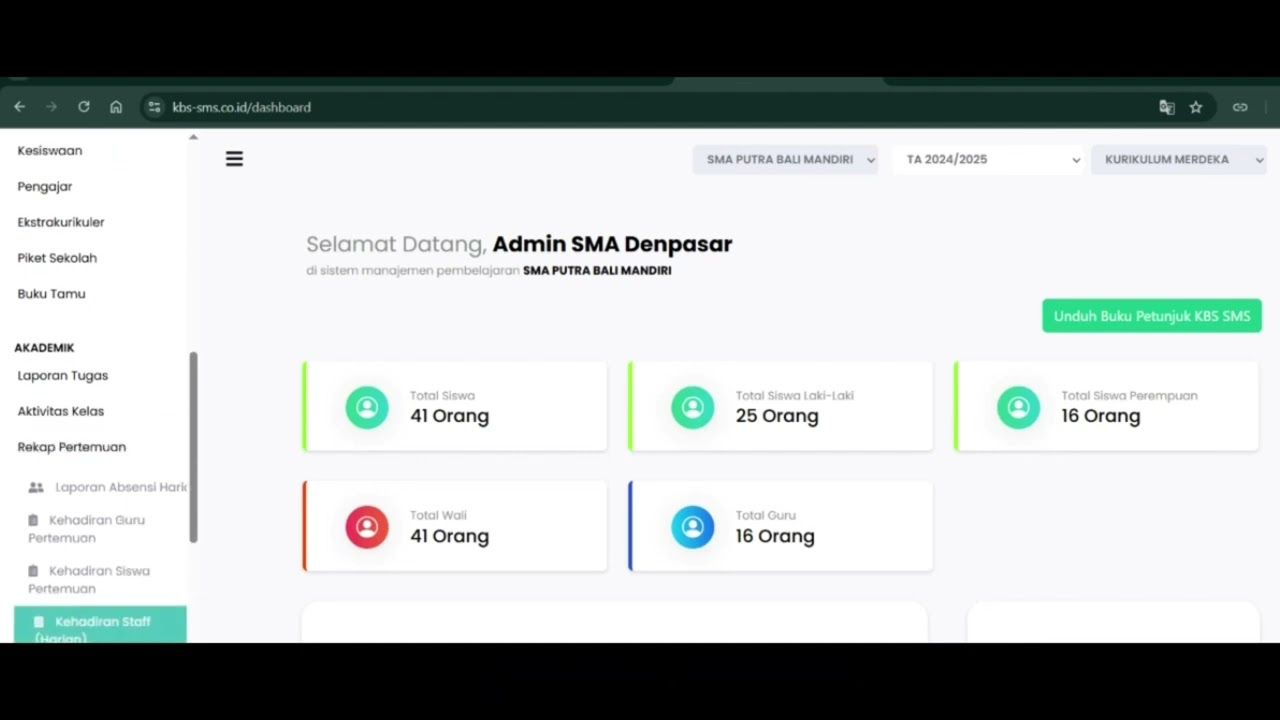 0:42
0:42
Daily Staff Attendance
92 views
 0:44
0:44
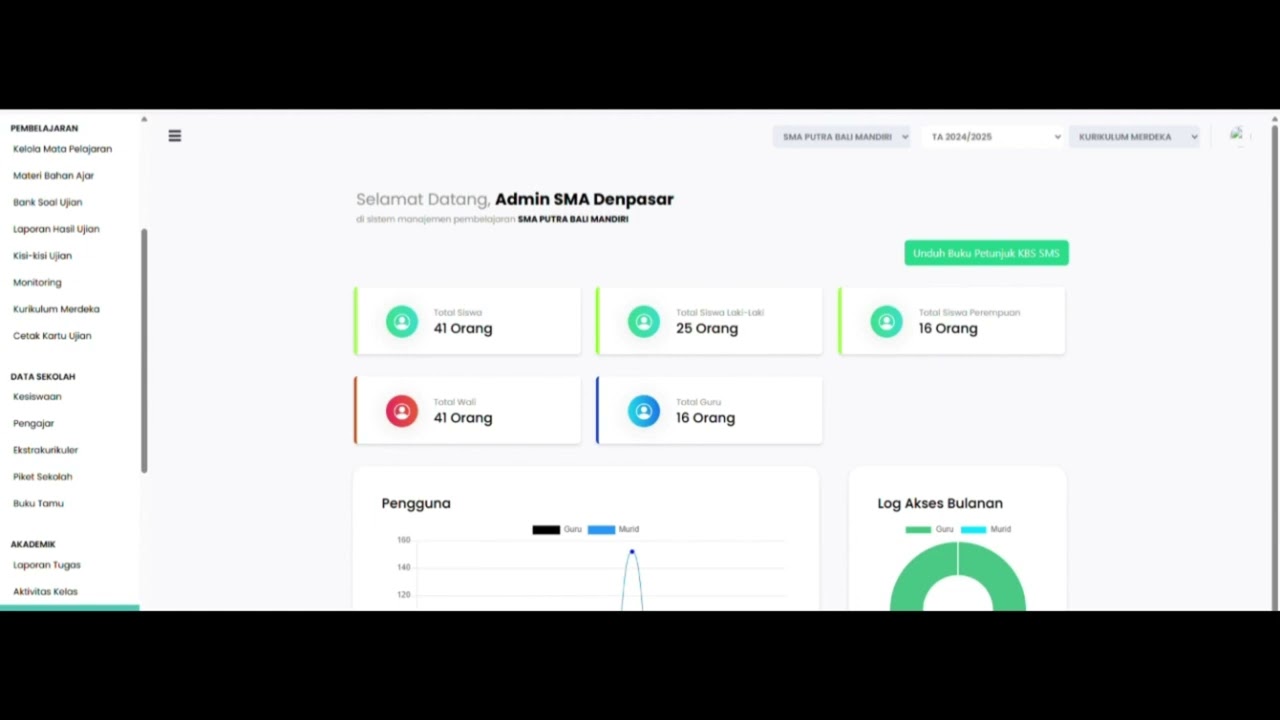
Teacher Attendance at Meetings
85 views
 0:43
0:43
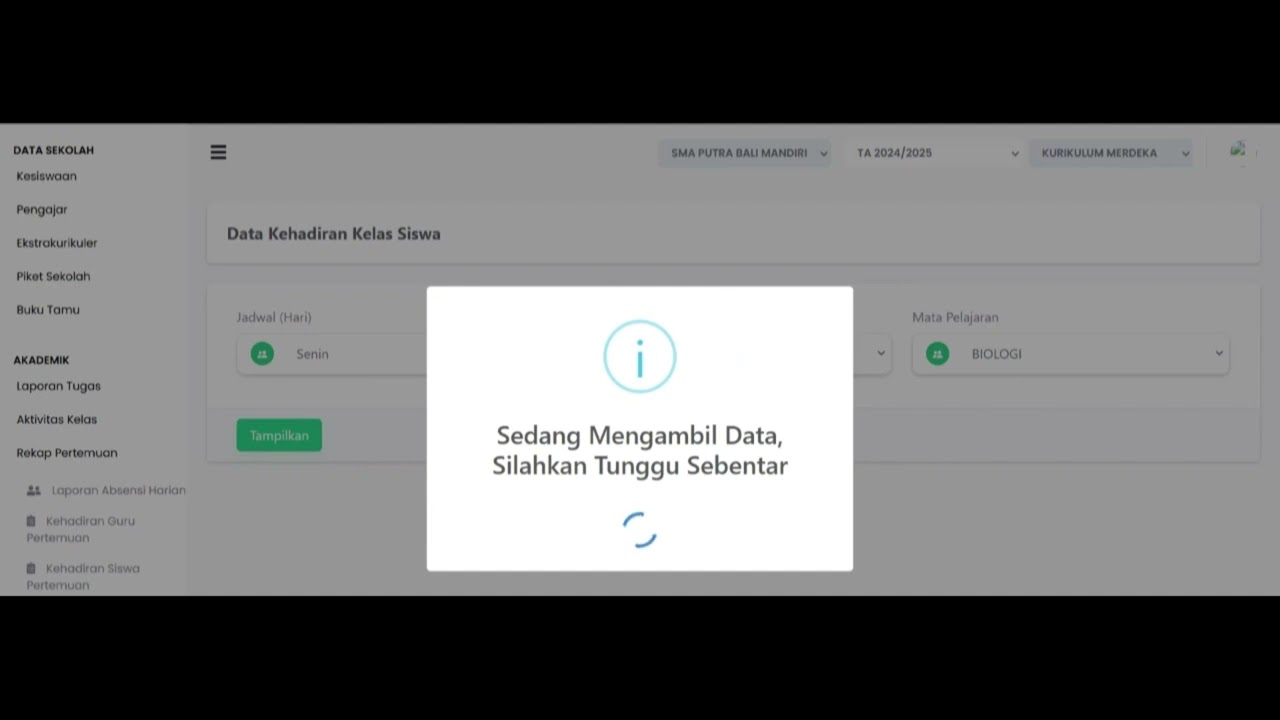
student attendance at meetings
81 views
 1:01
1:01
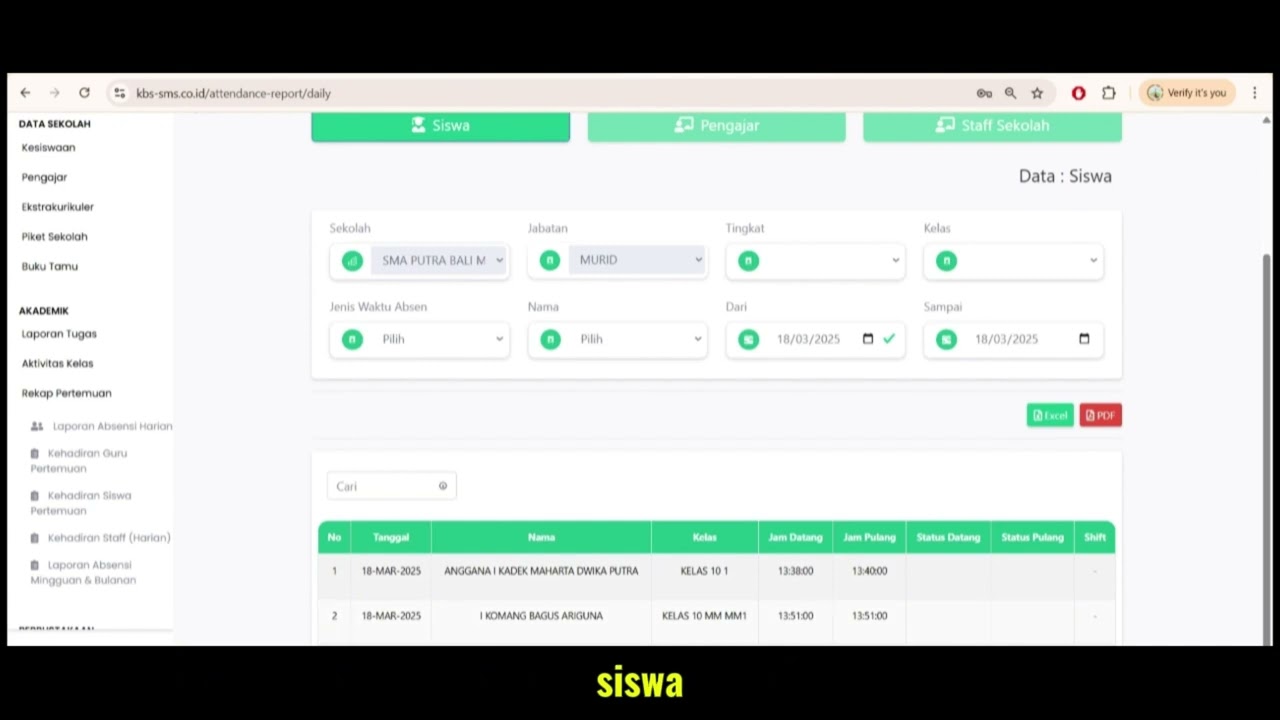
Daily Attendance Report
94 views
 2:11
2:11
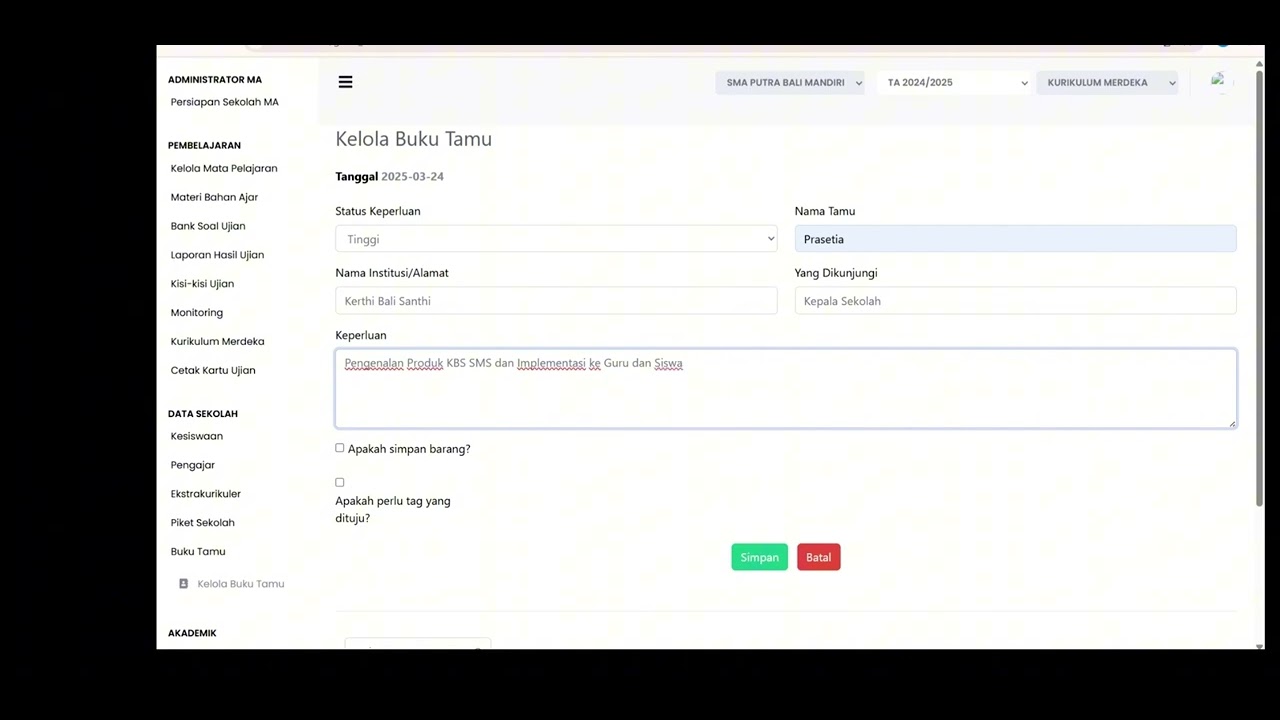
Guest Book Features
92 views
 3:16
3:16
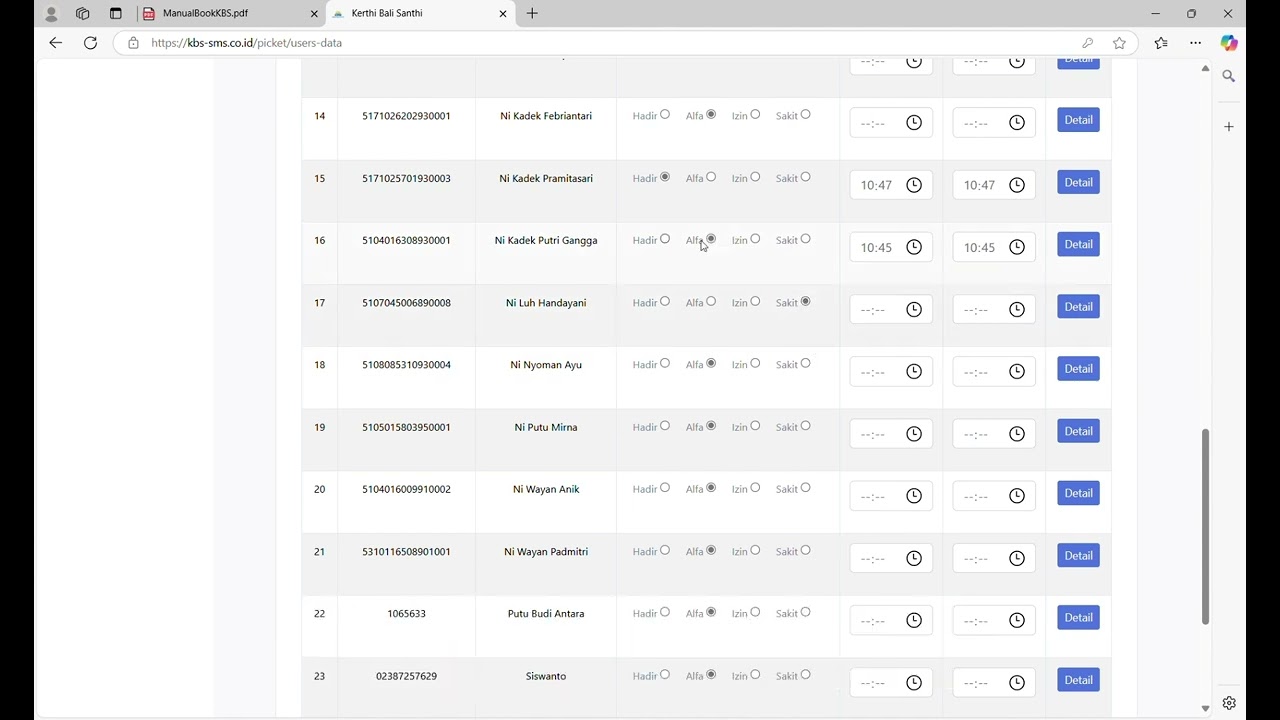
School Duty
87 views
 1:15
1:15
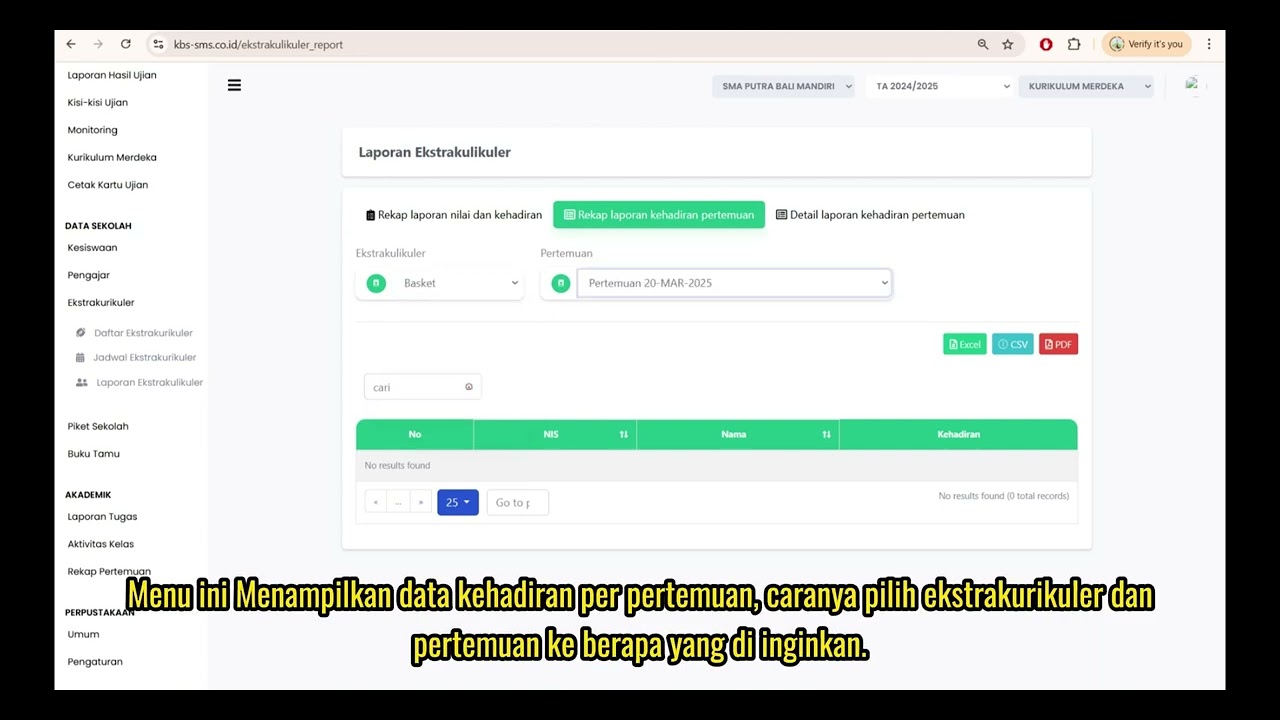
Extracurricular Report
87 views
 4:32
4:32
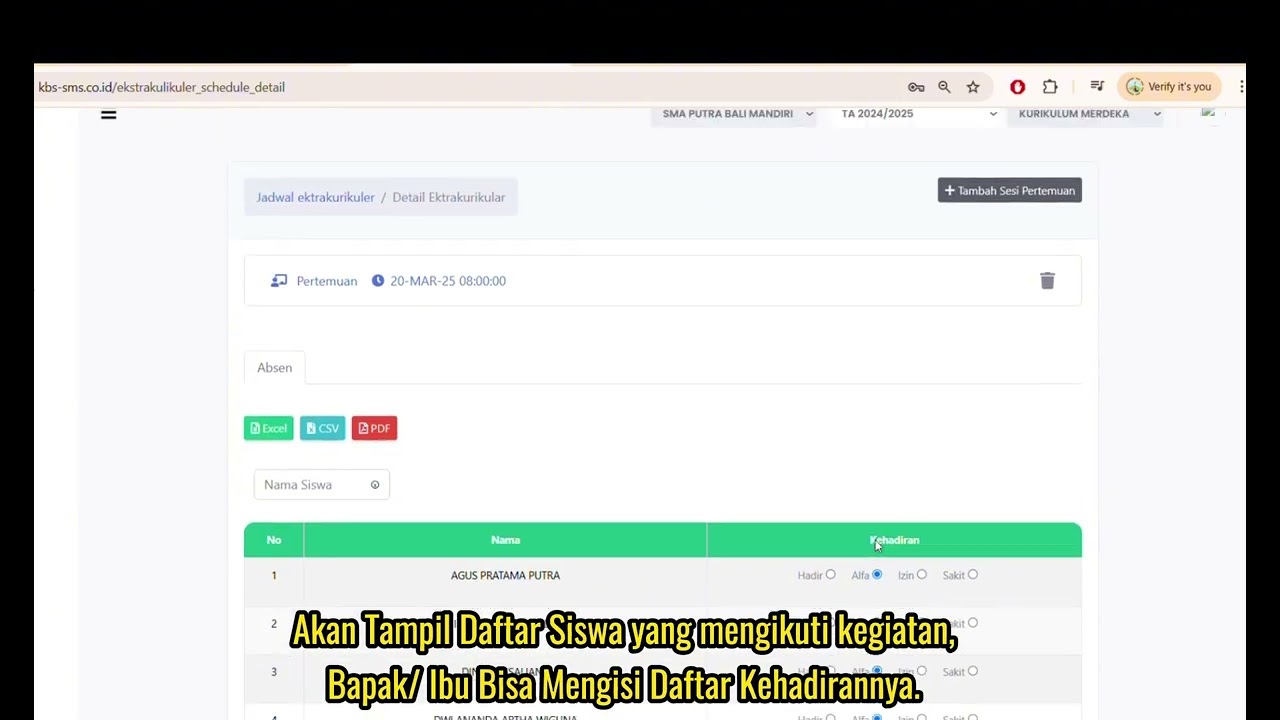
Jadwal Ekstrakulikuler
74 views
 7:32
7:32
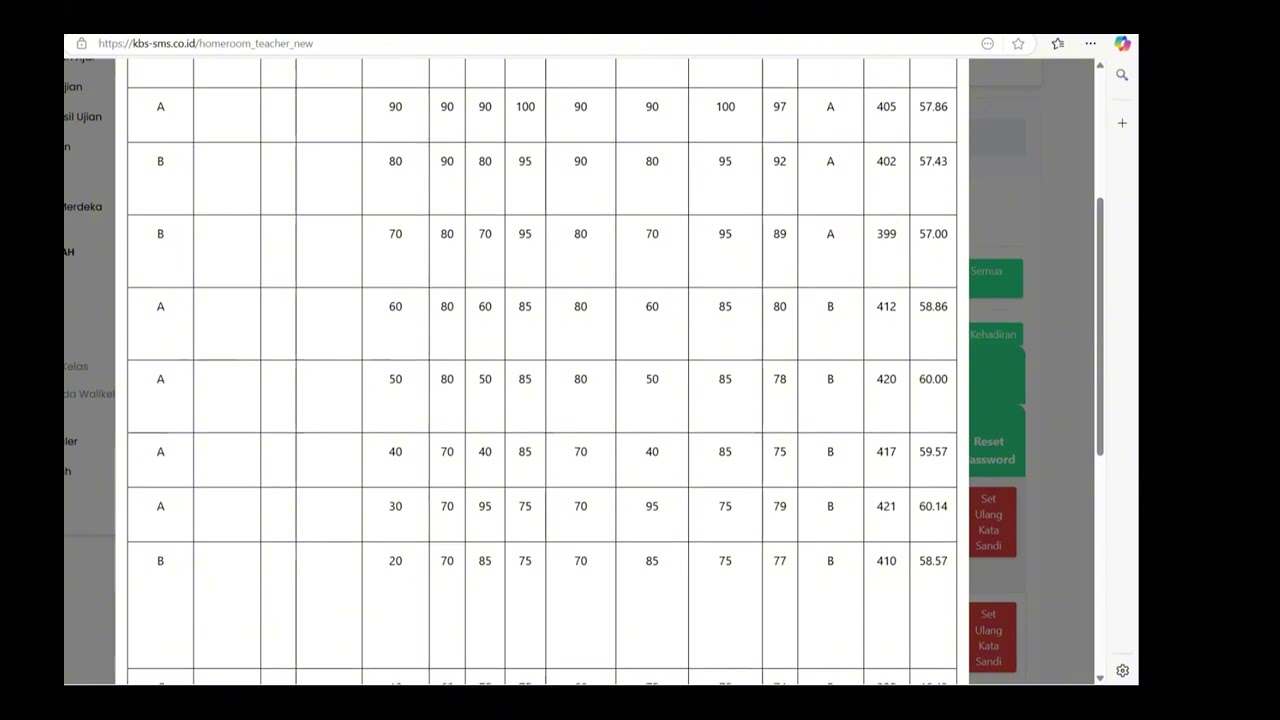
Beranda Walikelas
77 views
 0:55
0:55
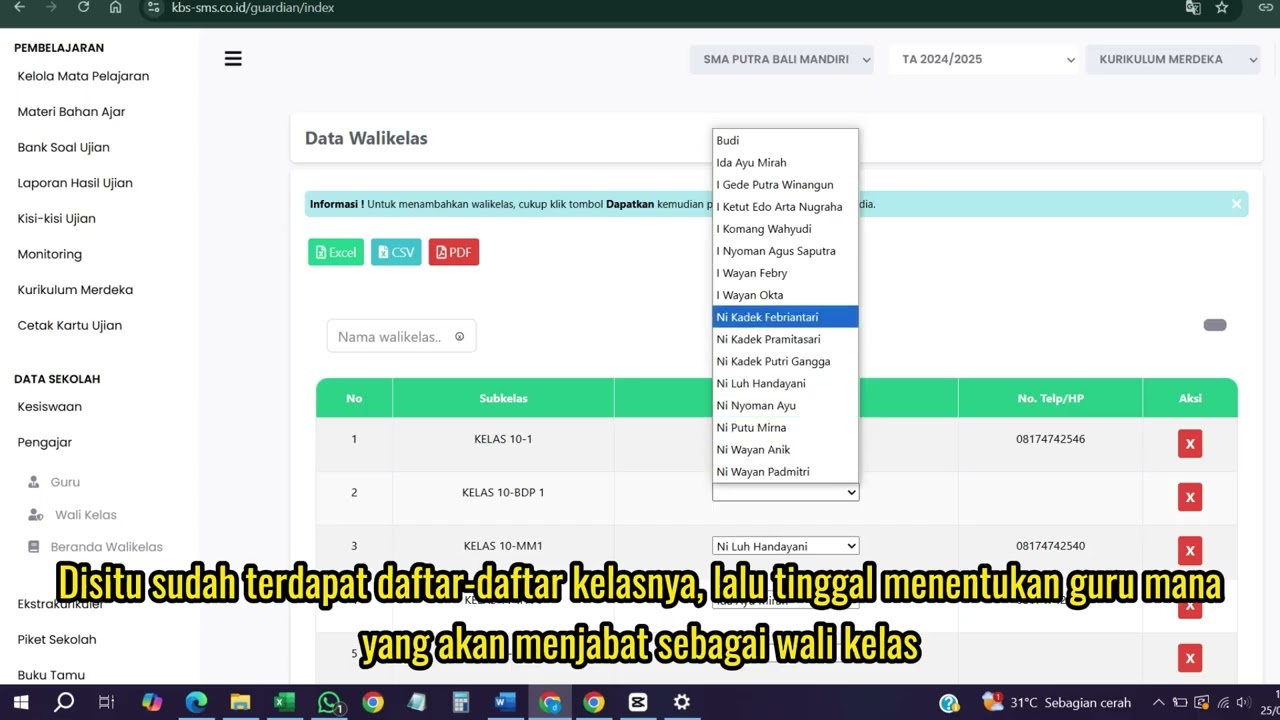
Wali kelas
76 views
 1:04
1:04
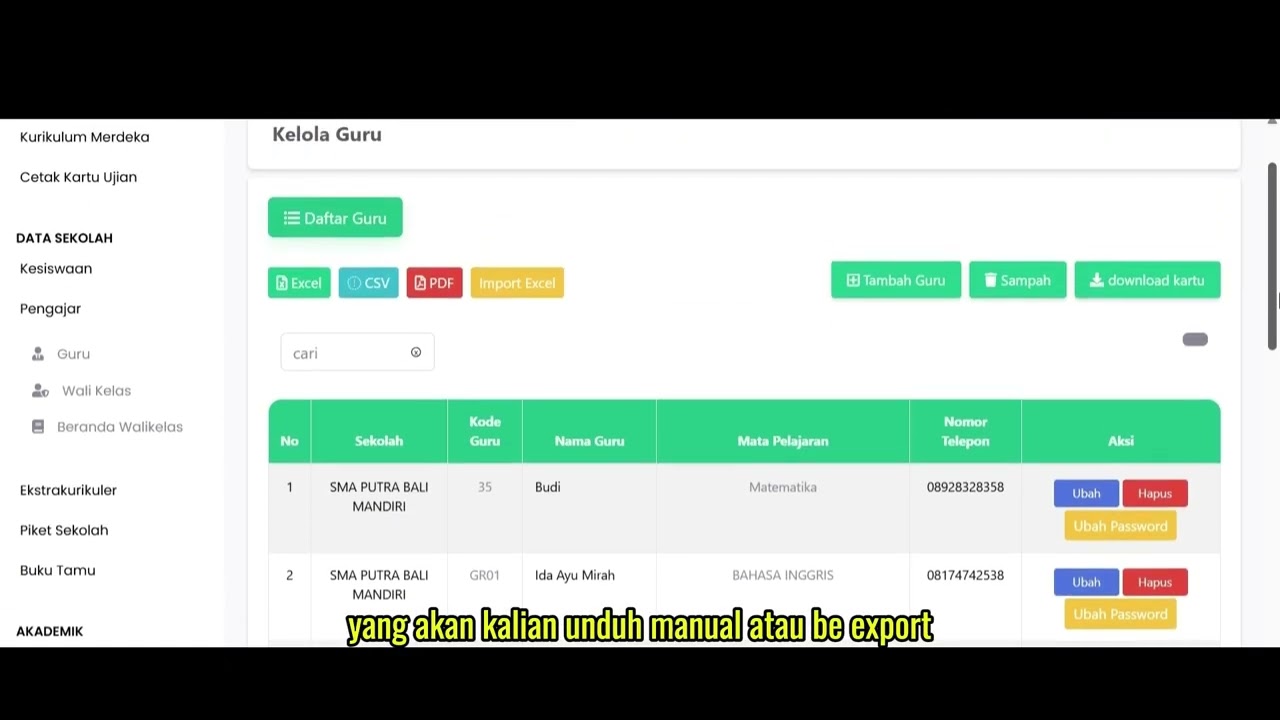
Data Rombel Guru
99 views
 0:53
0:53
Data Rombel kelas
88 views
Kelola Data Siswa
93 views
 2:47
2:47
Distribusi Siswa Kelas
79 views
 6:22
6:22
Daftar Ekstrakulikuler
91 views
 3:32
3:32
Tutorial Kesiswaan
89 views
Related Videos
Daily Staff Attendance
92 views • 8 months ago
Teacher Attendance at Meetings
85 views • 8 months ago
student attendance at meetings
81 views • 8 months ago
Daily Attendance Report
94 views • 8 months ago
Guest Book Features
92 views • 8 months ago
School Duty
87 views • 8 months ago