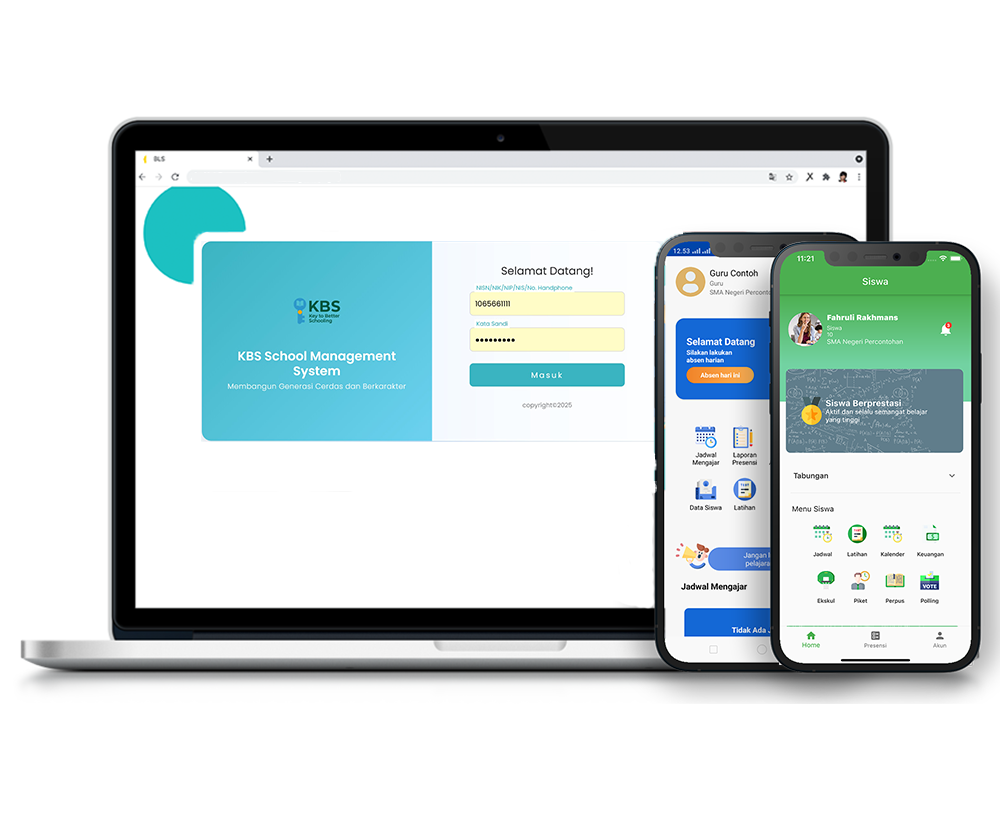
PPDB Settings and Registration
Description
The PPDB Settings and Registration feature is used to manage the entire New Student Admission process digitally and in an integrated manner within the system. Through this feature, school administrators can configure registration rounds, admission quotas, admission pathways, document requirements, and majors, as well as generate registration fee tokens, while prospective students or parents/guardians can fill out the registration form independently and transparently.
This video tutorial provides a step-by-step guide for administrators and applicants to navigate the PPDB settings menu, configure registration waves, manage admission pathway data and requirements, and complete all stages of filling out the registration form and uploading documents in the KBS SMS system.
Timestamps / Video Sections:
- Feature Overview: Explanation of the PPDB Settings and Registration features for managing new student enrollment.
- Step 1: Navigating the Settings Menu: Access the PPDB > Settings > PPDB Settings menu.
- Step 2: Adding PPDB Data & Registration Rounds: Add PPDB data, specify the round name, the registration period, and the student admission quota.
- Step 3: Configure Activities, Admission Pathways, and Requirements: Enter PPDB activity data, configure admission pathway options, and specify required registration documents.
- Step 4: Configure Majors, Registration Summary, and Fee Tokens: Add major/vocational program data, view the registration summary, and generate fee tokens.
- Step 5: Activate the PPDB Period: Click the “Activate Ongoing PPDB” button and click the “Save All Changes” button.
- Step 6: Complete Registration & Upload Documents: Access the PPDB Registration menu, fill out the prospective student’s information, and upload the diploma, official letter, and Family Card (KK).
- Step 7: Entering Parent/Guardian, Scholarship, and Health Information: Complete the parent or guardian information form, and fill in the scholarship and health information until the registration process is complete.
Important Note: Ensure that all required fields marked with an asterisk (*) have been filled out, that the required documents have been uploaded via the “Choose File” button, and that the administrator has clicked the “Activate the Ongoing PPDB” and “Save All Changes” buttons so that the registration system is ready for use by applicants.
Student Admission
1 videos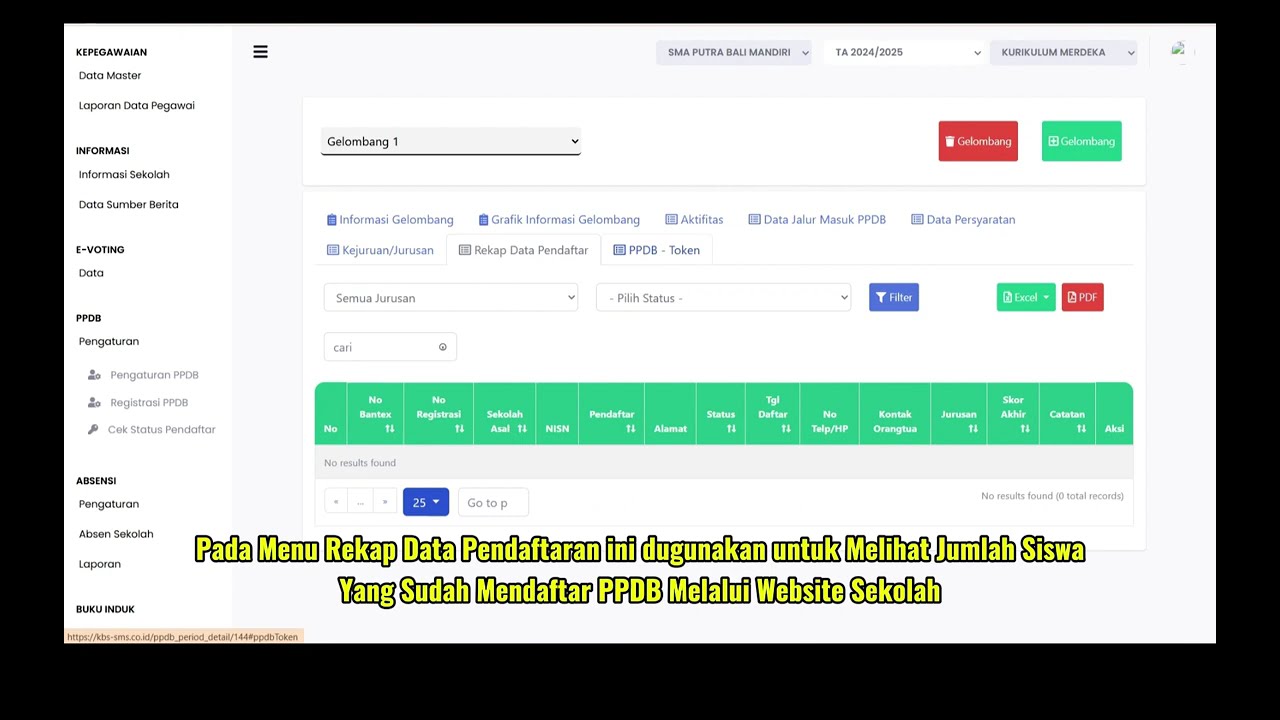
Related Videos
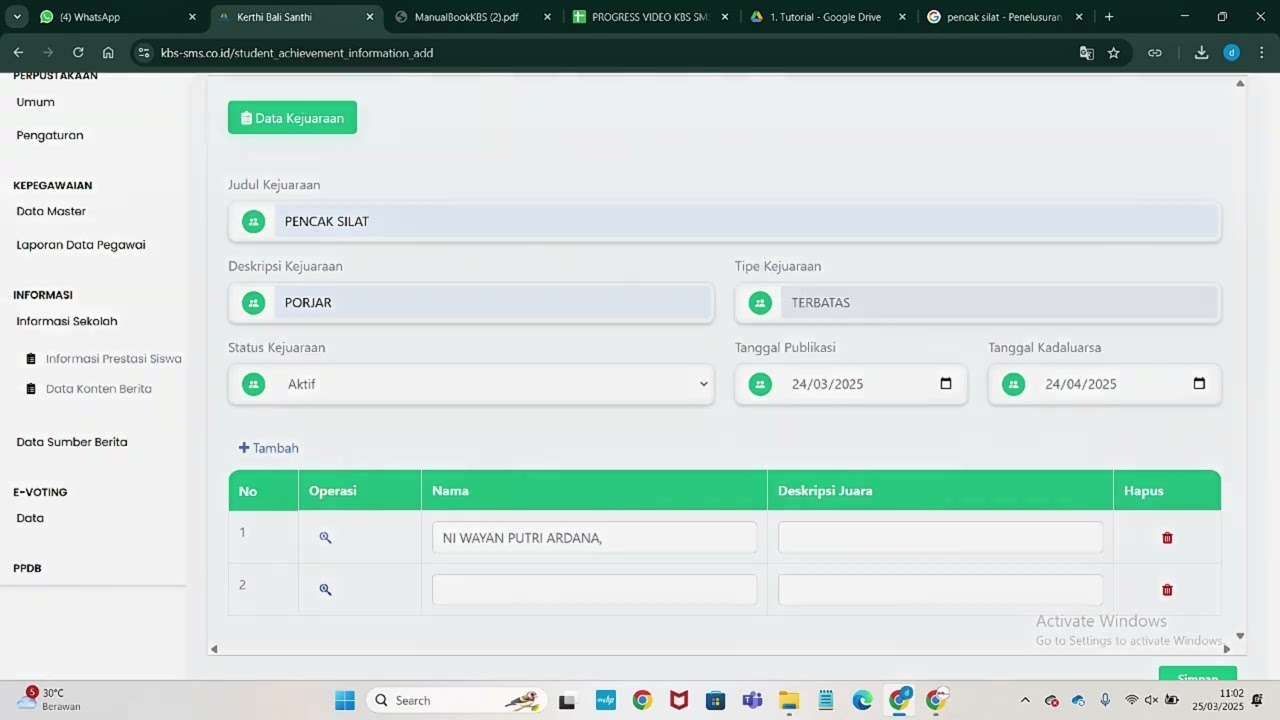
Informasi Presentase siswa
217 views • 8 months ago
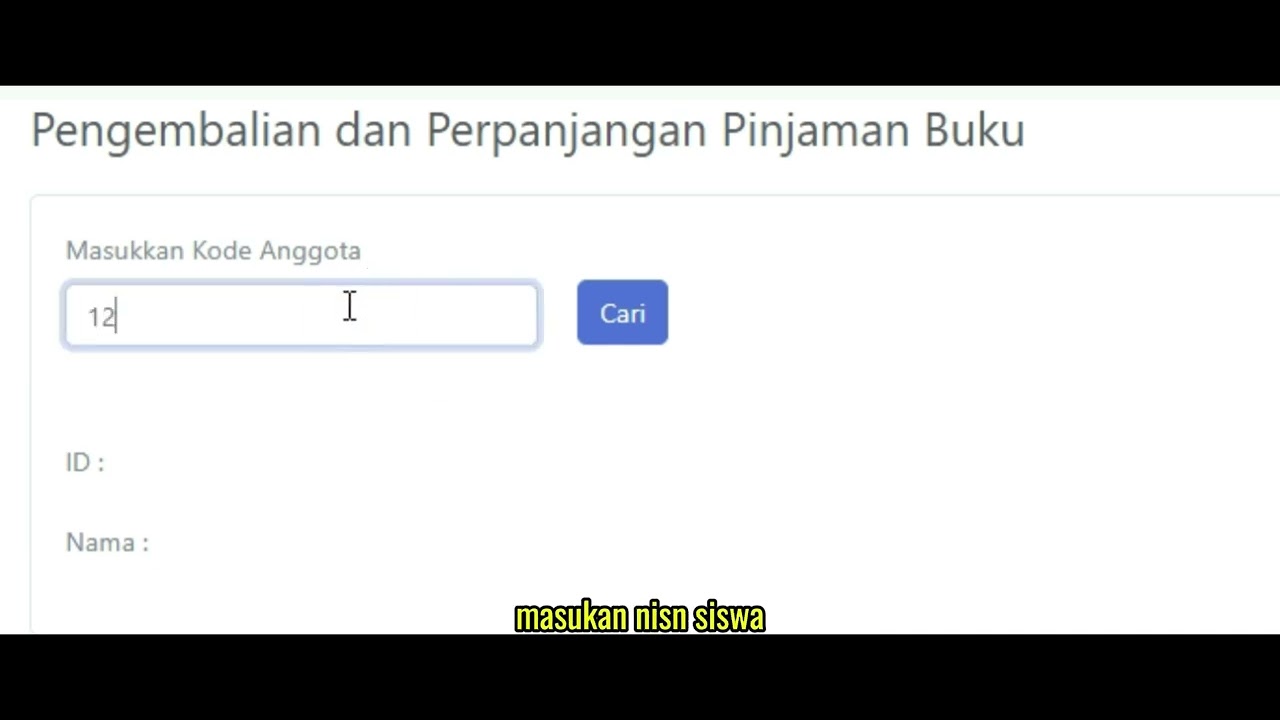
Pengembalian Buku
126 views • 8 months ago
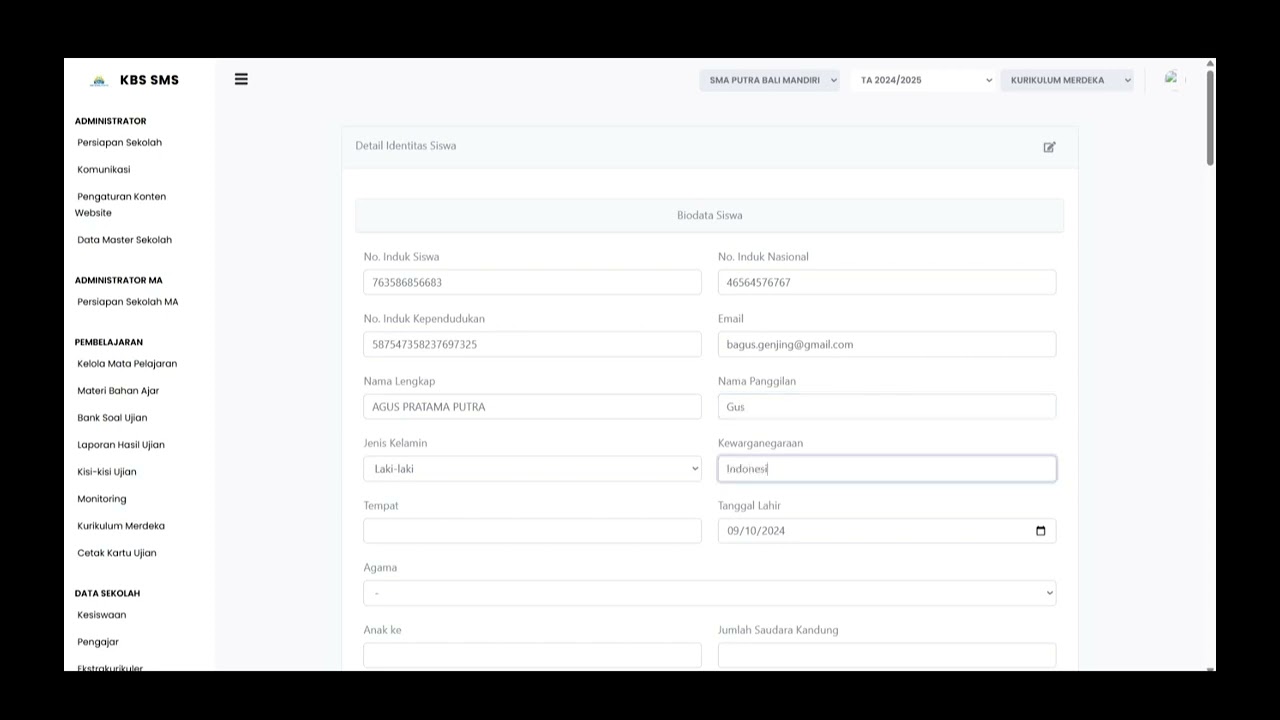
Buku induk siswa
137 views • 8 months ago
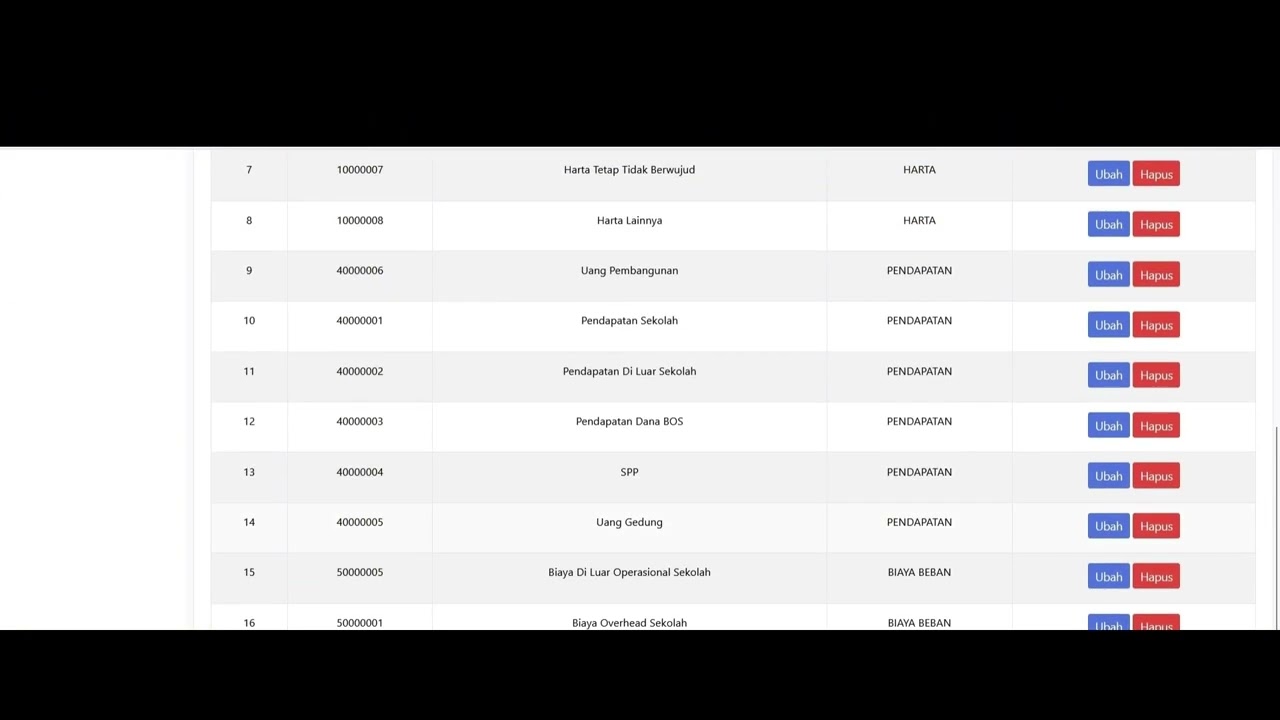
Dafatar akun keuanggan
128 views • 8 months ago
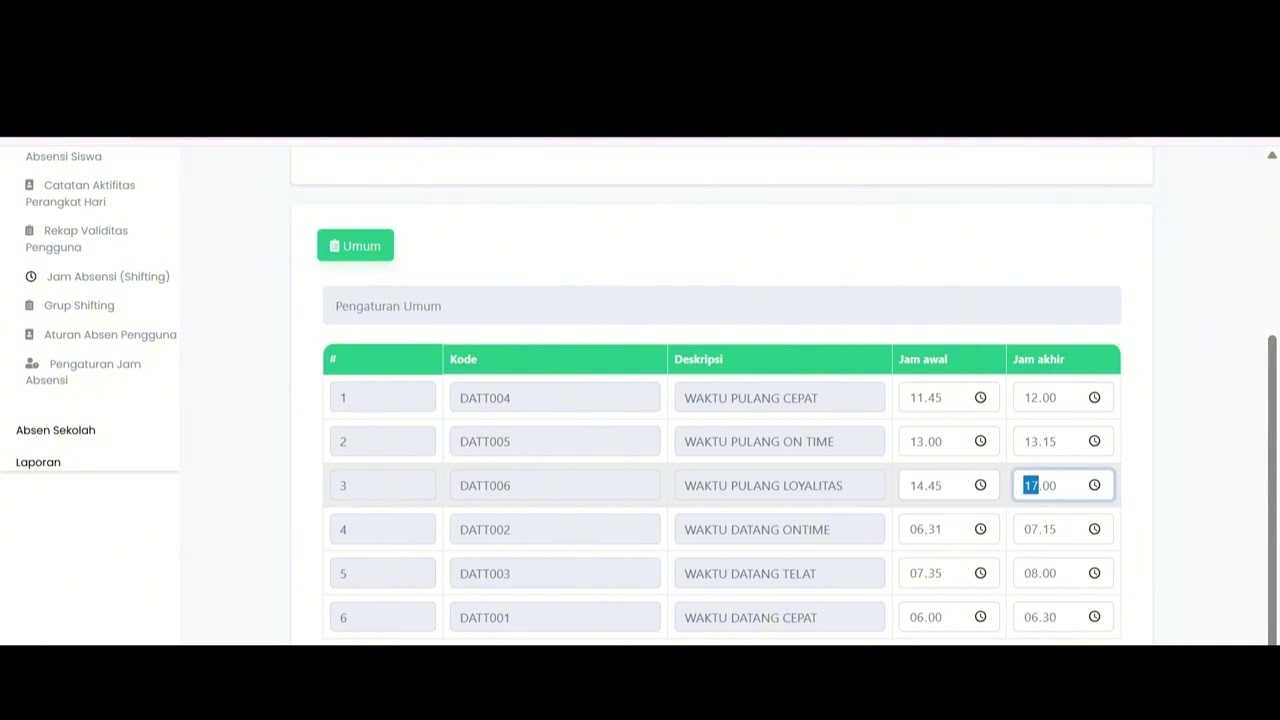
Student Attendance Time Settings
194 views • 8 months ago
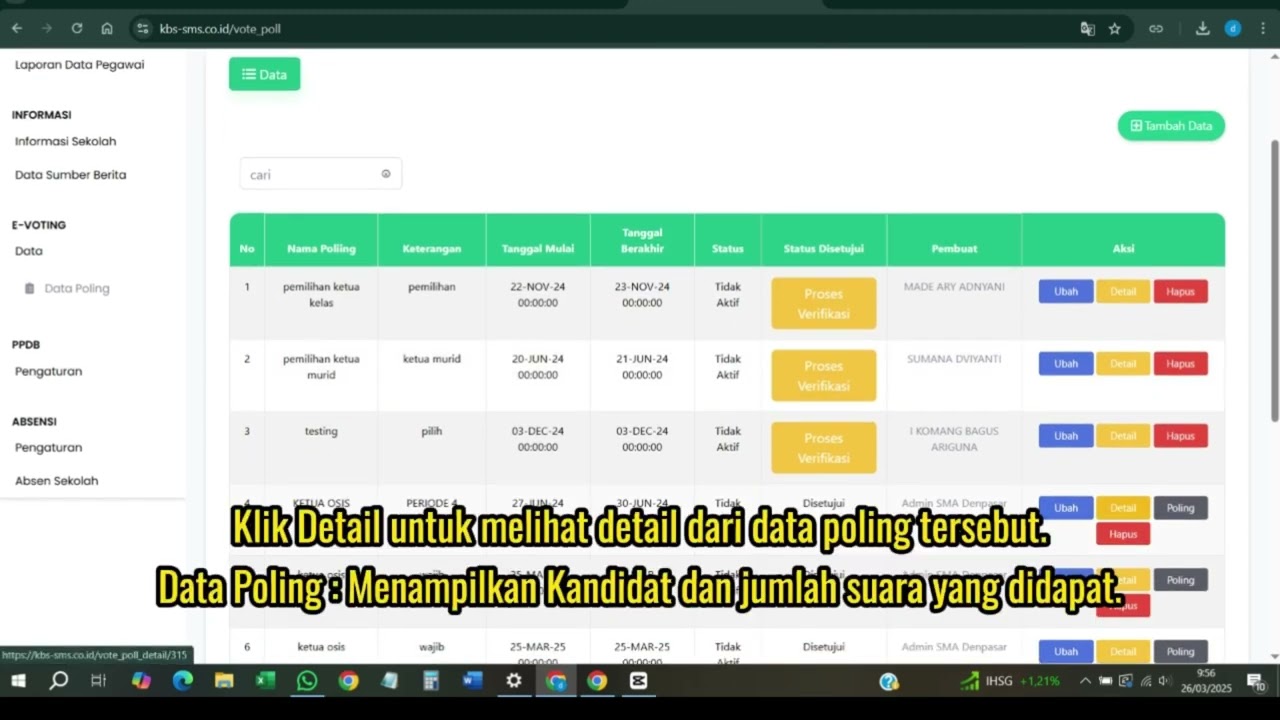
Evoting
122 views • 8 months ago