
Evoting
Description
The Evoting feature is used to conduct and manage the digital voting process within the KBS SMS system in a practical, transparent, and accurate manner. Through this feature, schools can create voting sessions (polls), register candidates, establish voter lists, and monitor the tabulation of vote counts in real time.
This video tutorial provides a step-by-step guide for system administrators to navigate the E-voting menu, create new polling data, monitor vote tally details, and add candidate data and voter lists in the KBS SMS system.
Timestamps / Video Sections:
- Feature Introduction: Explanation of the E-voting feature’s functions for conducting digital voting in a school setting.
- Step 1: Menu Navigation: Access the E-voting > Data > Polling Data menu.
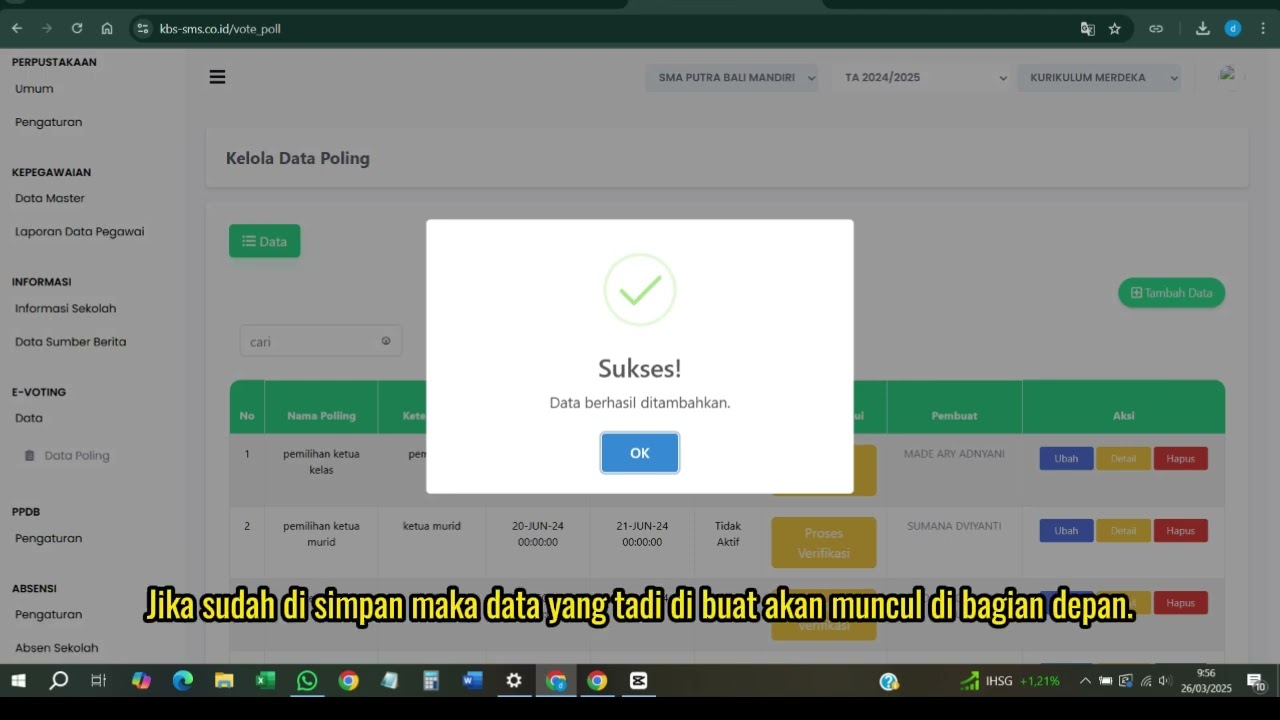
- Step 2: Creating New Polling Data: Click the “Add Data” button, fill out the polling data form in the provided fields, then click the “Save” button.
- Step 3: Viewing Polling Details & Vote Tally: Click the ‘Details’ button on the successfully created polling data to view the list of candidates and their vote counts.
- Step 4: Adding Candidate Data: Go to the Candidate Data feature, click the ‘Add Data’ button, fill in the required candidate data fields, then click the ‘Save’ button.
- Step 5: Adding Voter Data: Go to the Voter Data feature, click the “Add Data” button, select the names of the voters, and then click the “Save” button.
Important Note: Make sure all poll and candidate information has been verified before clicking the “Save” button, and ensure that the list of voters has been correctly determined so that the voting process runs smoothly.
E-Voting
2 videos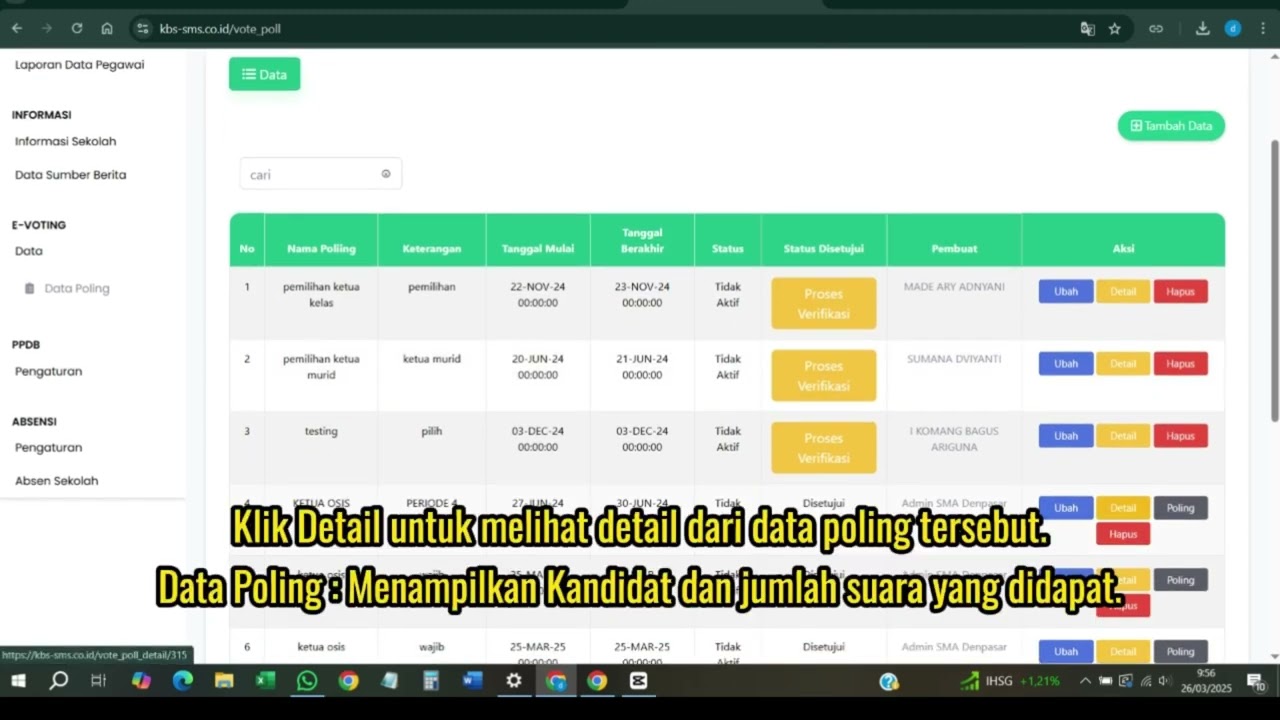
Related Videos
E-voting features
89 views • 8 months ago
PPDB Settings and Registration
230 views • 8 months ago
Informasi Presentase siswa
217 views • 8 months ago
Pengembalian Buku
126 views • 8 months ago
Buku induk siswa
137 views • 8 months ago
Dafatar akun keuanggan
128 views • 8 months ago