
E-voting features
Description
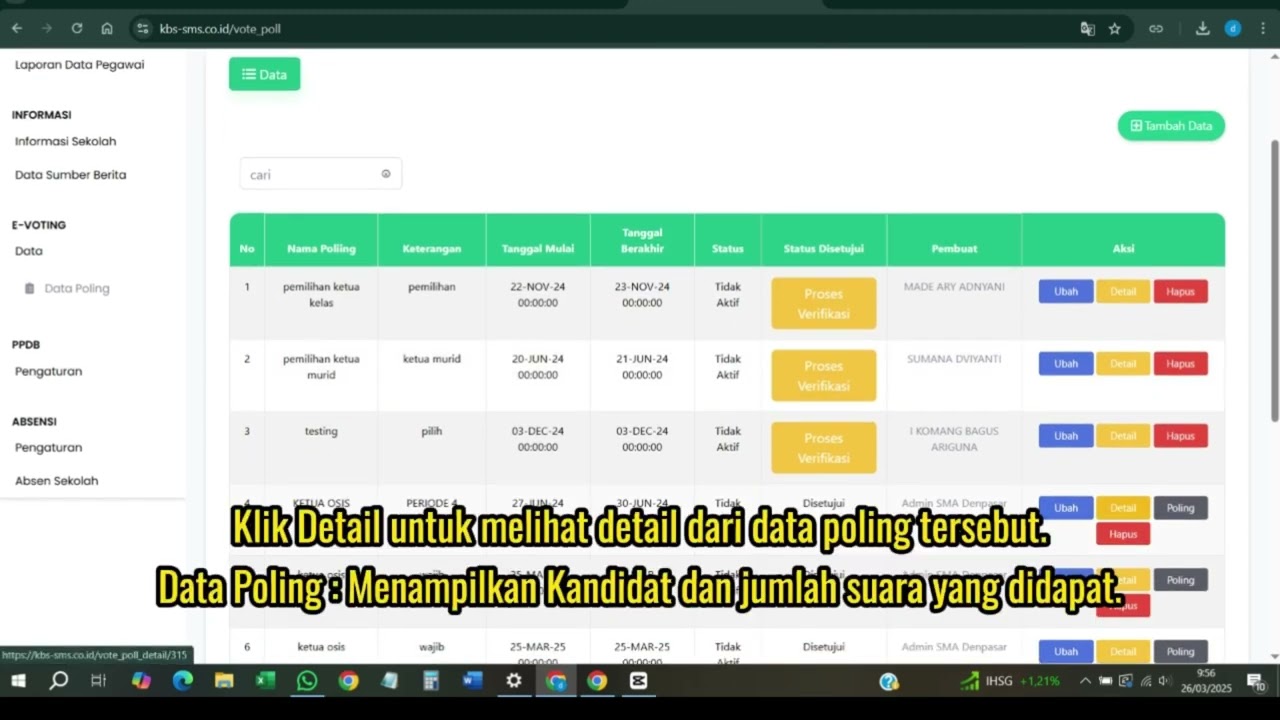
The E-Voting feature in KBS SMS is a digital voting system designed to support the democratic process in schools in a simple, secure, transparent, and efficient manner. This feature can be used for various activities, such as elections for the Student Council president, school committee members, and class representatives, as well as polls on school policies.
This tutorial video provides a step-by-step guide for users (students, teachers, and staff) on how to navigate the E-Voting menu, select an active voting session, review candidate information, cast a vote, and confirm the election status in the KBS SMS system.
Timestamps / Video Sections:
- Feature Introduction: Explanation of the functions and advantages of the E-Voting feature as a digital voting tool in the school environment.
- Step 1: Menu Navigation: Accessing the E-Voting / Polling menu on the user account’s main navigation bar.
- Step 2: Selecting an Active Voting Session: Selecting a list of ongoing voting events or polls.
- Step 3: Reviewing Candidate Profiles & Casting a Vote: Reading candidate profile details, then clicking the “Select” or “Vote” button for the chosen candidate.
- Step 4: Confirm Your Vote: Click the confirmation button (such as “Yes, I’m Sure”) to save and submit your vote validly to the system.
- Step 5: Checking Vote Status & Real-time Results: Ensure that the voting indicator has been updated and review the transparent summary of vote percentages.
Important Note: Double-check the profile of the candidate you have selected before clicking the confirmation button, as each user account has only one vote, and votes that have been cast cannot be changed.
E-Voting
2 videos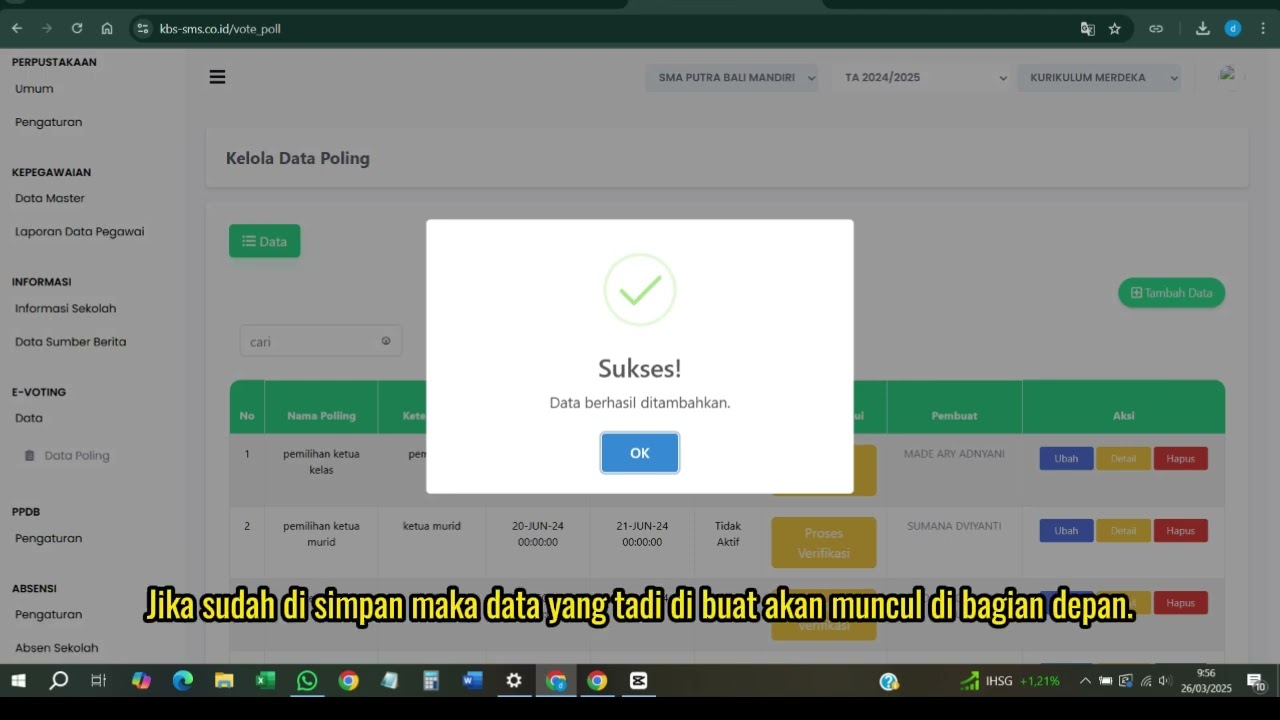
Related Videos
Evoting
122 views • 8 months ago
PPDB Settings and Registration
231 views • 8 months ago
Informasi Presentase siswa
218 views • 8 months ago
Pengembalian Buku
127 views • 8 months ago
Buku induk siswa
138 views • 8 months ago
Dafatar akun keuanggan
129 views • 8 months ago