Ecatalog
Description
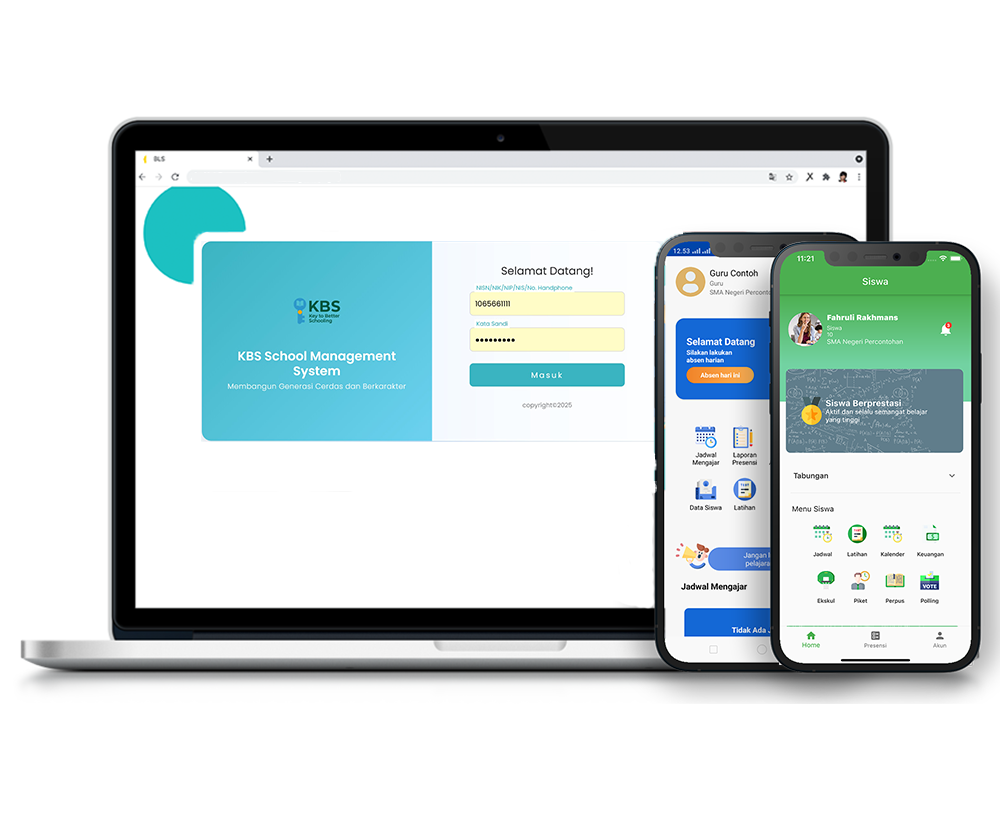
The E-Catalog feature in the KBS SMS system is used by library staff to enter, organize, and manage the complete school library database in a centralized manner. Through this feature, indexing new book entries can be performed thoroughly and systematically.
This tutorial video provides a step-by-step guide for Library Staff to add new book catalog entries, starting from menu navigation, opening the Add Book form, completing book specifications, to saving and verifying data in the catalog table.
Timestamps / Video Sections:
- Introduction to Feature [00:00]: Explaining the E-Catalog function for logging library book collections.
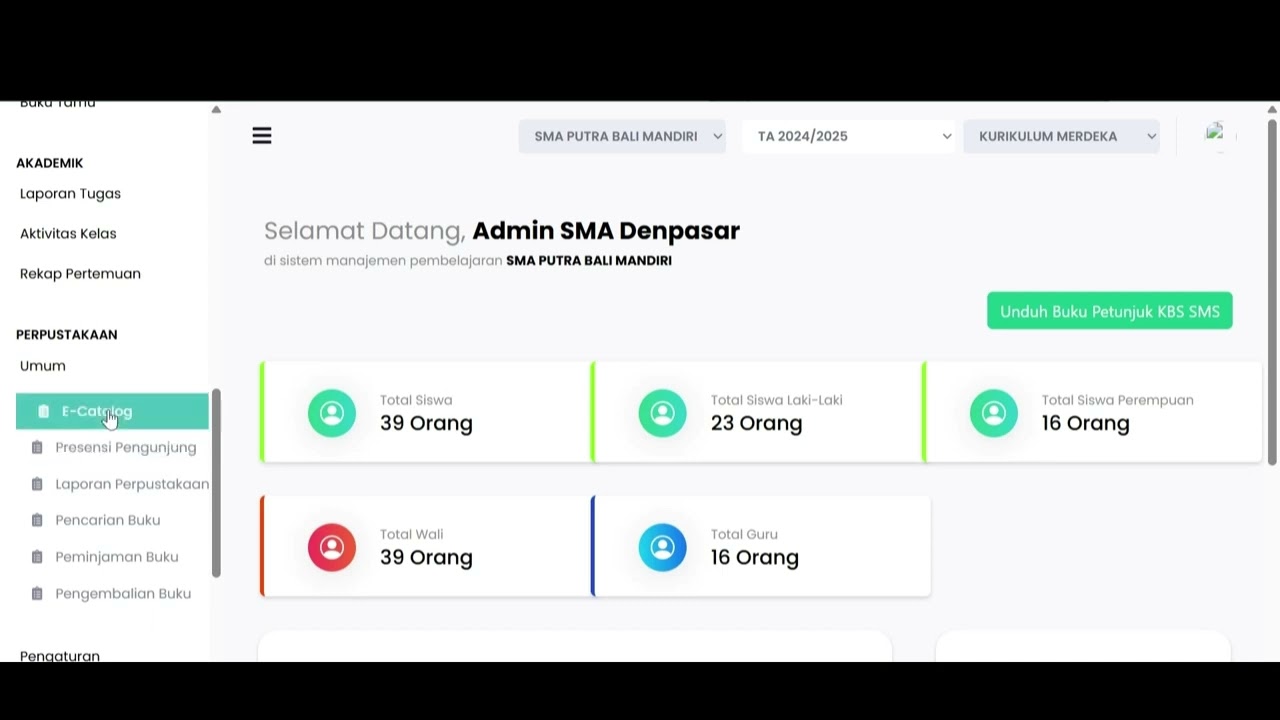
- Step 1: Menu Navigation [00:18]: From the left sidebar, select Library > General > E-Catalog.
- Step 2: Opening Add Book Form [00:32]: Click the 'Add Book' button in the top right corner of the page.
- Step 3: Filling Book Form [00:49]: Complete the book data fields (Inventory No, Book Title, Author, Publisher, Classification, etc.).
- Step 4: Saving Book Data [01:06]: Scroll to the bottom of the form and click the 'Save' button.
- Step 5: Verifying Input Results [01:19]: Check the new book entry automatically listed in the collection table at the bottom.
Related Videos
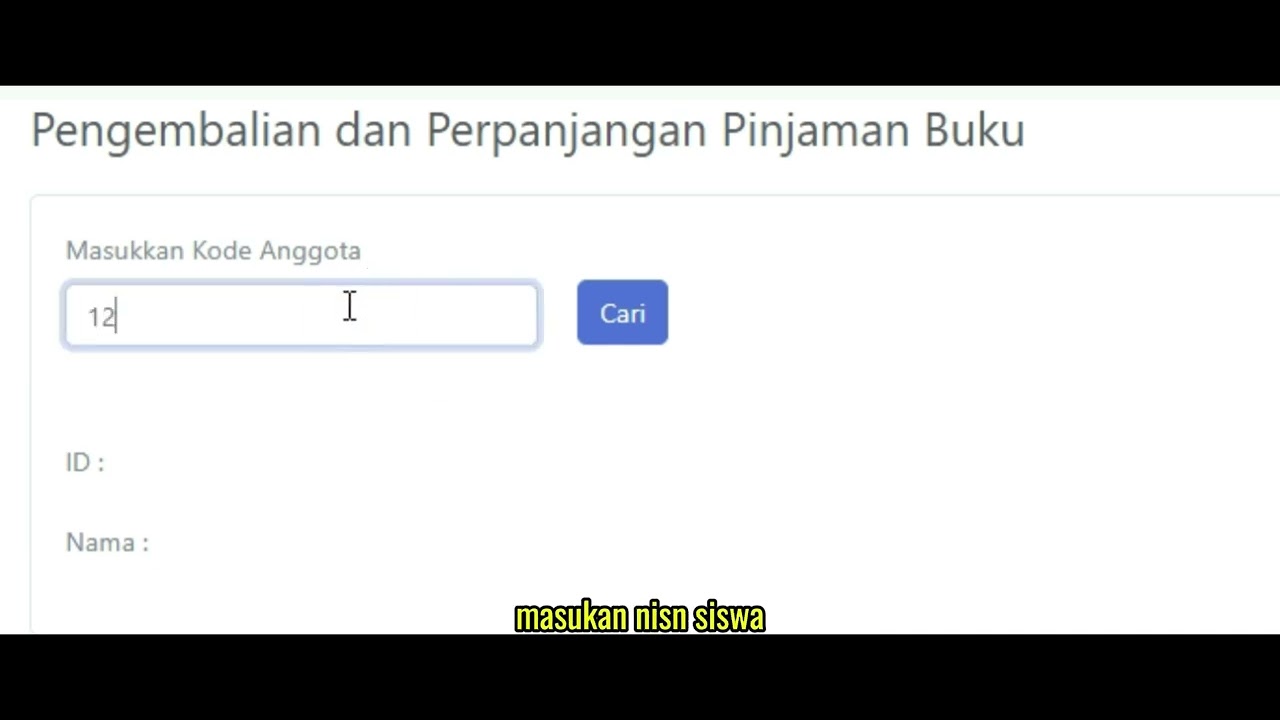
Pengembalian Buku
127 views • 8 months ago
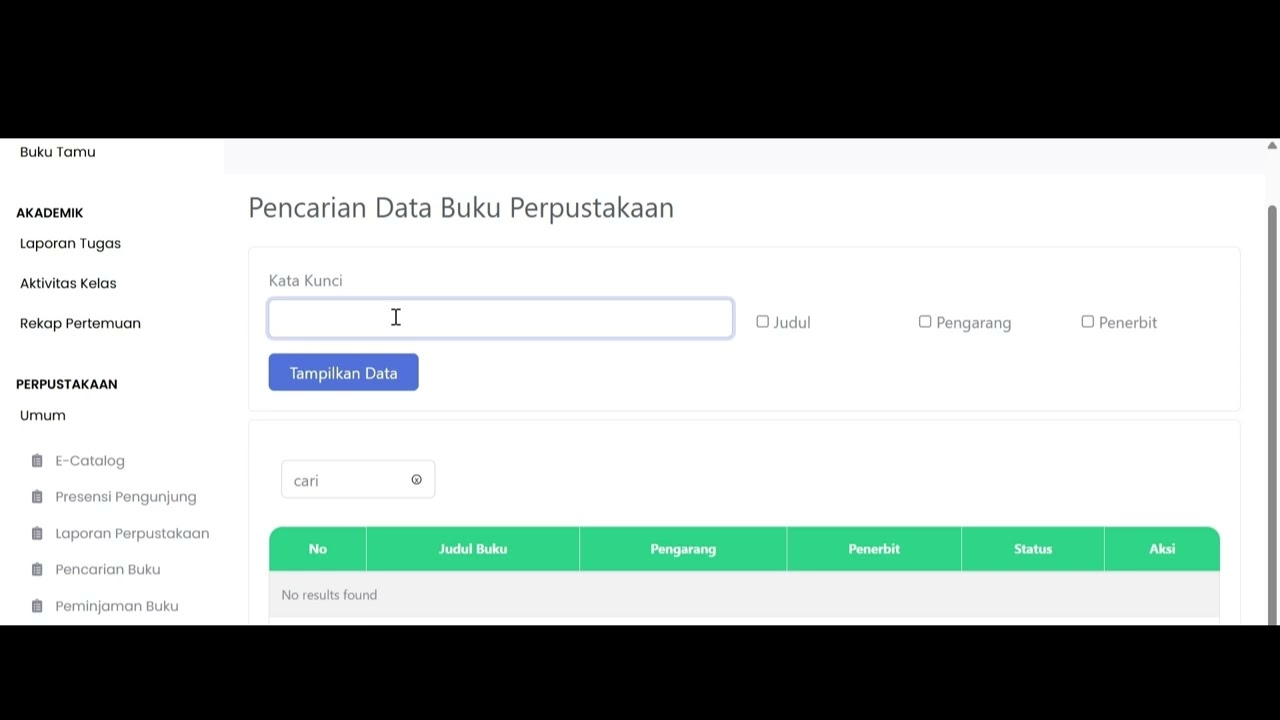
Tutorial Pencarian Buku
94 views • 8 months ago
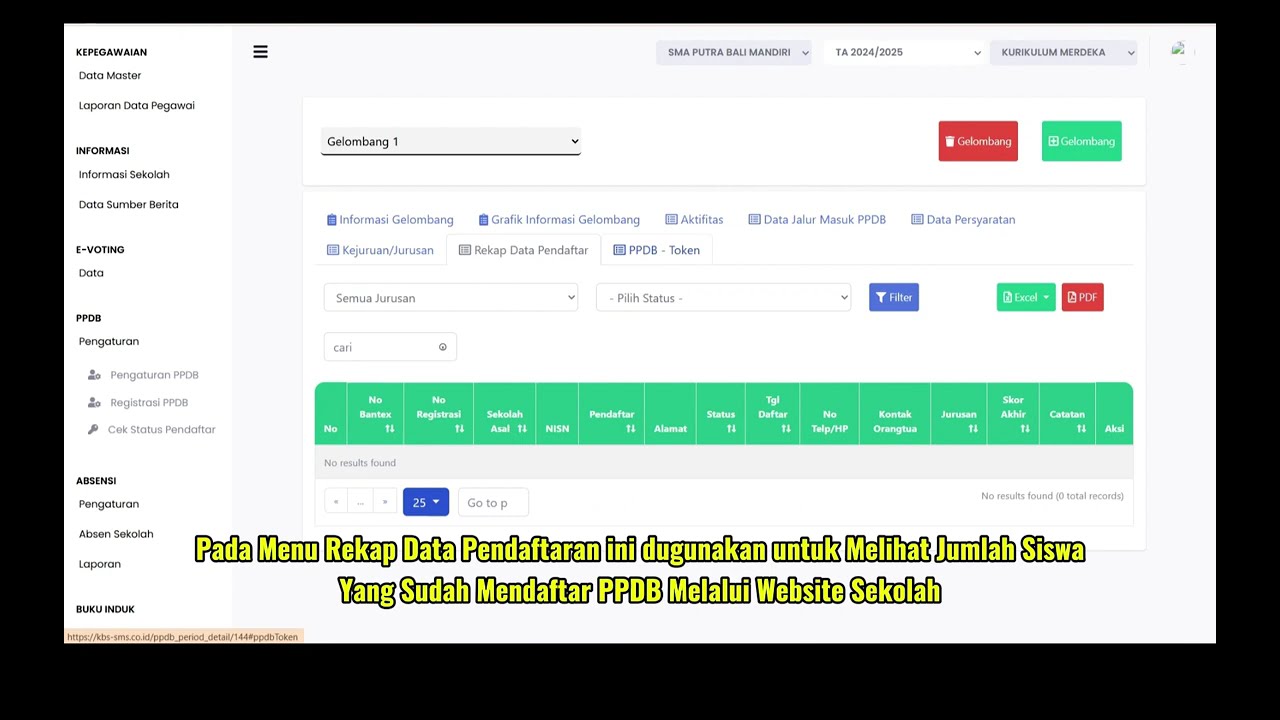
PPDB Settings and Registration
231 views • 8 months ago
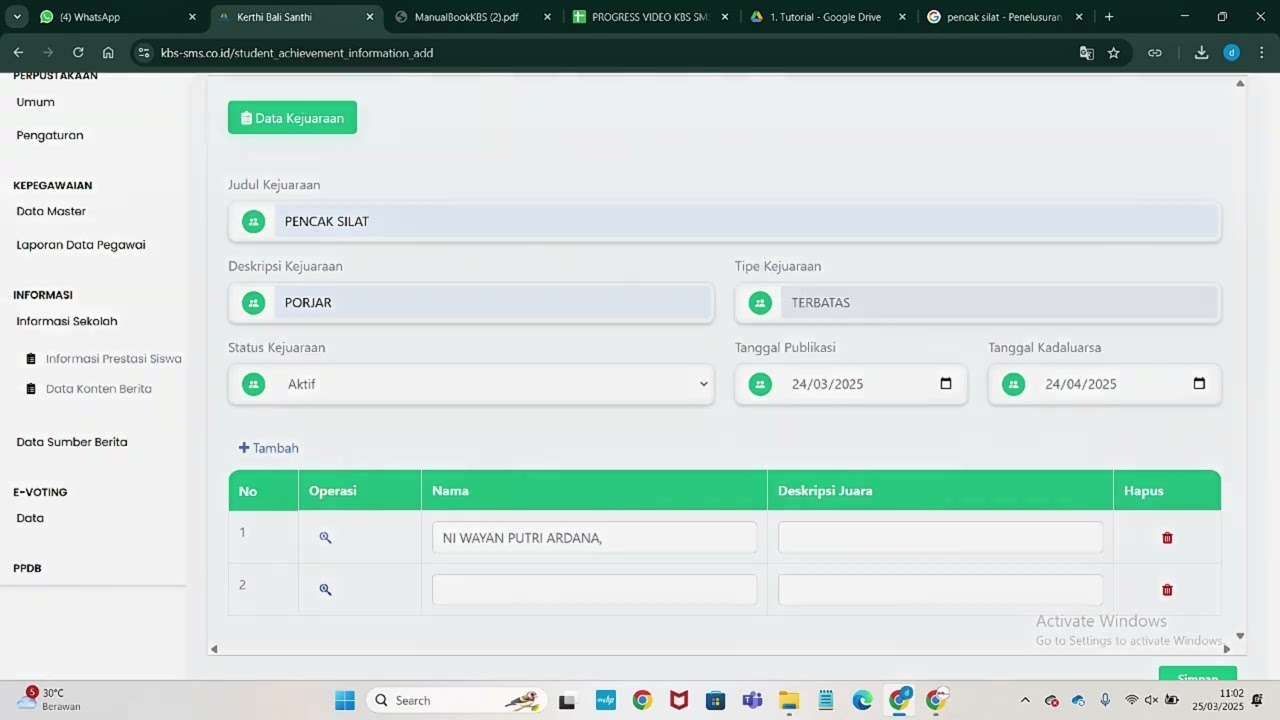
Informasi Presentase siswa
218 views • 8 months ago
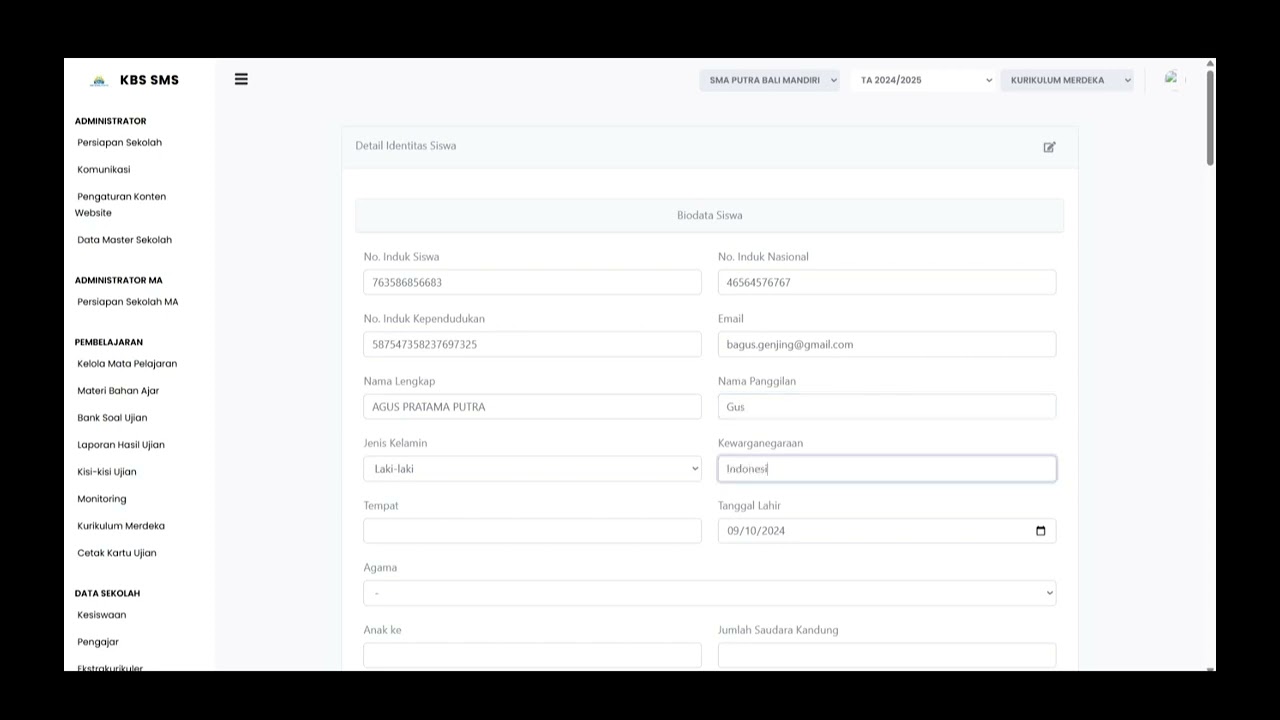
Buku induk siswa
138 views • 8 months ago
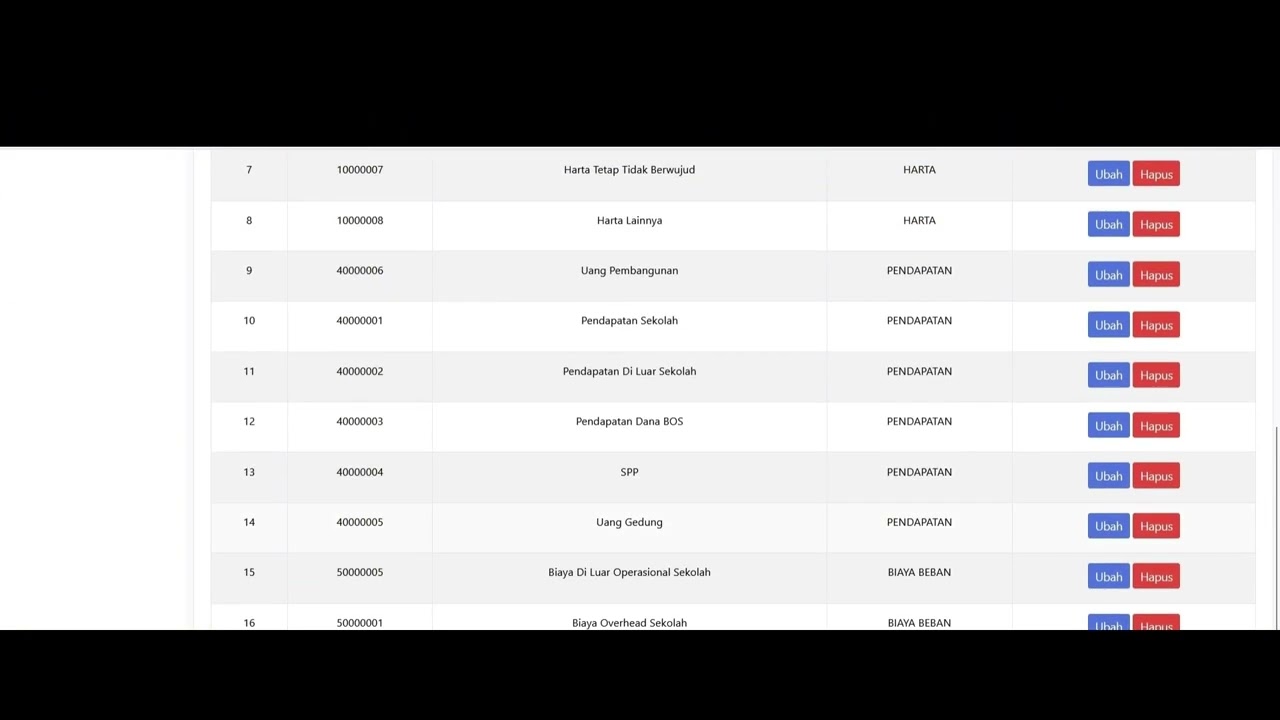
Dafatar akun keuanggan
129 views • 8 months ago