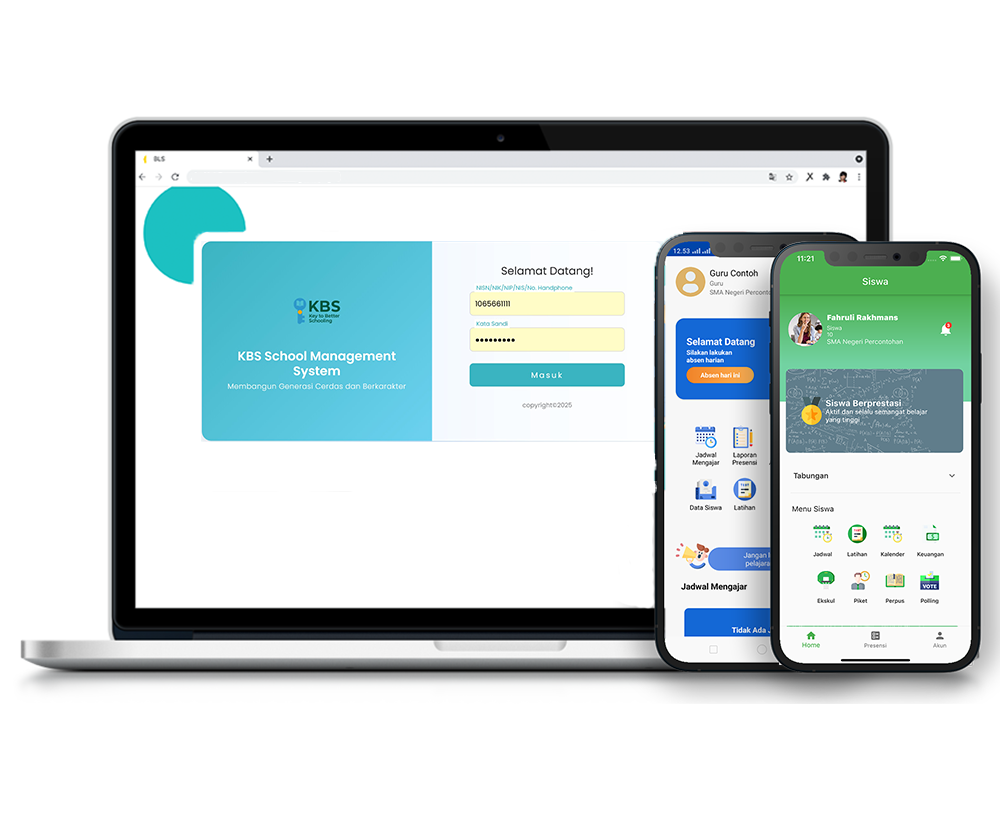
Cash Transfer 1
Description
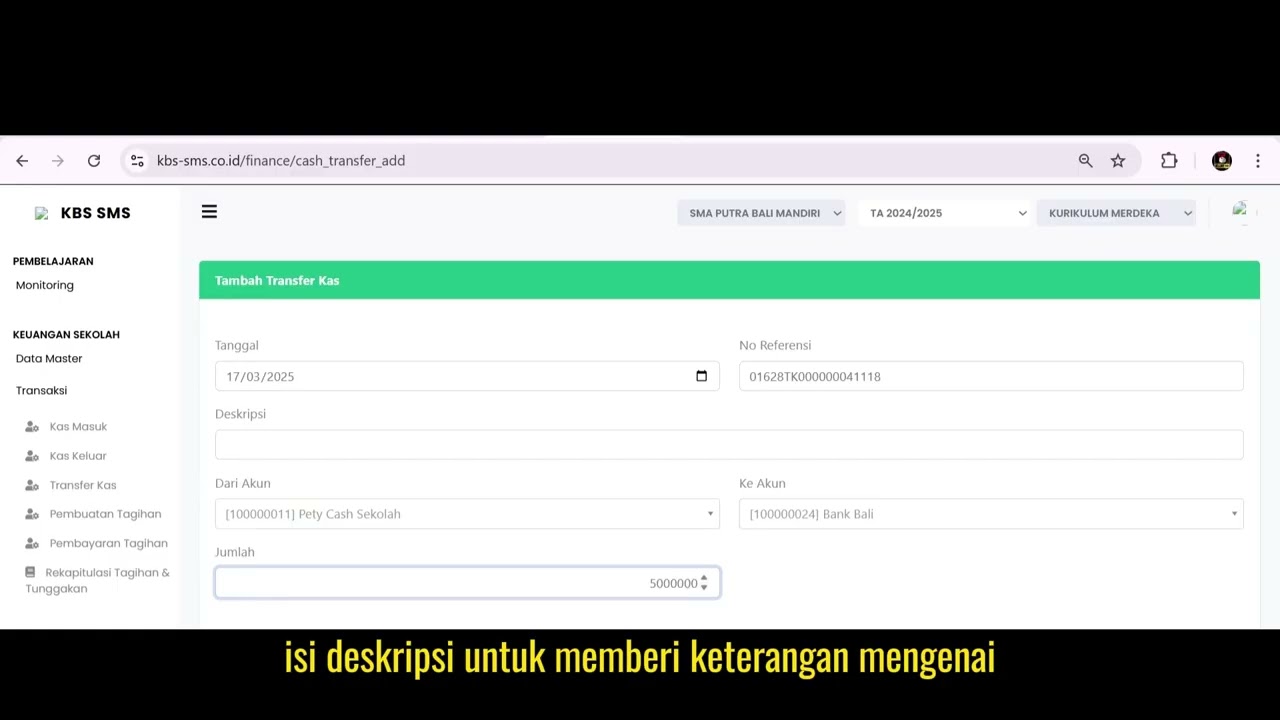
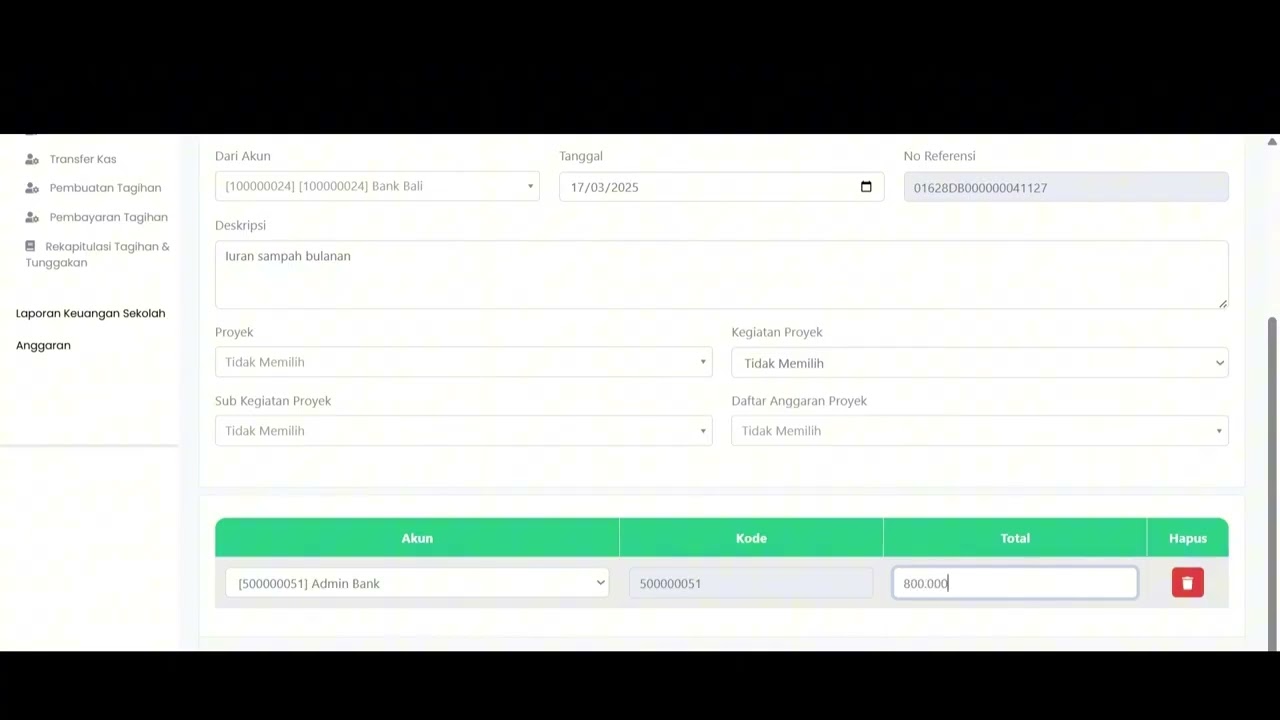
The Cash Transfer feature is used to record fund transfers between cash accounts within the system, such as school operational payments, payables/receivables management, and petty cash movements. With this feature, every balance movement between accounts is recorded systematically, automatically updating the balances of both the source and target accounts.
This step-by-step tutorial video guides users through recording a cash transfer, selecting source and destination accounts, entering amounts and descriptions, and saving the transaction successfully.
Timestamps / Video Outline:
-
Feature Overview: Introduction to the Cash Transfer feature for school expenditures, debt settlements, and petty cash allocation.
-
Step 1: Menu Navigation: Navigating to School Finance > Transactions > Cash Transfer, then clicking the 'Add Cash Transfer' button.
-
Step 2: Selecting the Source Account: Choosing the funding source account in the 'From Account' (Dari Akun) field.
-
Step 3: Selecting the Destination Account: Selecting the receiving account in the 'To Account' (Ke Akun) field.
-
Step 4: Entering the Amount: Inputting the transfer amount in the 'Amount' (Jumlah) field.
-
Step 5: Entering Description: Adding notes or details regarding the transfer in the 'Description' field.
-
Step 6: Saving the Transaction: Clicking the 'Save' button and waiting for the "Success" notification to appear.
Important Note: Make sure to wait until the "Success!" notification appears on the screen to ensure the cash transfer transaction is properly recorded in the system.
School Finance
14 videos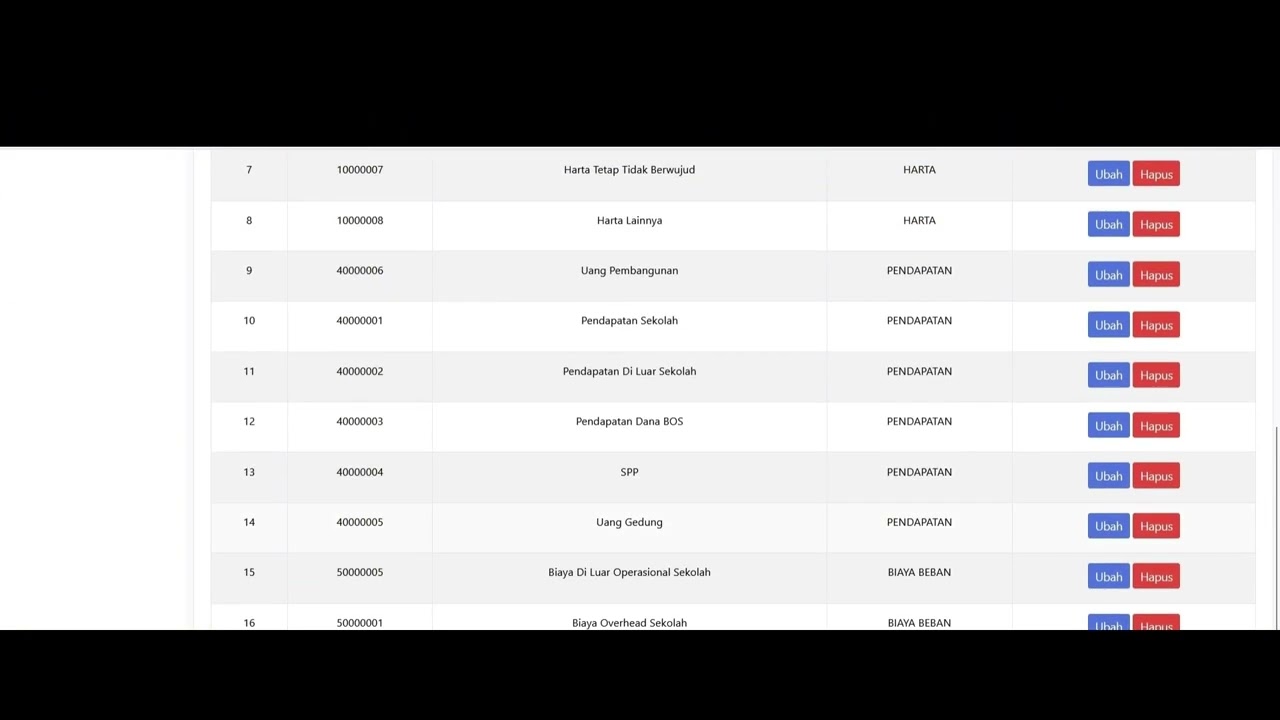 3:22
3:22
Dafatar akun keuanggan
129 views
 9:56
9:56
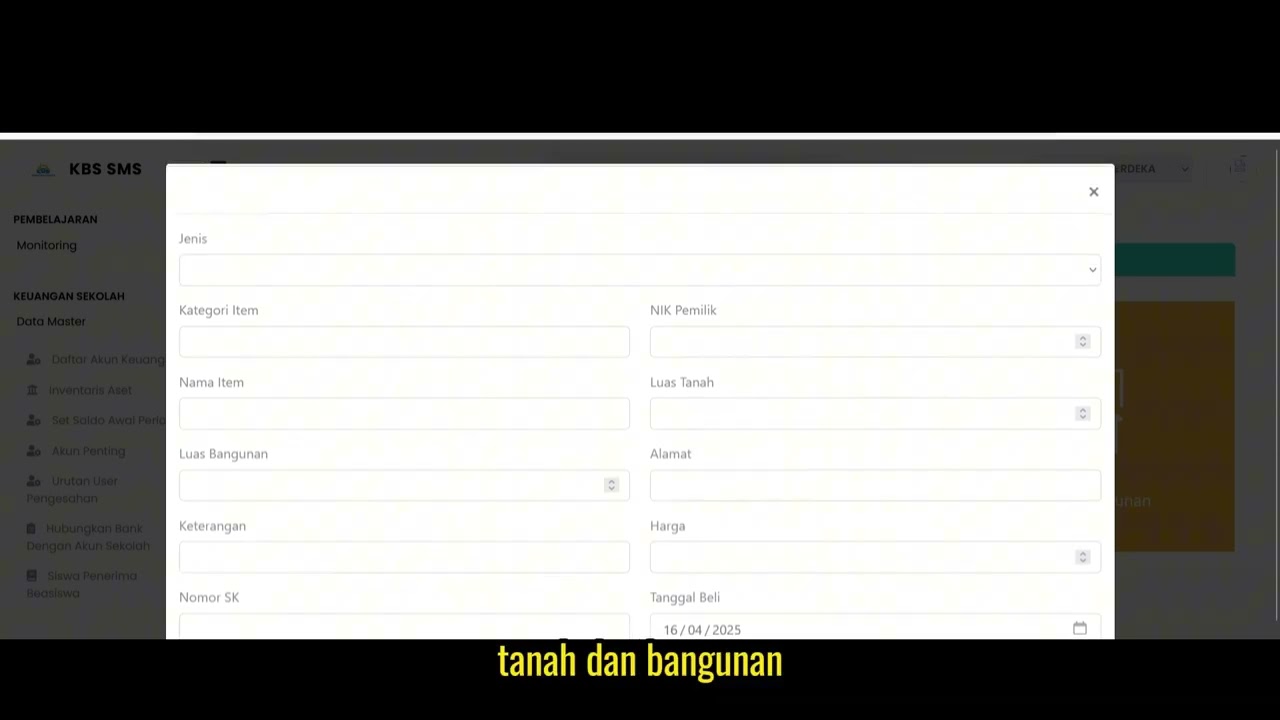
Inventaris Aset
96 views
 1:13
1:13
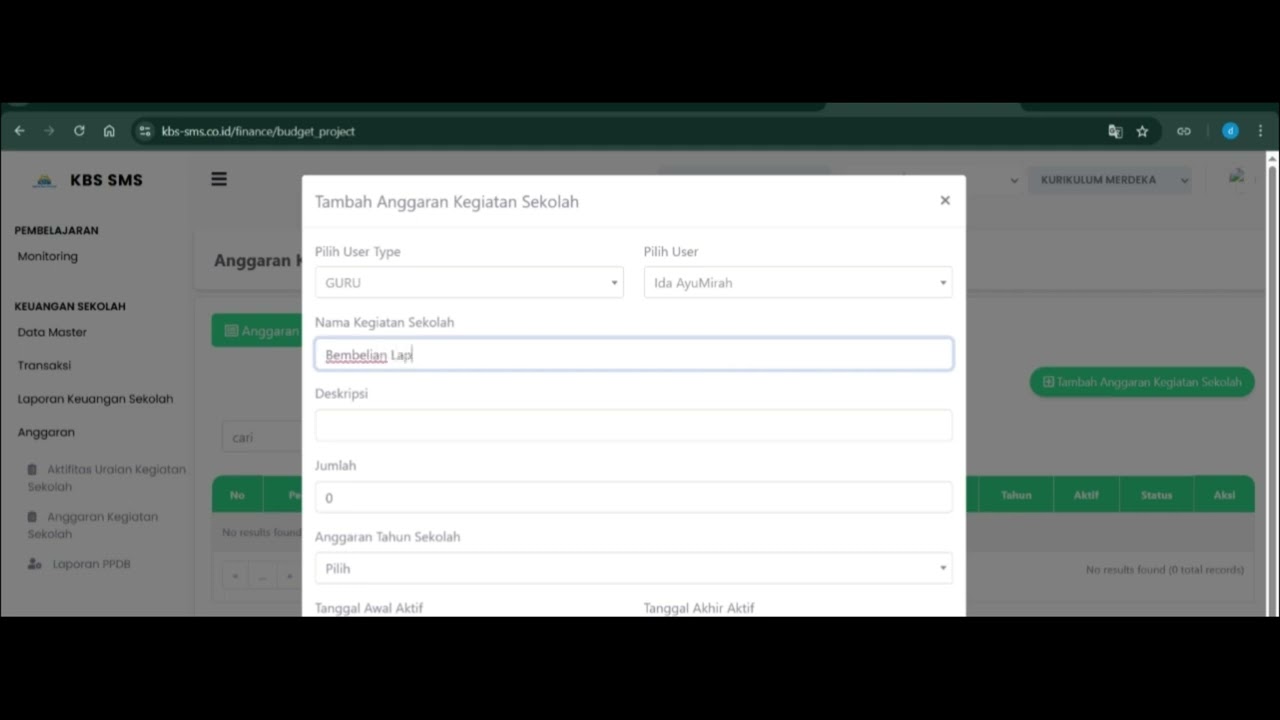
Angaran Kegiatan Sekolah
105 views
 1:10
1:10
Aktifitas urian kegiatan sekolah
88 views
 1:13
1:13
Cetak Tungakan Siswa
97 views
 0:49
0:49
Laporan Presentase Dana
106 views
 3:29
3:29
Financial Report
89 views
 1:24
1:24
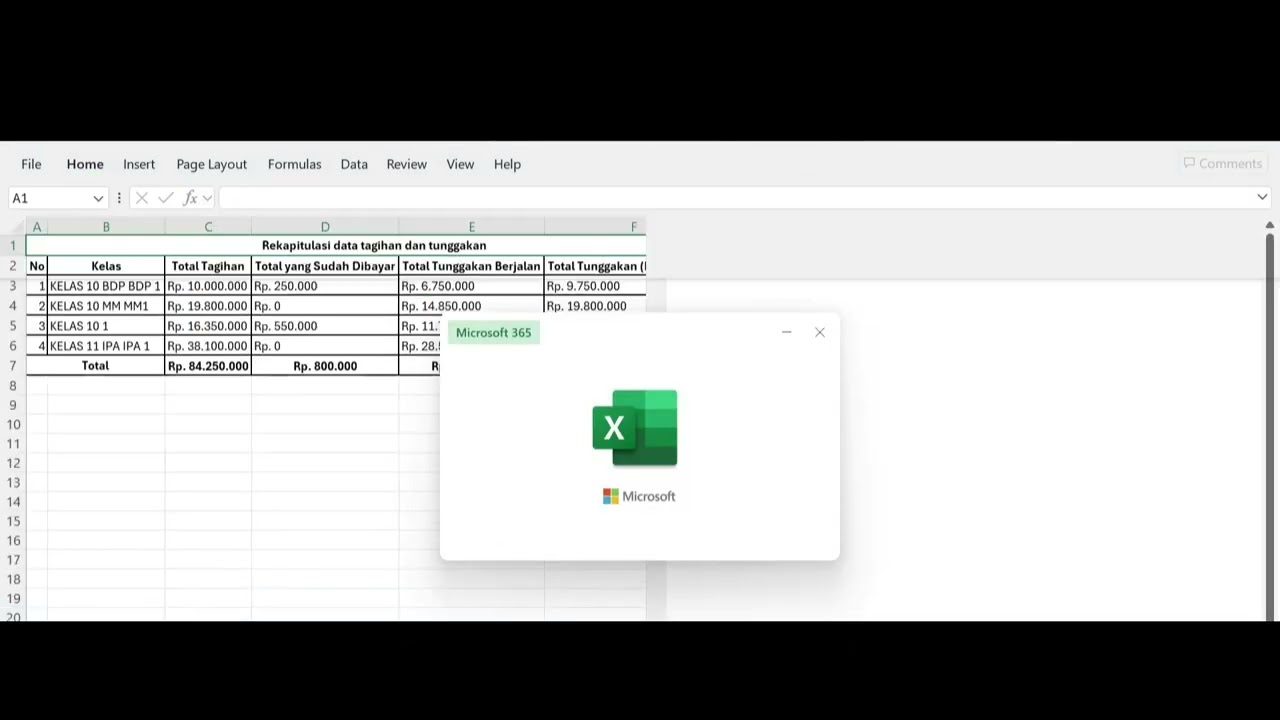
Bill Recapitulation
104 views
 1:40
1:40
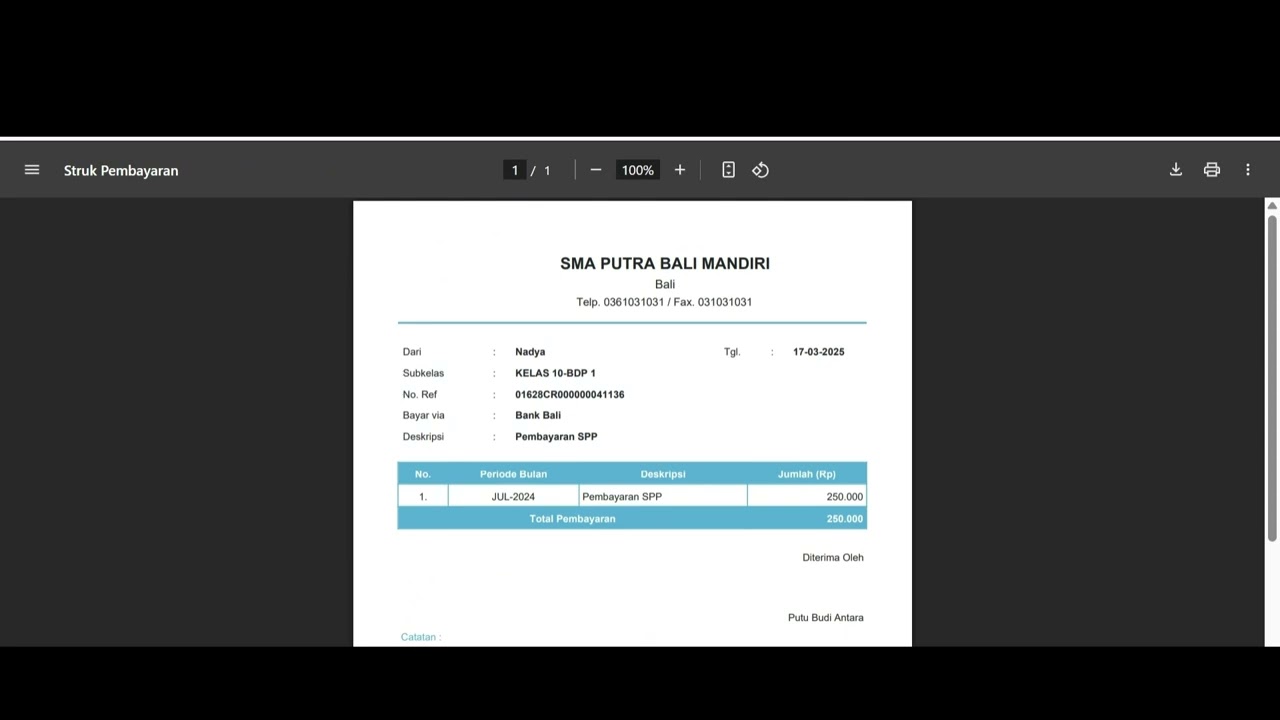
Bill Payment
92 views
 1:50
1:50
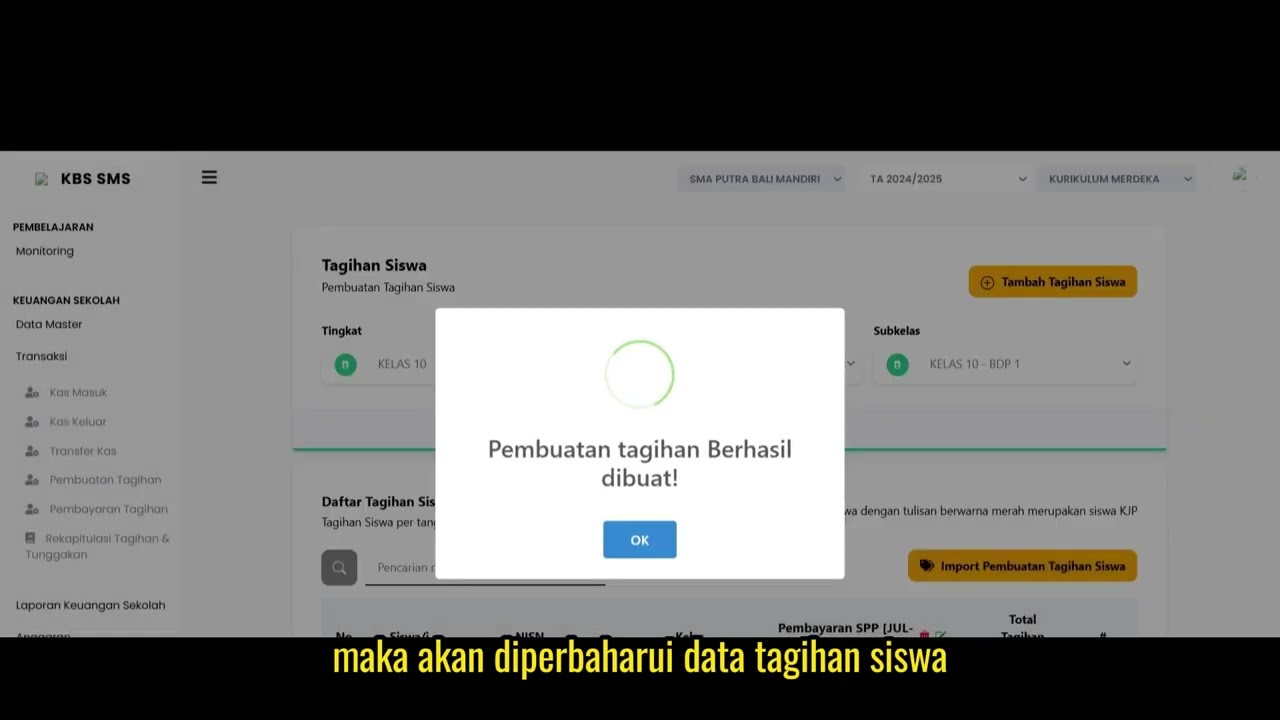
The Bill Creation
89 views
Cash Transfer 1
95 views
 2:39
2:39
Cash Disbursement
83 views
 1:06
1:06
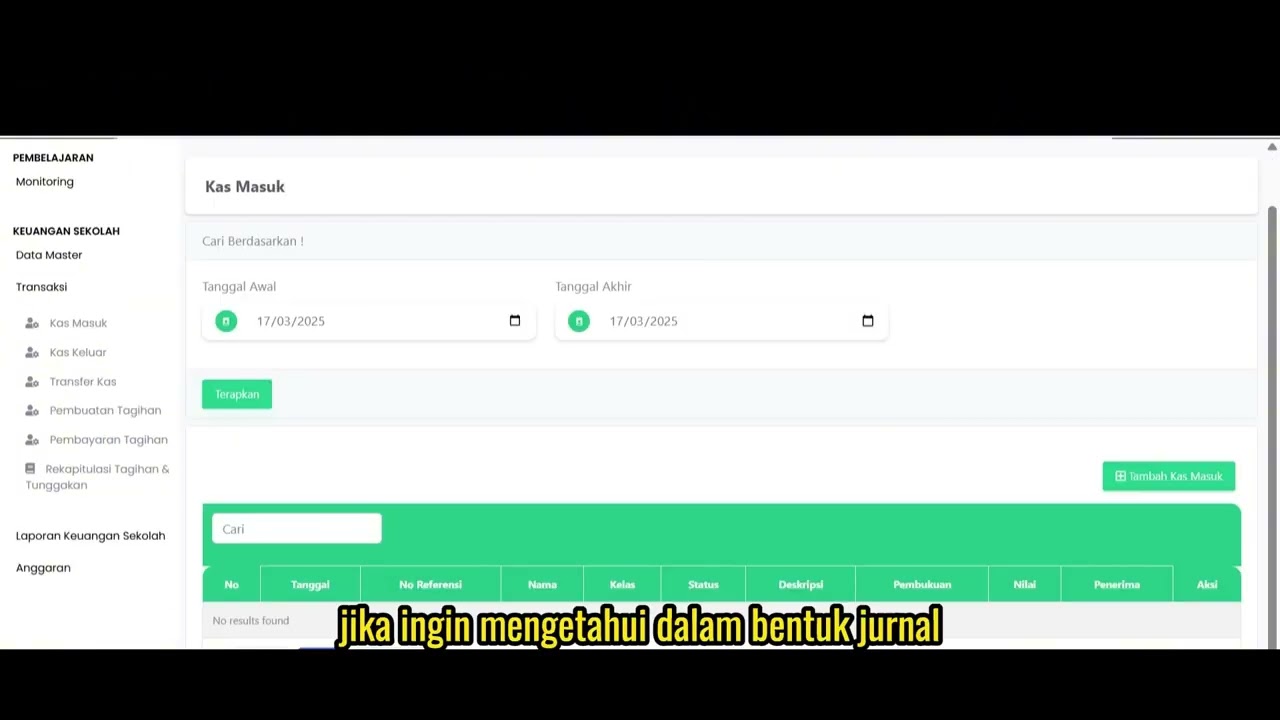
Cash Receipt
80 views
 1:17
1:17
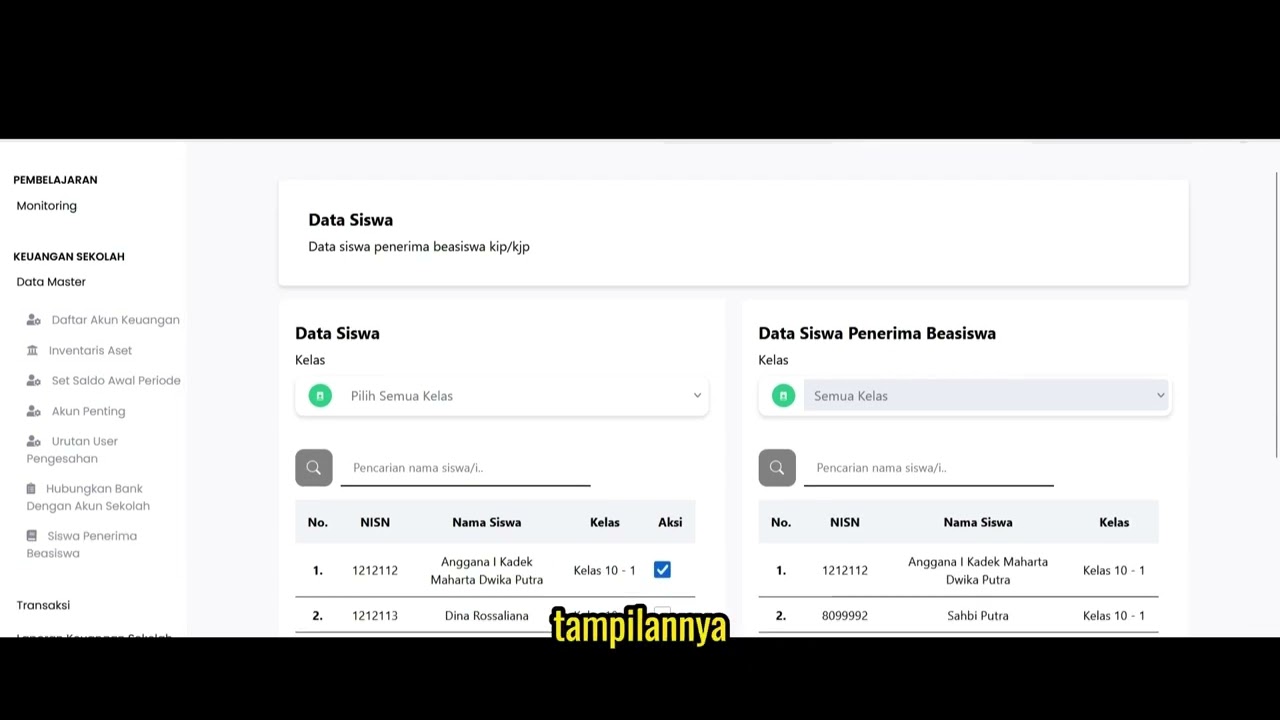
Scholarship Student Recipients
94 views
Related Videos
Dafatar akun keuanggan
129 views • 8 months ago
Inventaris Aset
96 views • 8 months ago
Angaran Kegiatan Sekolah
105 views • 8 months ago
Aktifitas urian kegiatan sekolah
88 views • 8 months ago
Cetak Tungakan Siswa
97 views • 8 months ago
Laporan Presentase Dana
106 views • 8 months ago