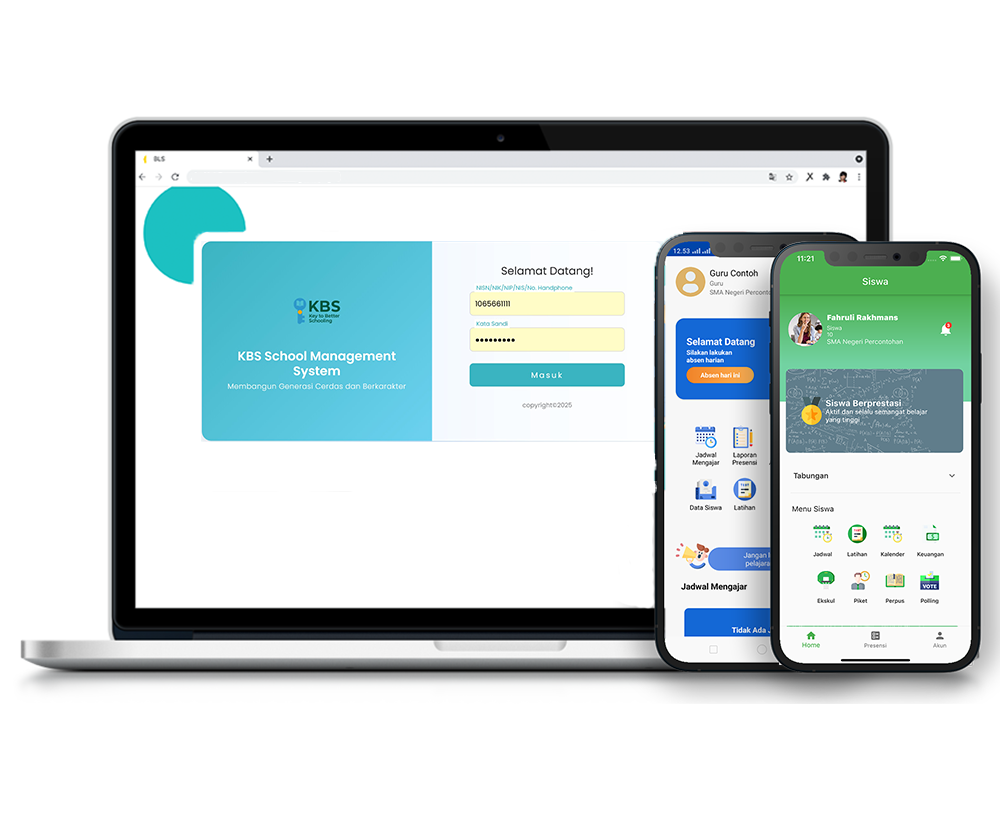
Bill Payment
Description
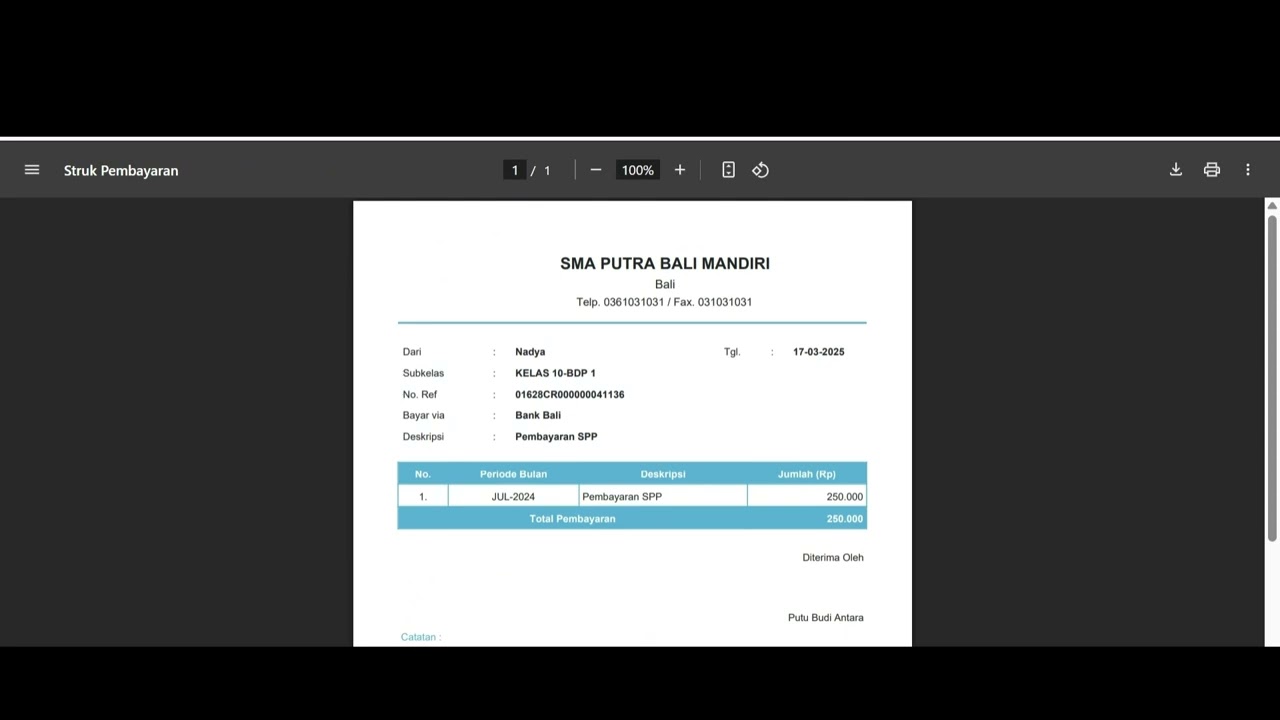
The Bill Payment feature allows users to process various types of school payments—including tuition fees (SPP), building fees, and other school-related bills—in a practical and structured manner. With this feature, users can record payment transactions, select cash accounts, check paid transaction histories, and generate printable payment receipts directly.
This step-by-step tutorial video guides users through managing bill payments, confirming transactions, and viewing or printing student payment receipts.
Timestamps / Video Outline:
-
Feature Overview: Introduction to the Bill Payment feature for tuition fees, building fees, and other school invoices.
-
Step 1: Selecting Bills: Checking the boxes for the monthly bills to be paid and clicking the 'Pay' button.
-
Step 2: Filling in Payment Confirmation: Selecting the Cash Account used and entering the Description field for payment details.
-
Step 3: Processing Payment: Clicking the 'Pay Bill' button until the system shows a success notification and payment receipt image.
-
Step 4: Checking Paid Bills: Reviewing completed payments using the student's NISN by clicking the 'View Transaction' button.
-
Step 5: Viewing & Printing Receipts: Accessing and printing payment receipts via the 'Print' column.
School Finance
14 videos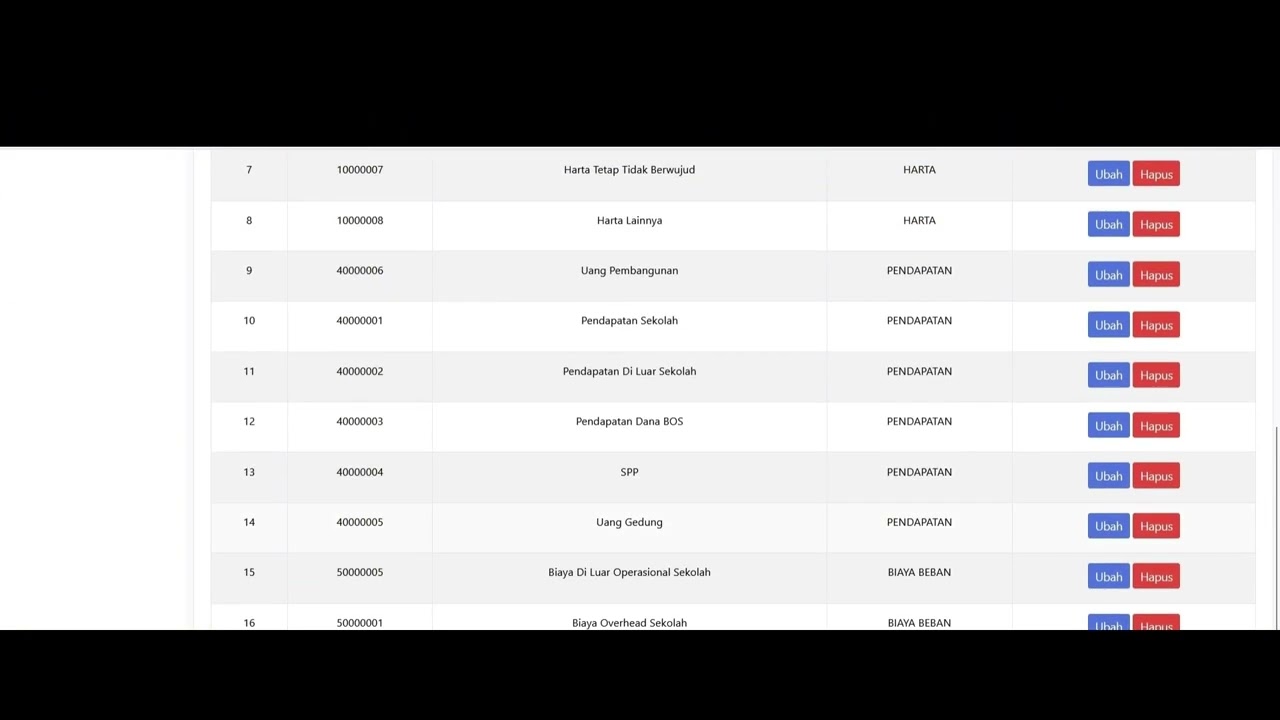 3:22
3:22
Dafatar akun keuanggan
129 views
 9:56
9:56
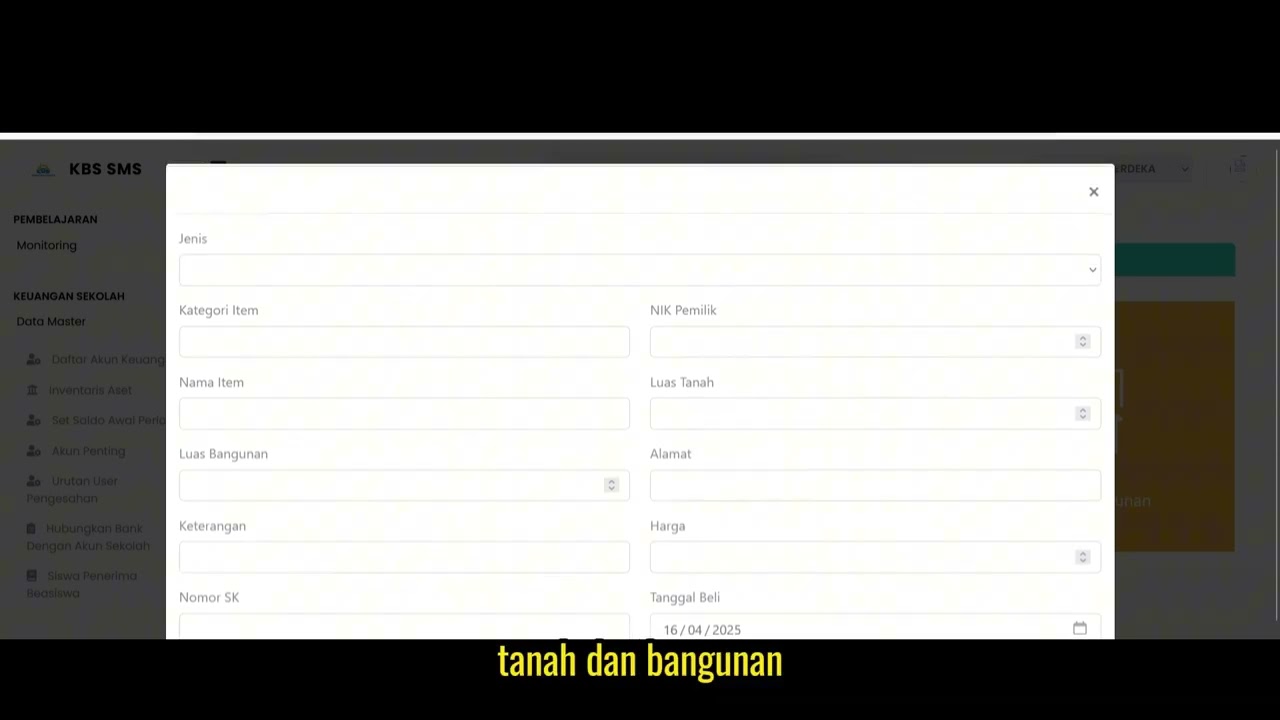
Inventaris Aset
97 views
 1:13
1:13
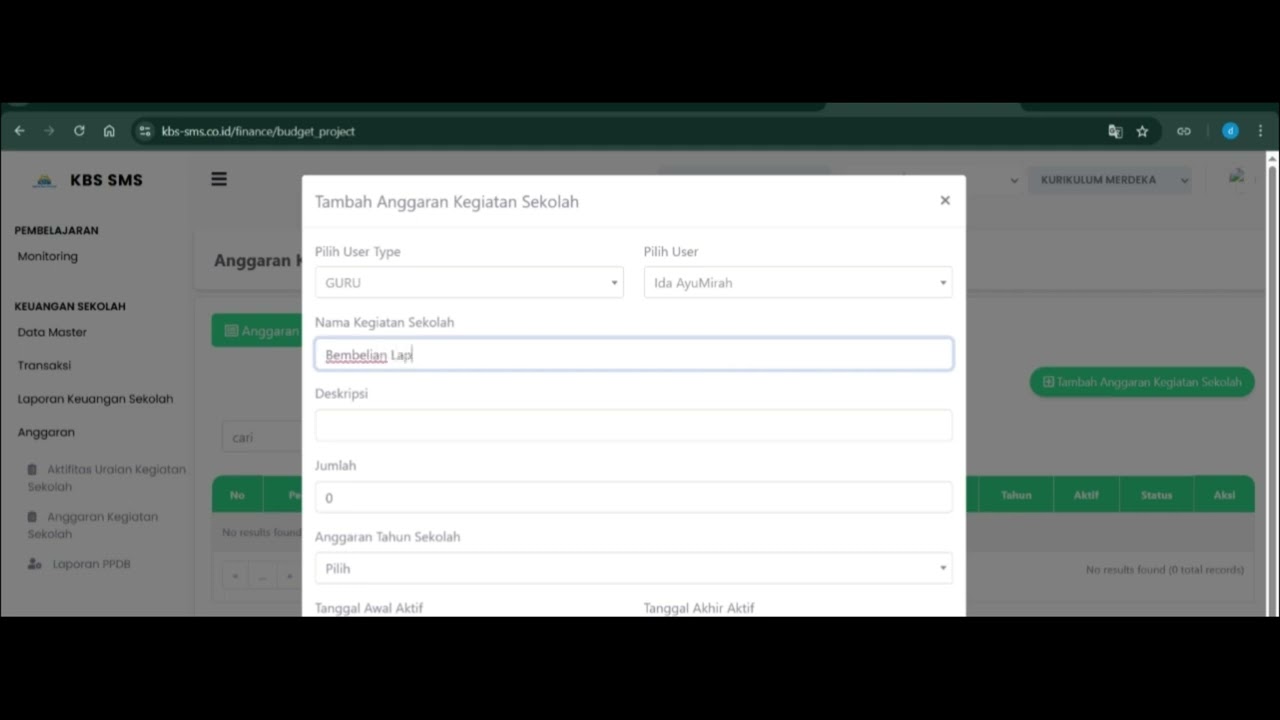
Angaran Kegiatan Sekolah
105 views
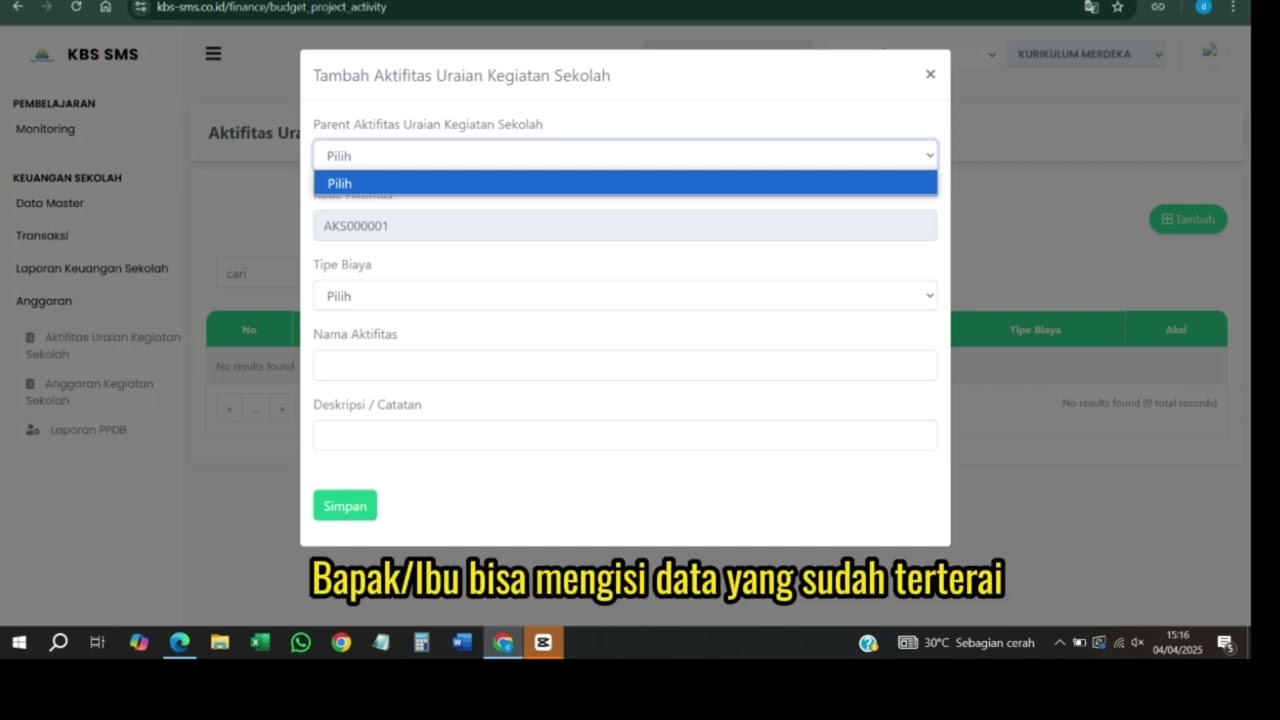 1:10
1:10
Aktifitas urian kegiatan sekolah
88 views
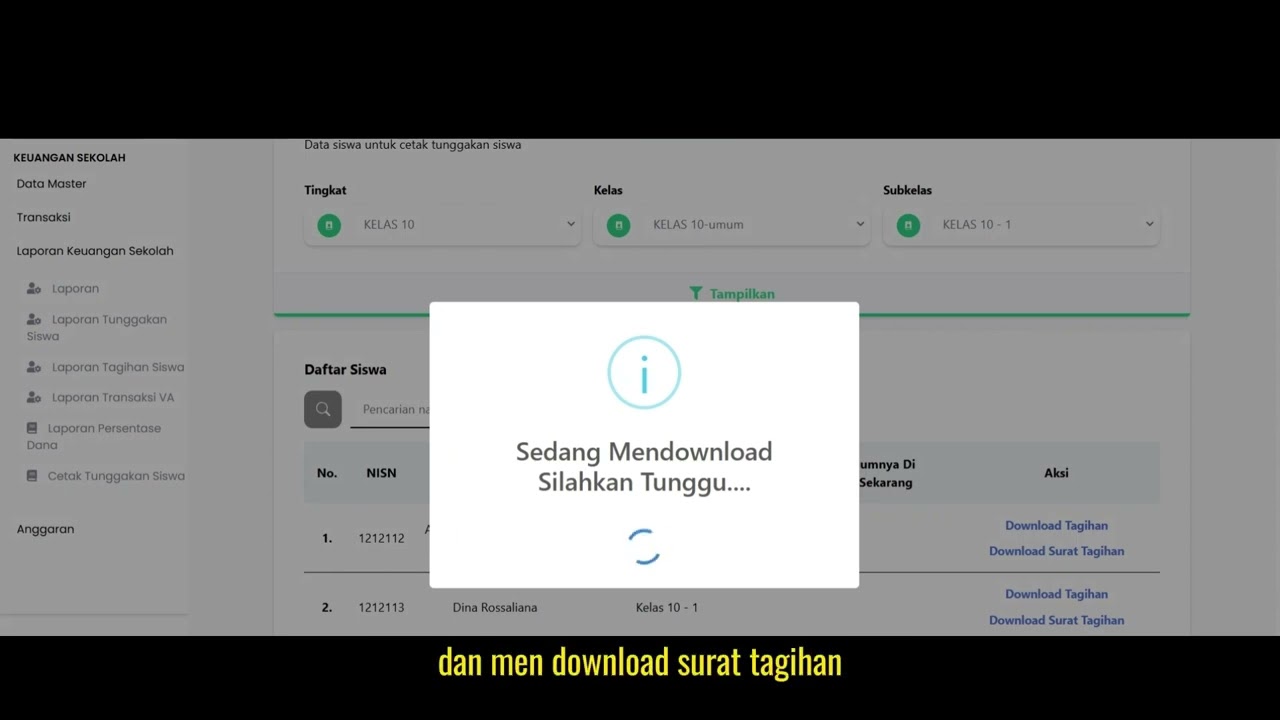 1:13
1:13
Cetak Tungakan Siswa
97 views
 0:49
0:49
Laporan Presentase Dana
106 views
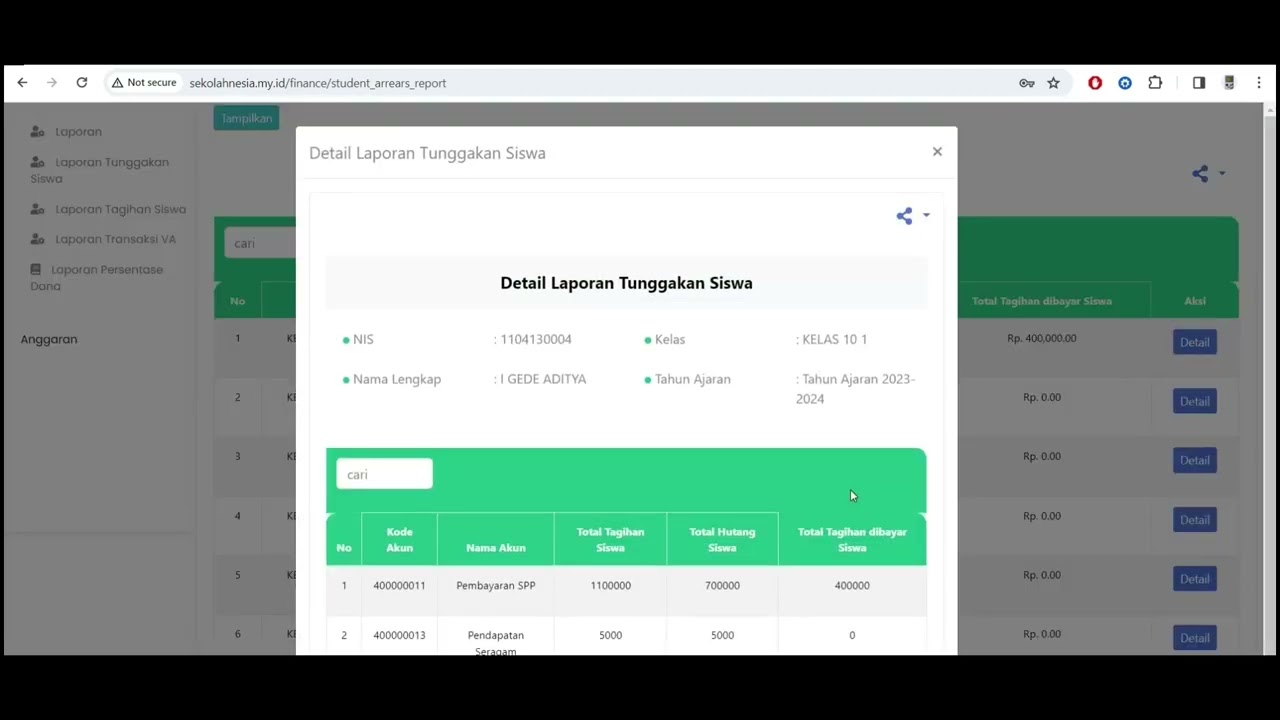 3:29
3:29
Financial Report
89 views
 1:24
1:24
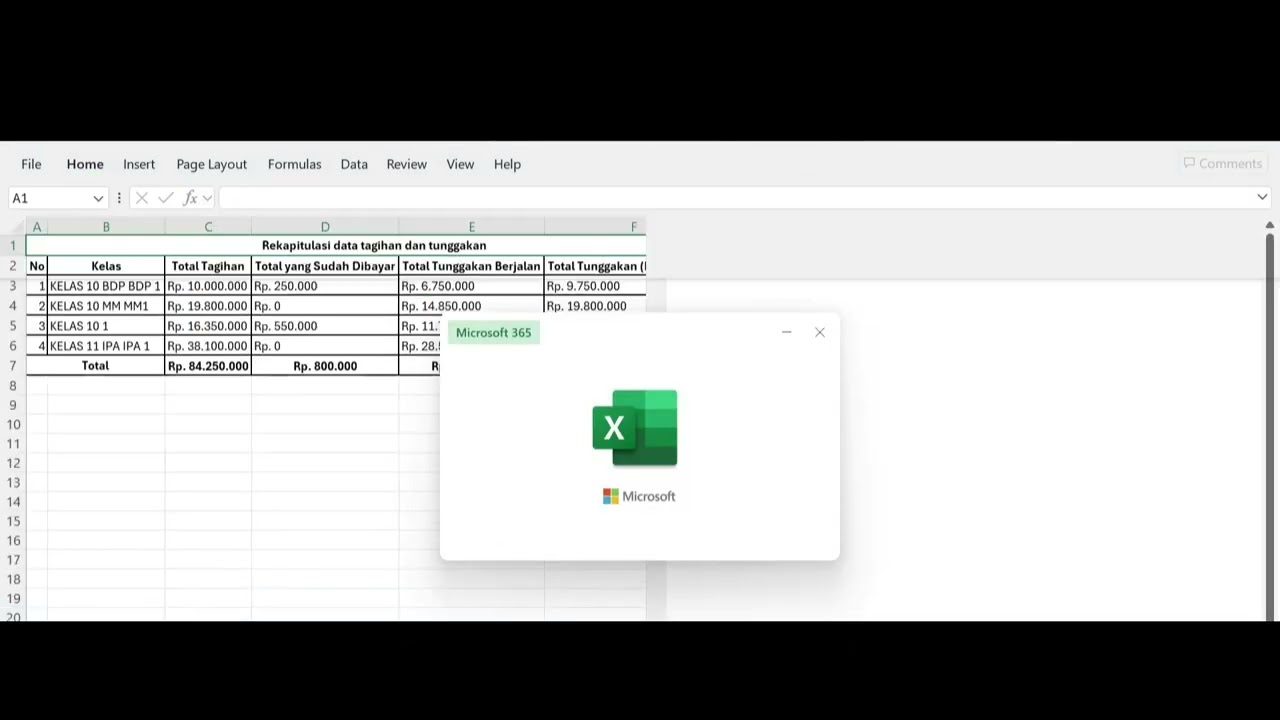
Bill Recapitulation
104 views
Bill Payment
93 views
 1:50
1:50
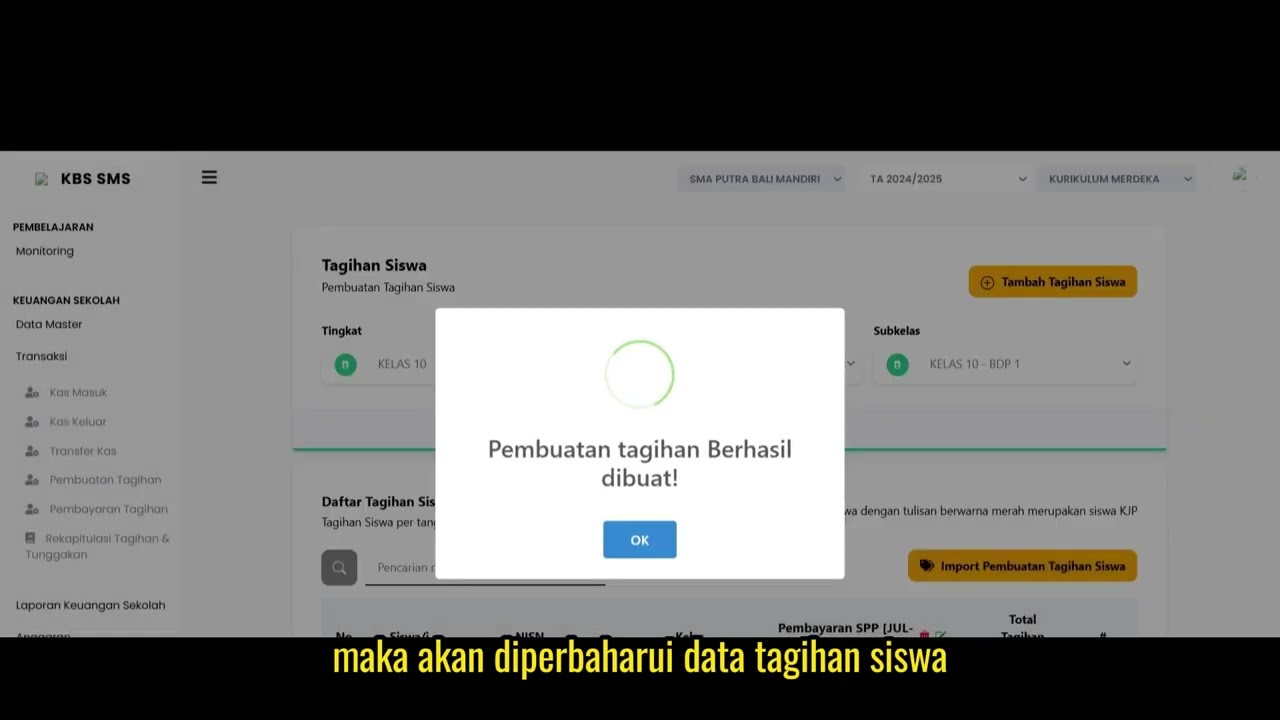
The Bill Creation
89 views
 1:53
1:53
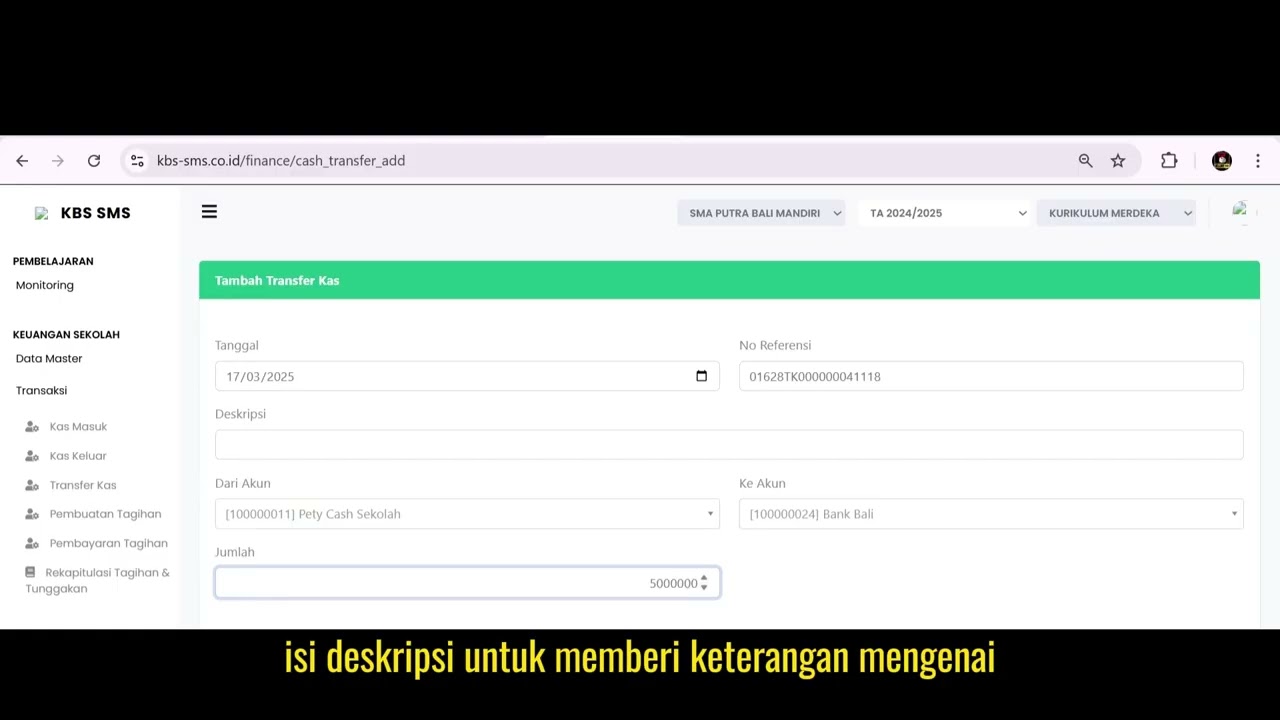
Cash Transfer 1
95 views
 2:39
2:39
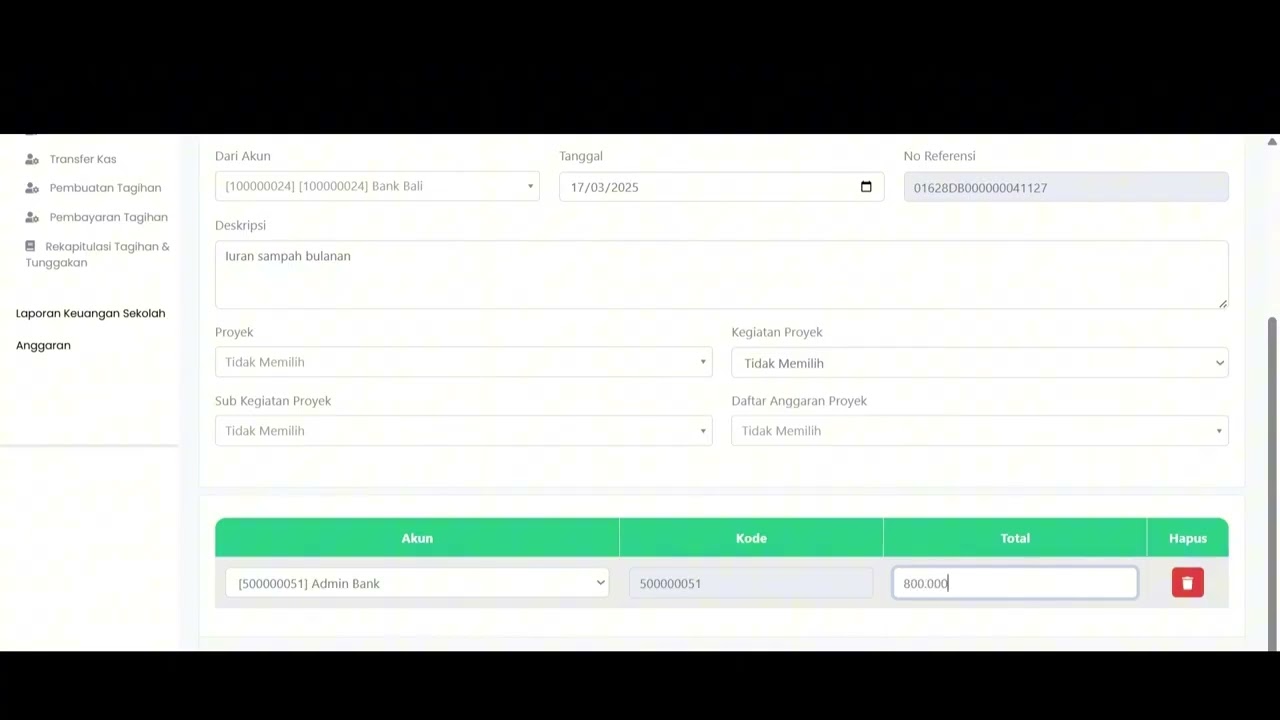
Cash Disbursement
83 views
 1:06
1:06
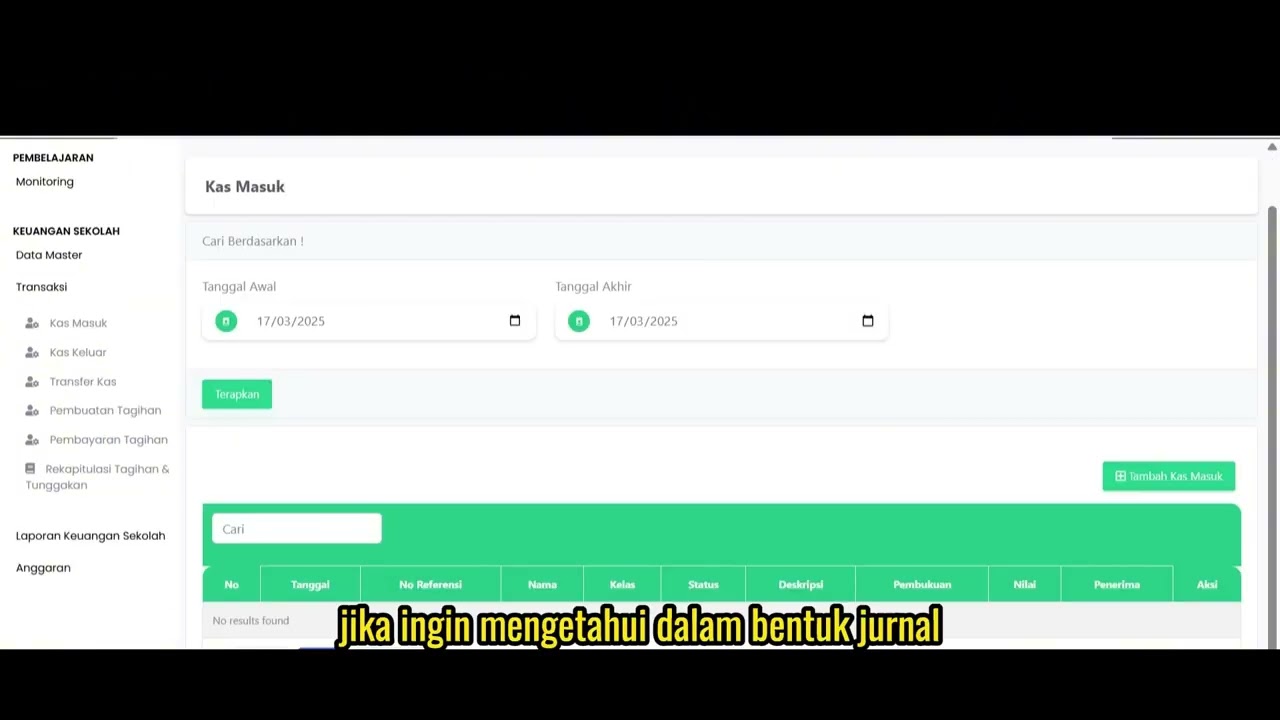
Cash Receipt
81 views
 1:17
1:17
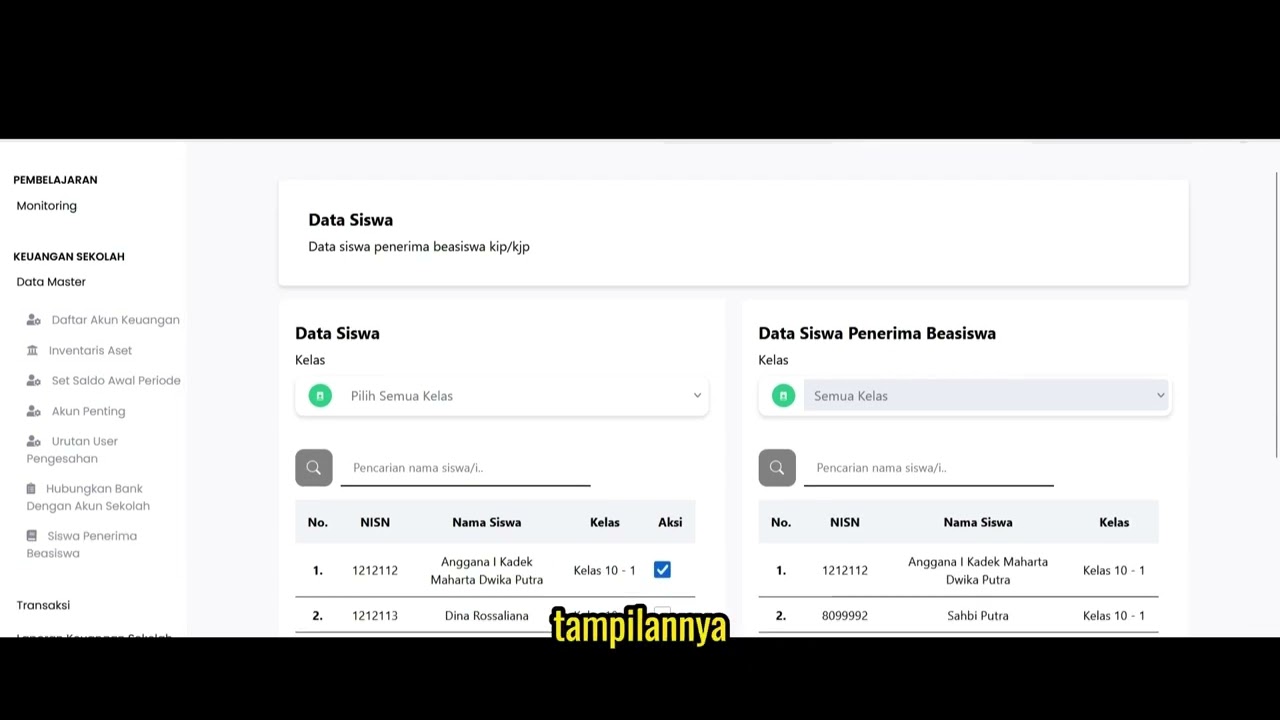
Scholarship Student Recipients
94 views
Related Videos
Dafatar akun keuanggan
129 views • 8 months ago
Inventaris Aset
97 views • 8 months ago
Angaran Kegiatan Sekolah
105 views • 8 months ago
Aktifitas urian kegiatan sekolah
88 views • 8 months ago
Cetak Tungakan Siswa
97 views • 8 months ago
Laporan Presentase Dana
106 views • 8 months ago