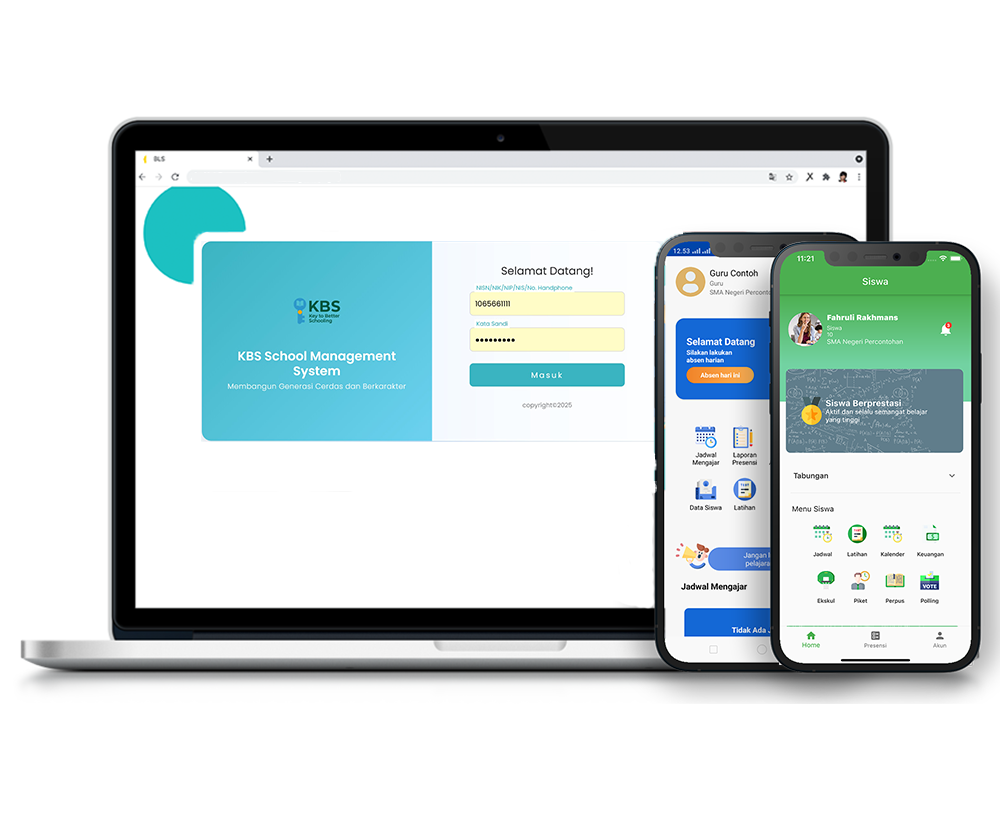
Upload Tugas
Description
This guide video explains the steps for teachers to assign tasks to students using the Class Activity feature. The discussion covers creating a new assignment entry, preparing and copying material links from Google Drive, checking submitted assignments, and the final stage of providing evaluation notes and grades into the system.
Step-by-Step Usage Guide
-
Menu Navigation: On the left menu bar, navigate to the Academic (Akademik) menu, then select the Class Activity (Aktivitas Kelas) submenu.
-
Adding an Assignment: Determine the class to be displayed, then click the yellow Assignment Data Entry (Entri Data Tugas) button.
-
Filling Assignment Details: Select the "Assignment Type" (e.g., Homework) from the dropdown, then determine the class and subject.
-
Completing the Form: Check the box in the class column, fill in the "Assignment Name", and then set the "Active Date" and "End Date" for the assignment's validity period.
-
Preparing the Link: Open your Google Drive and copy the link to the assignment material file. Ensure the privacy setting is changed to public ("Anyone with the link can view").
-
Inputting the Link: Paste the link into the "Assignment Link" column, then fill in the working instructions in the "Description" (Keterangan) column.
-
Saving the Assignment: Click the Submit button until the "Assignment Data Input successfully saved" pop-up appears.
-
Checking Student Assignments: To view submitted assignments, click Detail on the assignment row, then click View File (Lihat Berkas) next to the student's name.
-
Providing Grades: After reviewing the file, fill in the "Student Notes" (Catatan Siswa), enter the score in the "Grade" (Nilai) column, and click Save (Simpan).
Important Notes There is a crucial step when linking materials from Google Drive. You must change the file's privacy access setting to public ("Anyone with the link can view"). If the file's privacy remains "Restricted", students will not have access to open and read the assignment material.
Academic
7 videos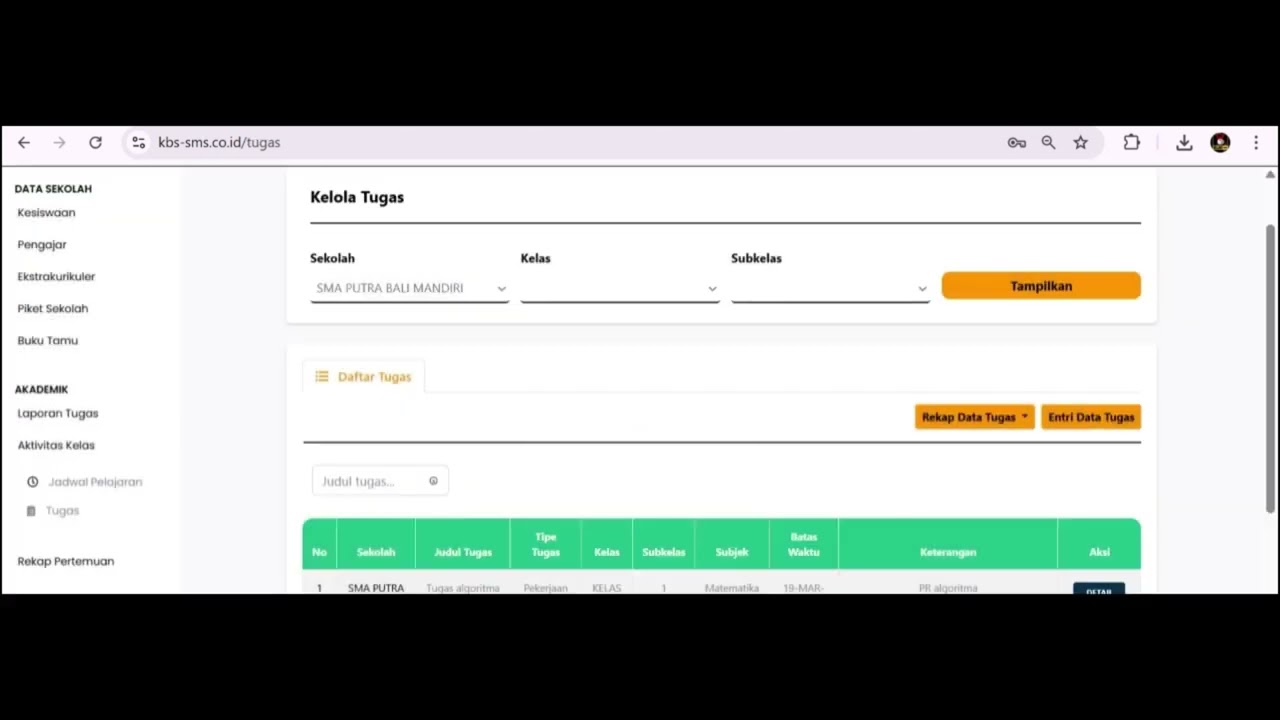
Related Videos
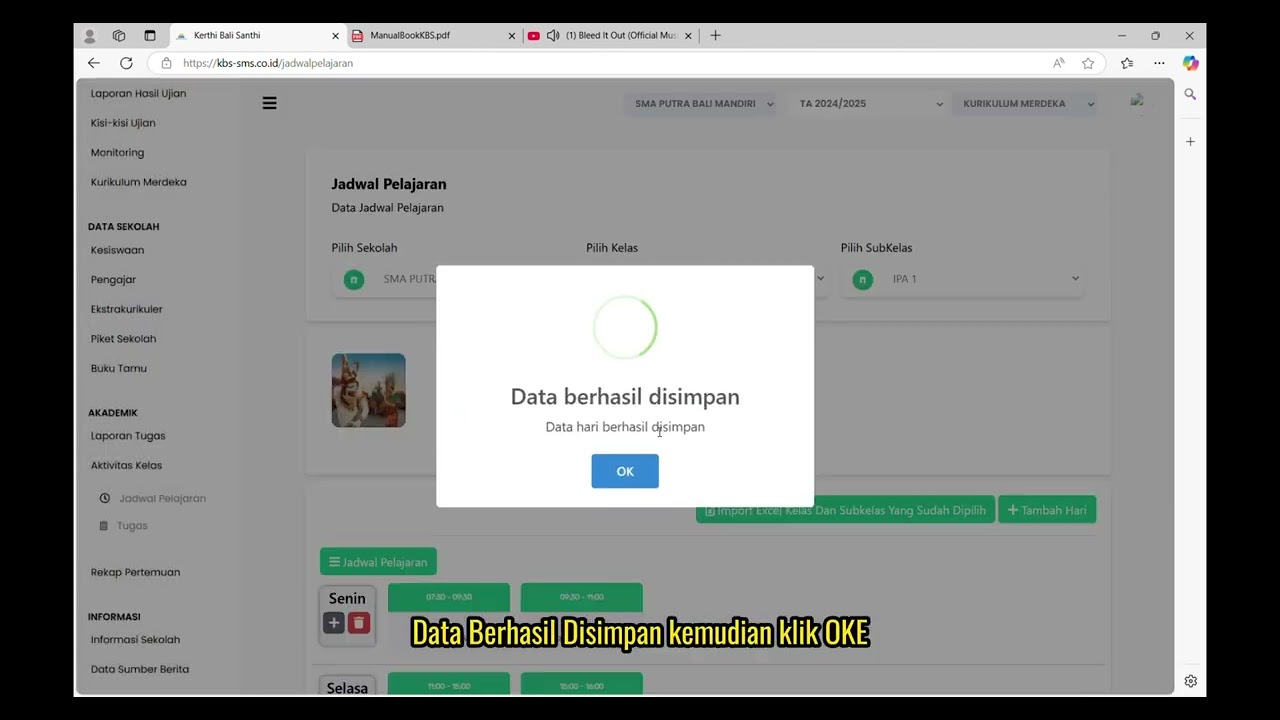
Jadwal Pelajaran Aktivitas Kelas
95 views • 8 months ago
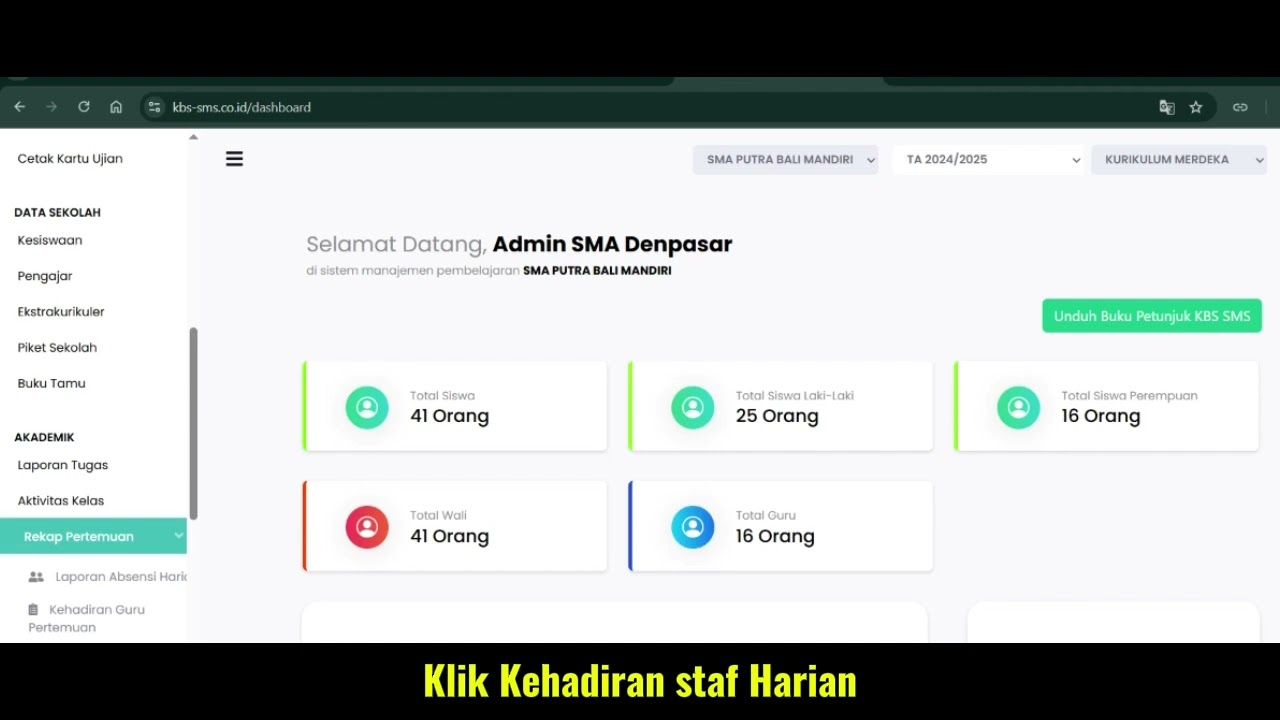
Fitur Kehadiran Staff Harian
98 views • 8 months ago
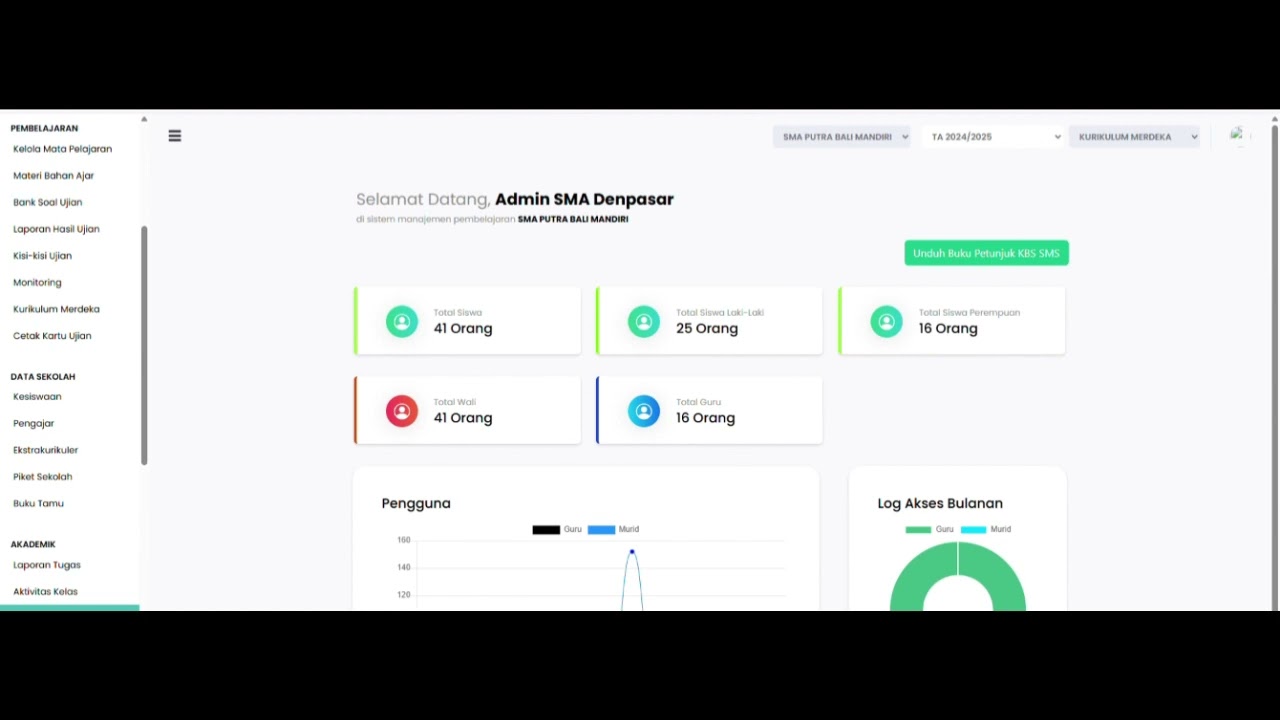
Teacher Meeting Attendance Feature
105 views • 8 months ago
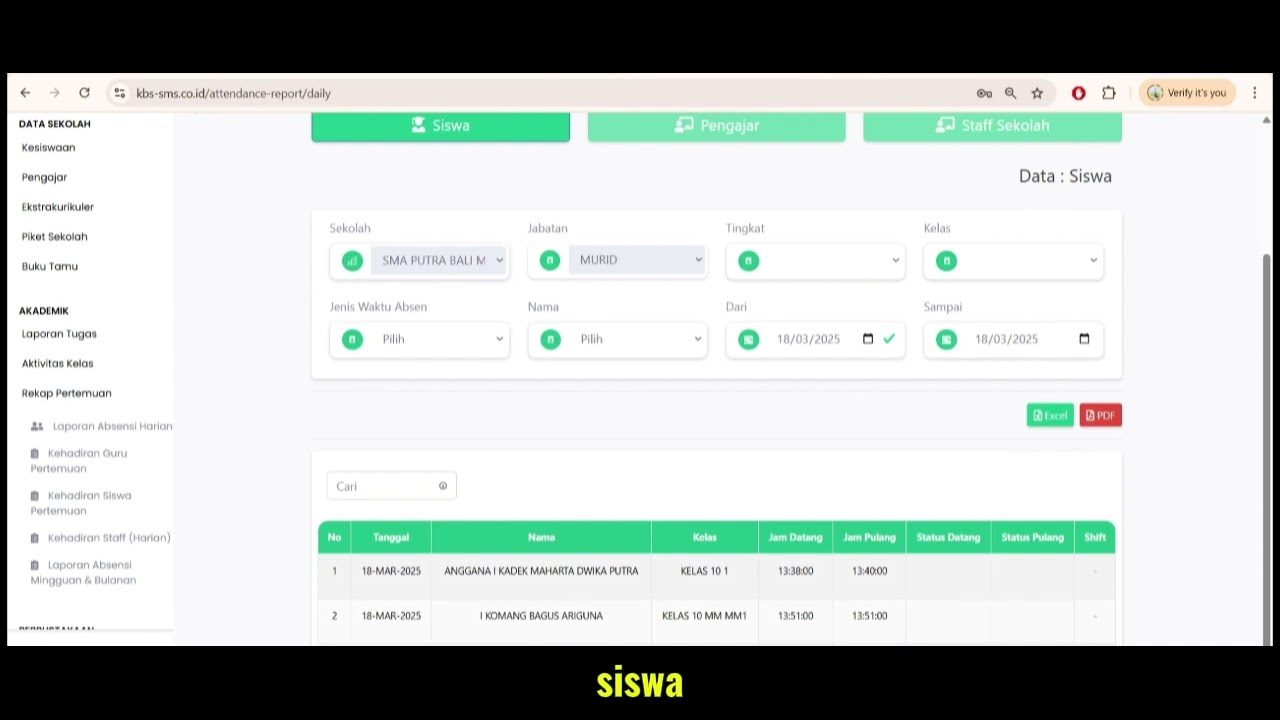
Daily Attendance Report Feature
104 views • 8 months ago
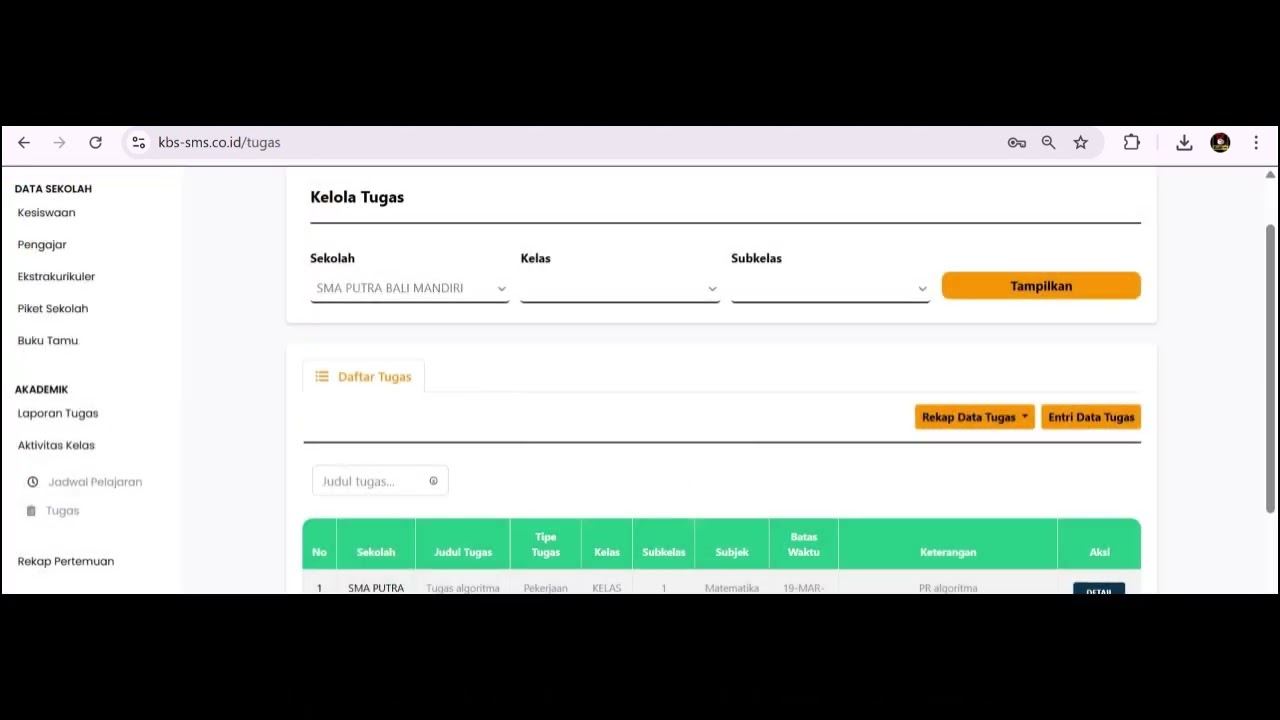
Assignment Upload Feature
93 views • 8 months ago
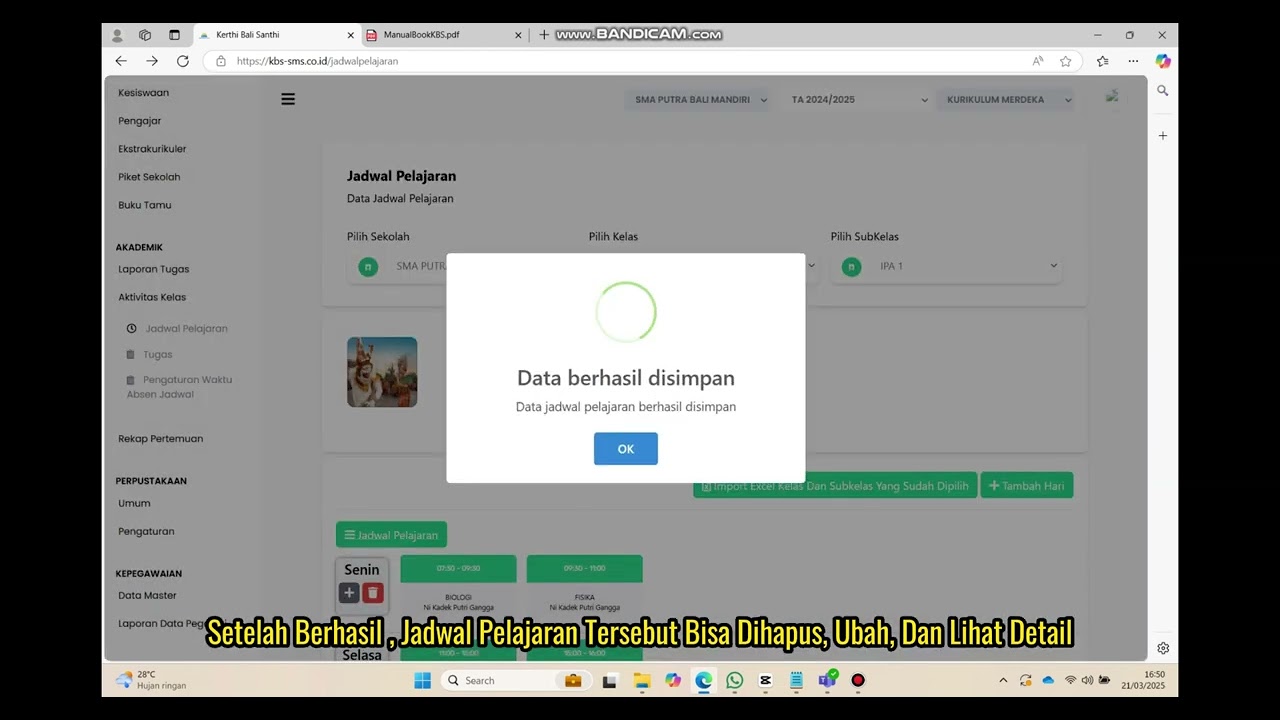
Class Schedule Feature
90 views • 8 months ago